
How to Set up ProFTPD on AlmaLinux 9
What is Proftpd Linux?
ProFTPD is a popular open-source FTP server software that is widely used on Unix and Linux systems. It has many features that include virtual hosting, modular architecture, advanced security, and user-based access controls. Also, it is free and secure.
How To Set up ProFTPD on AlmaLinux 9?
To set up ProFTPD on AlmaLinux 9, you must have access to your server as a non-root user with sudo privileges and set up a basic firewall. For this purpose, you can follow this guide on Initial Server Setup with AlmaLinux 9.
Now proceed to the following steps to set up ProFTPD on AlmaLinux 9.
Step 1 – Install ProFTPD on AlmaLinux 9
First, you must run the system update by using the command below:
dnf update -yProFTPD packages are available in the EPEL repository. So you need to install the EPEL repository on AlmaLinux 9 with the command below:
dnf install epel-release -yAlso, you must enable the PowerTools on your server by using the command below:
dnf config-manager --set-enabled crbThen, use the following command to install ProFTPD on your server:
dnf install proftpd -yNow you need to edit the ProFTPD configuration file to change the ServerName to your server’s hostname. To do this, proceed to the next step.
Step 2 – Configure ProFTPD on AlmaLinux 9
At this point, you must open the /etc/proftpd.conf file with your favorite text editor, here we use the nano editor:
nano /etc/proftpd.confIn the file, find the ServerName directive and replace it with your server’s hostname.
ServerName "server's hostname/domain"Immediately below this line, add 2 lines:
PassivePorts                   30000 31000
MasqueradeAddress ip_server Step 3 – Configure Firewall Rules for ProFTPD
At this point, we assumed that you had enabled firewalld. Now you need to allow port 21 through the firewall with the command below:
dnf install firewalld -y
systemctl enable firewalld
systemctl start firewalld
firewall-cmd --permanent --add-port=21/tcpTo apply the new rules, reload the firewall with the following command:
firewall-cmd --reloadStep 4 – How To Start ProFTPD on AlmaLinux 9?
At this point, you can use the following command to start your ProFTPD service on AlmaLinux 9:
systemctl start proftpdThen, you can set the ProFTPD service to start at boot with the command below:
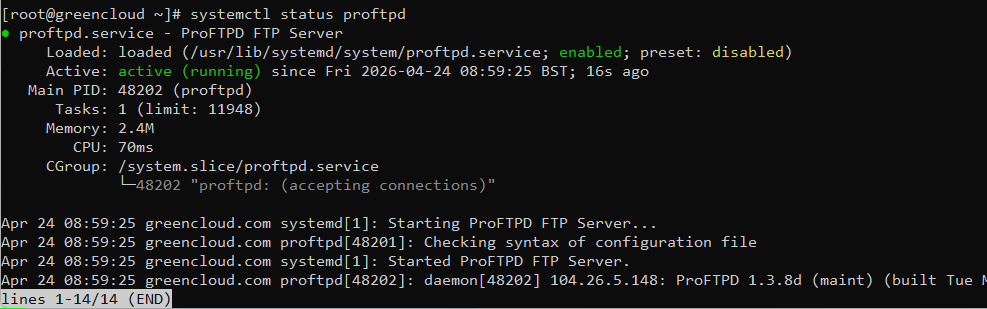
systemctl enable proftpdYou can verify that your ProFTPD is active and running on AlmaLinux 9 by using the following command:
systemctl status proftpdIn your output, you will see:
Step 5 – Testing the FTP connection
Creating an FTP user
Create an FTP user and create a password for that user.
First, we add the user,
useradd -m ftpgreen
Next, we set up a password for the user,
passwd ftpgreen
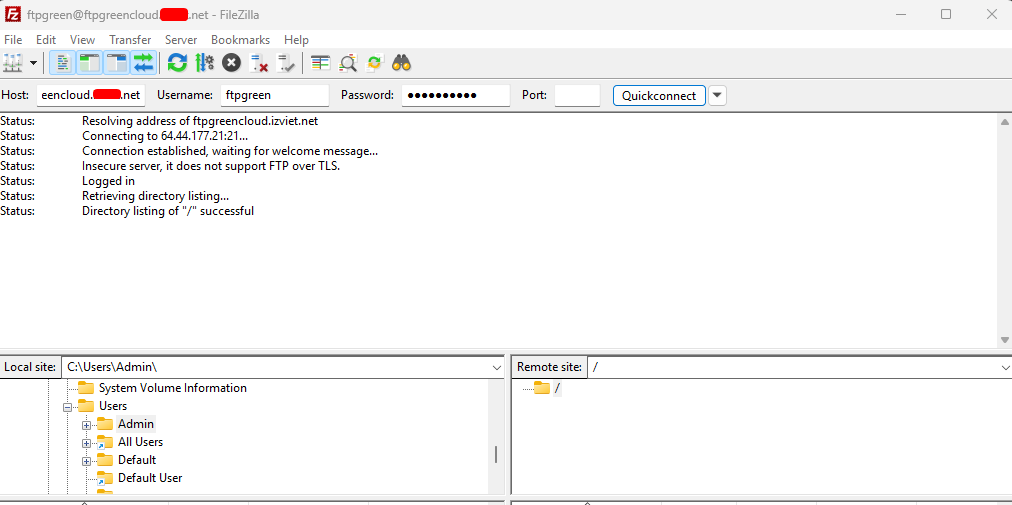
Finally, test the FTP connection using FileZilla or WinSCP client software.
Input your Server’s IP or Hostname in the Host Field, the Name of the FTP user created earlier in the Username Field, and finally your Password.
If you have configured a different port for this, you will have to mention it in the Port Field.
Conclusion
At this point, you have learned to set up and Configure ProFTPD on AlmaLinux 9, manage the ProFTPD service, and access it from the Linux command line.
