
How to Install HetrixTools in Windows Server 2022
Introduction
HetrixTools is a monitoring tool used to track server health, uptime, and performance. Using the HetrixTools Server Monitoring Agent, you will be able to constantly monitor the resource usage of your server, gaining essential insights and alerts that help maintain system stability and prevent downtime. This guide details the installation of HetrixTools on a Windows Server, enabling administrators to monitor server metrics and receive real-time alerts. Ideal for those managing Windows Server environments, this process enhances server monitoring capabilities.
Prerequisite
- Administrator access to Windows Server
- HetrixTools account
- Basic familiarity with Windows and Windows PowerShell
Step-by-Step Guide
Step 1: Log in/Register to the HetrixTools account
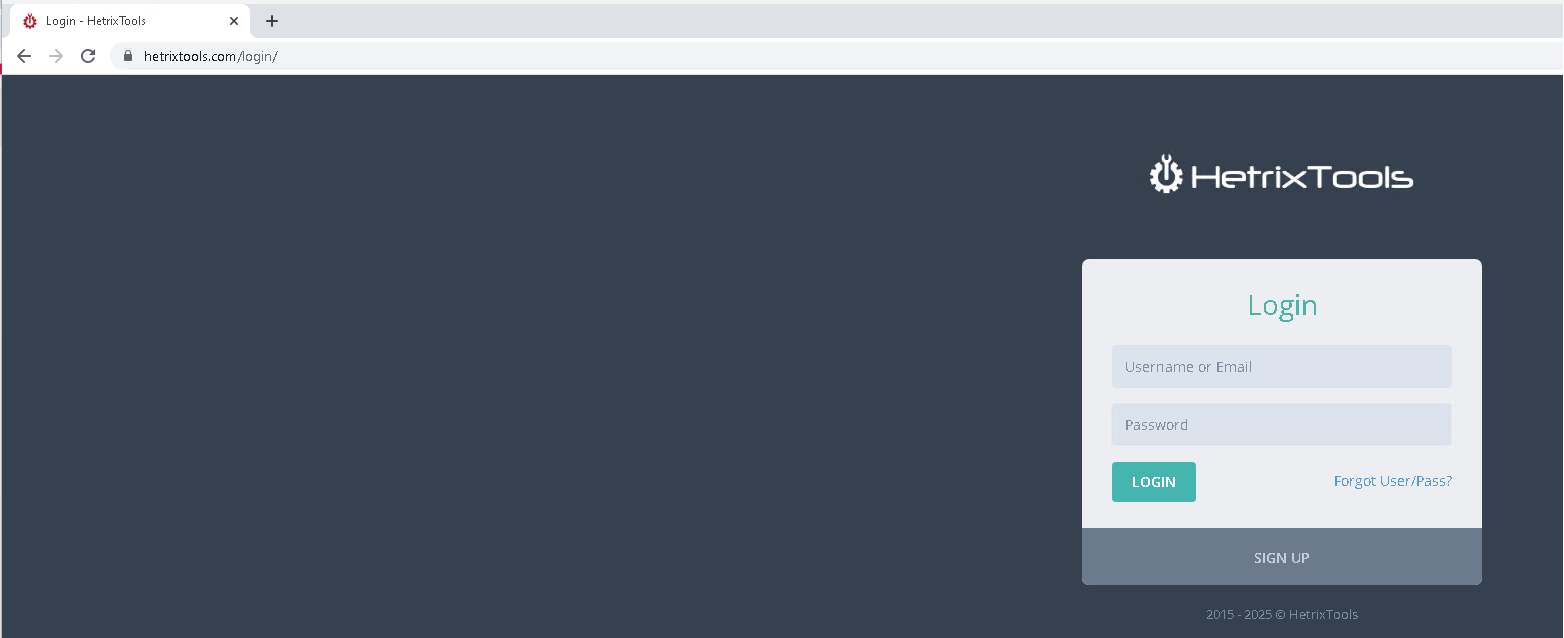
- Navigate to the HetrixTools Login site. If you already have an account, you may proceed to log in.

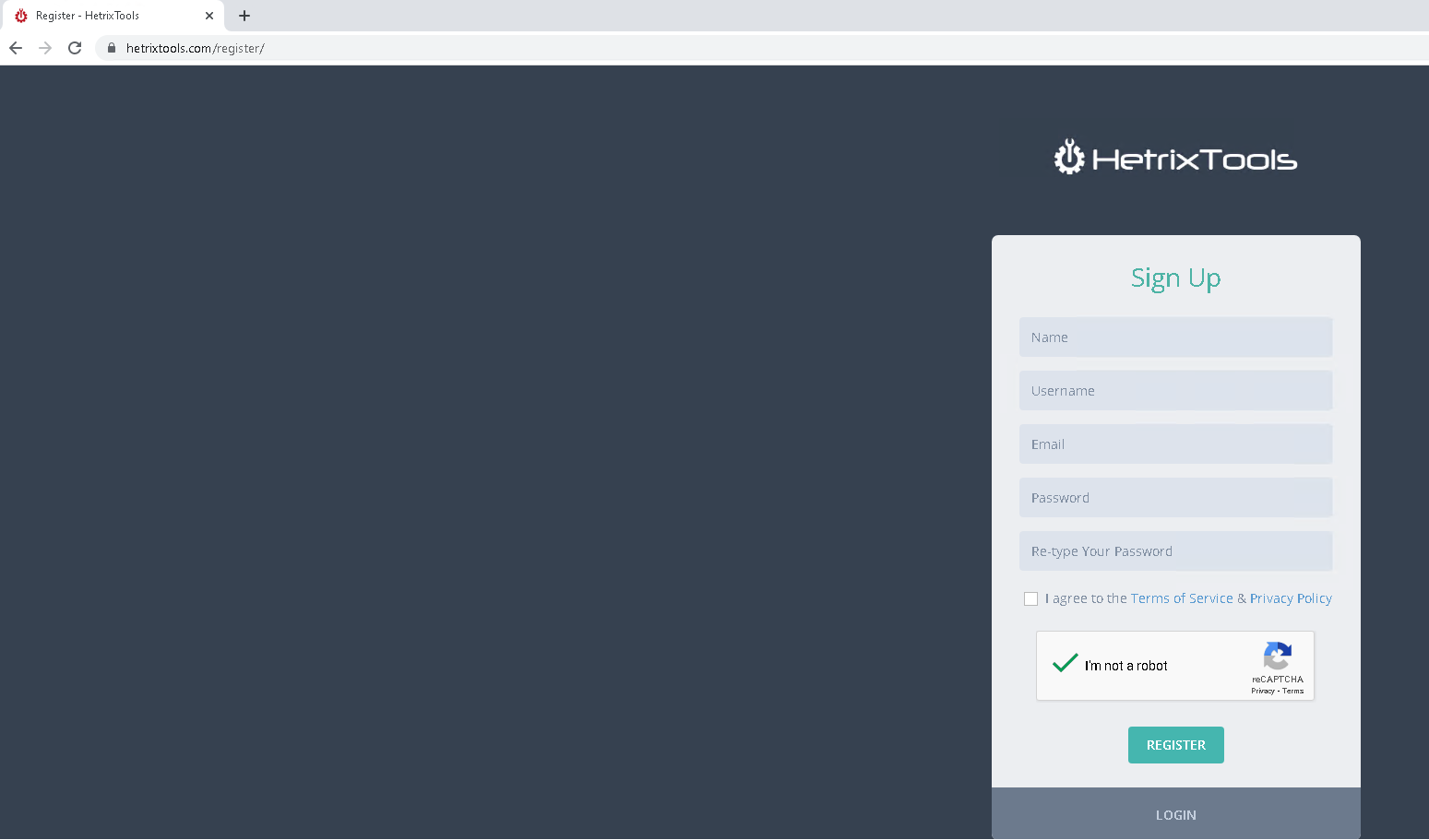
- Else, you may click Create An Account below to sign up page.

- Once you have signed up, you will receive a verification email to the email you used to sign up. Once you have verified, you may log in and you will be redirected to the Dashboard.


Step 2: Create a new monitoring
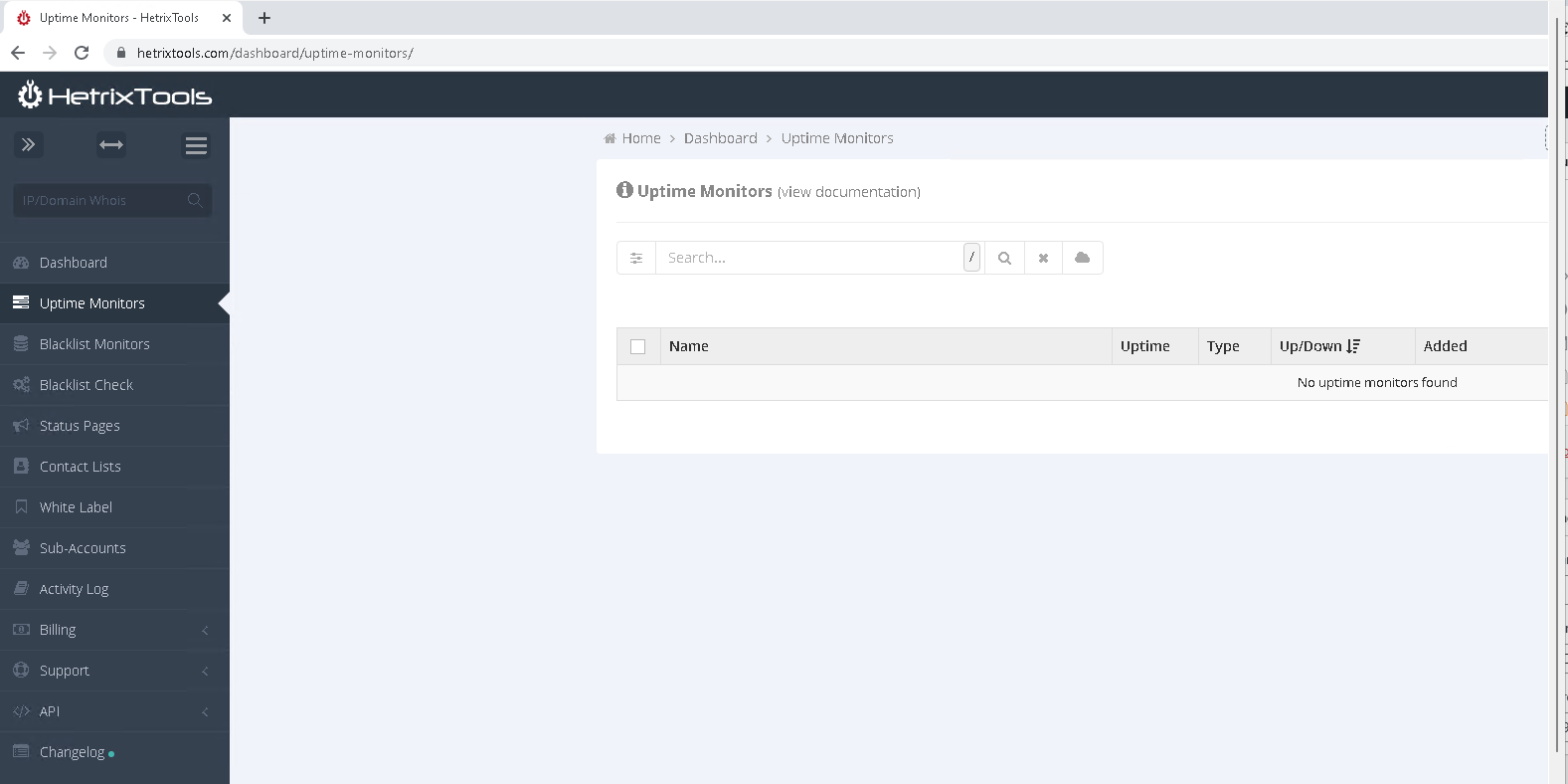
- Navigate to Uptime Monitor.

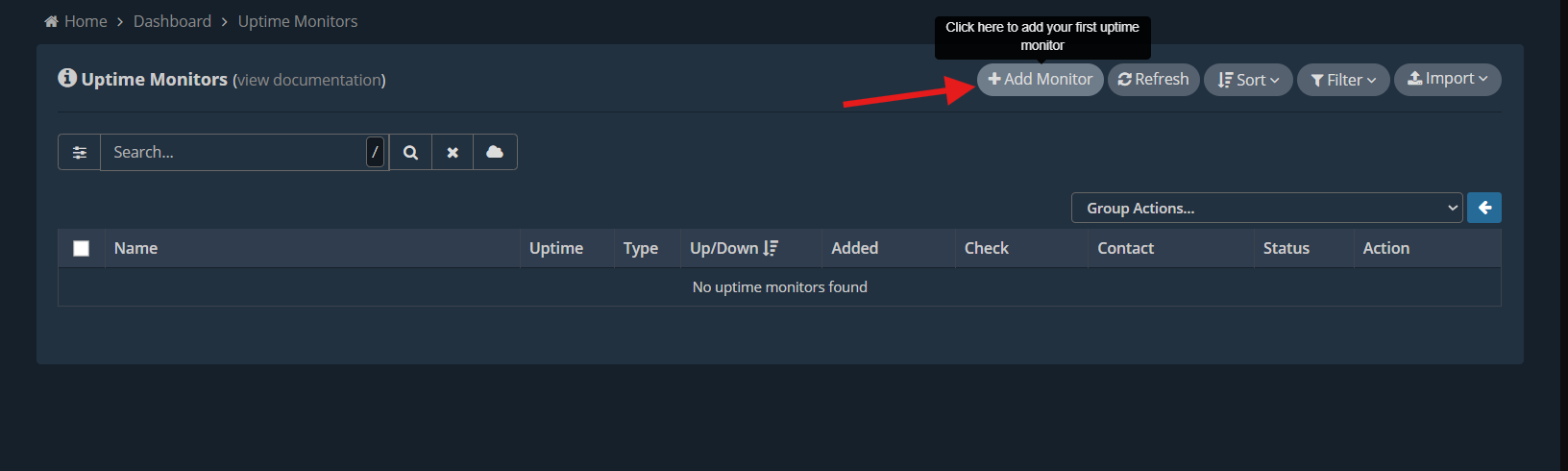
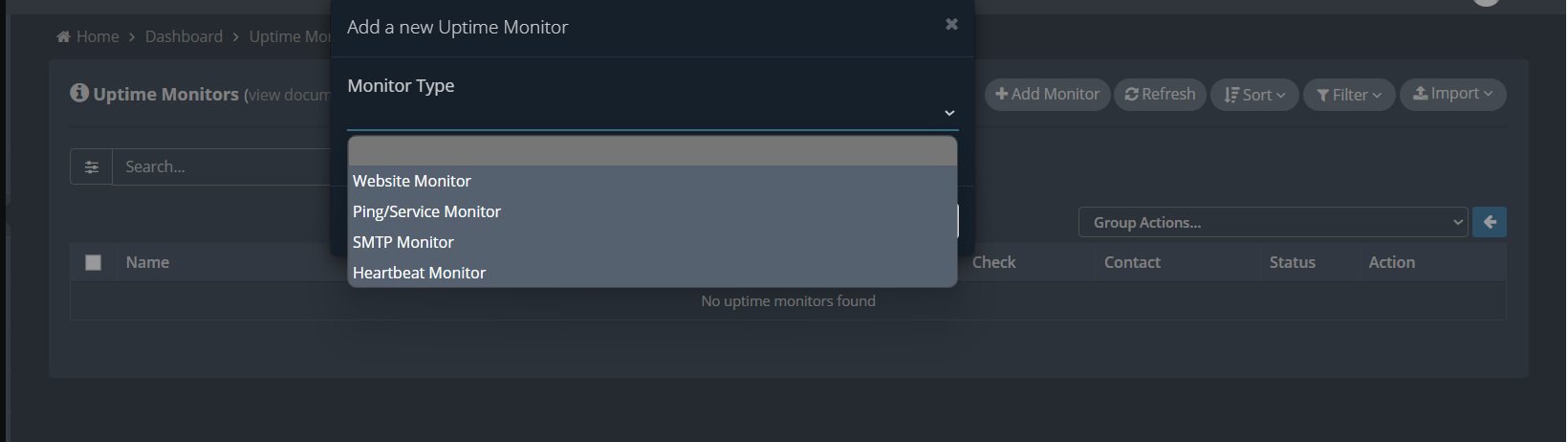
- On the top right, click Add monitor, and there will be a pop-up to choose what type of monitor you want to install/set up.

- Breakdown for the Monitor Type.
– Website Monitor: Tracks your website’s availability and performance from various global locations.
– Ping/Service Monitor: Assesses server responsiveness by sending ICMP ping requests, or checks the functionality of specific server services (e.g., HTTP, FTP)
– SMTP Monitor: Ensures your SMTP server is functioning and capable of sending emails.
– Heartbeat Monitor: Uses regular signals (heartbeats) from your server or application to HetrixTools to confirm operational status, especially useful for monitoring cron jobs or services behind firewalls.

Step 3: Configure new monitoring
In this step, select and configure the appropriate type of monitoring based on your needs. Each type requires specific information to ensure accurate monitoring. The available monitoring types are:
- Website Monitor
- Ping/Service Monitor
- SMTP Monitor
- Heartbeat Monitor
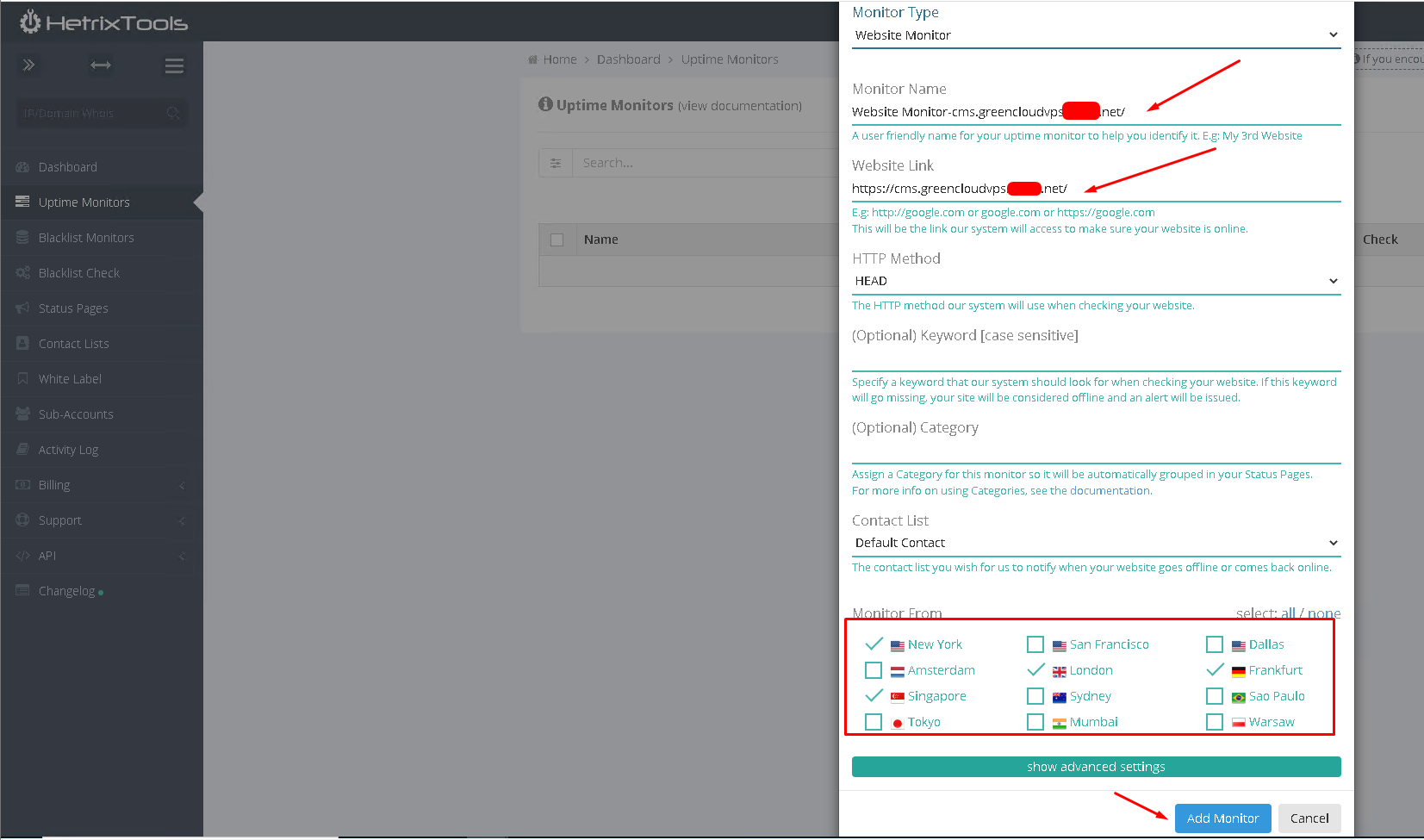
Website Monitor
There are a few fields that show, but only the Monitor Name and Website Link need to be filled up. Then select at least 4 countries from the list and click Add Monitor.
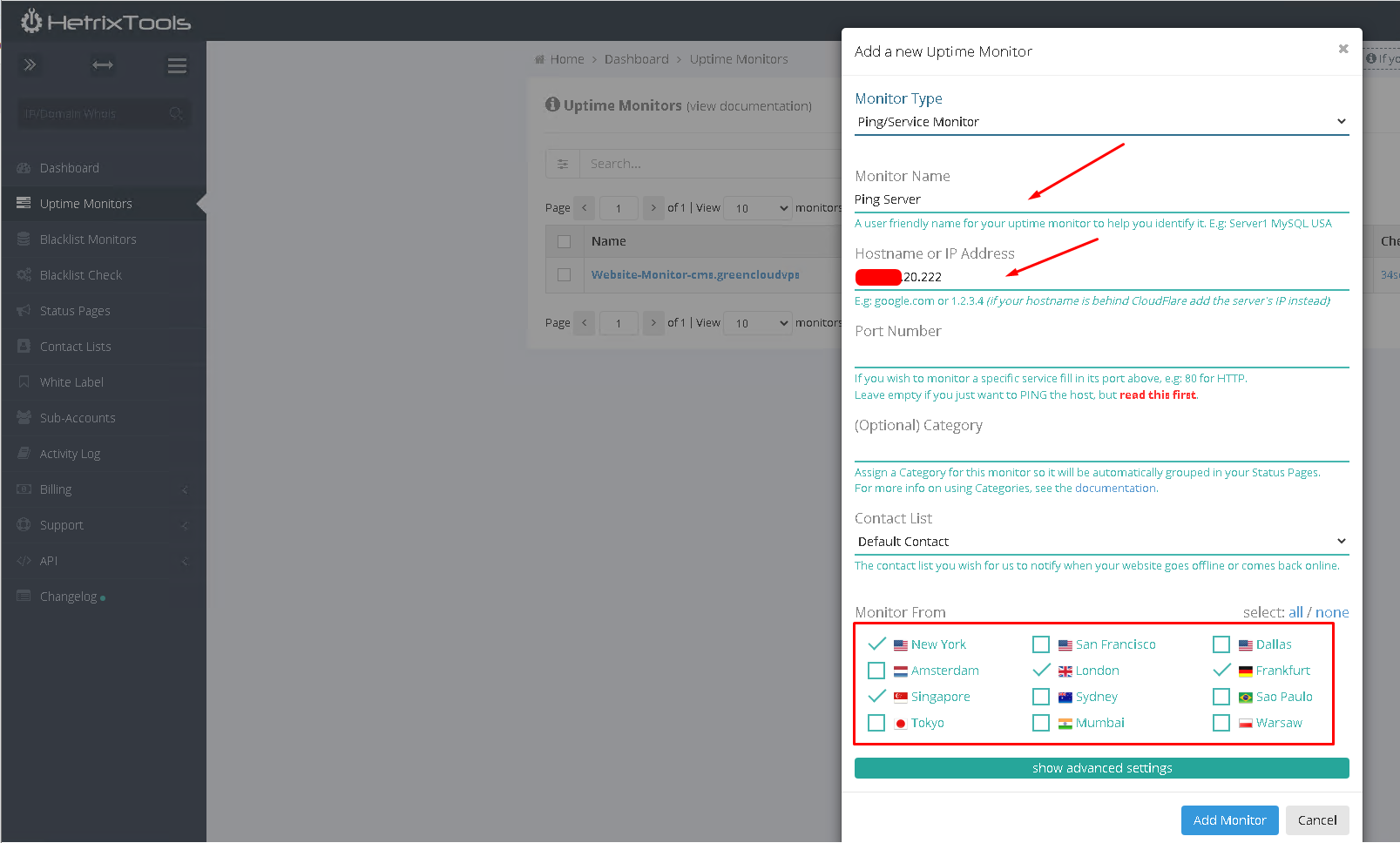
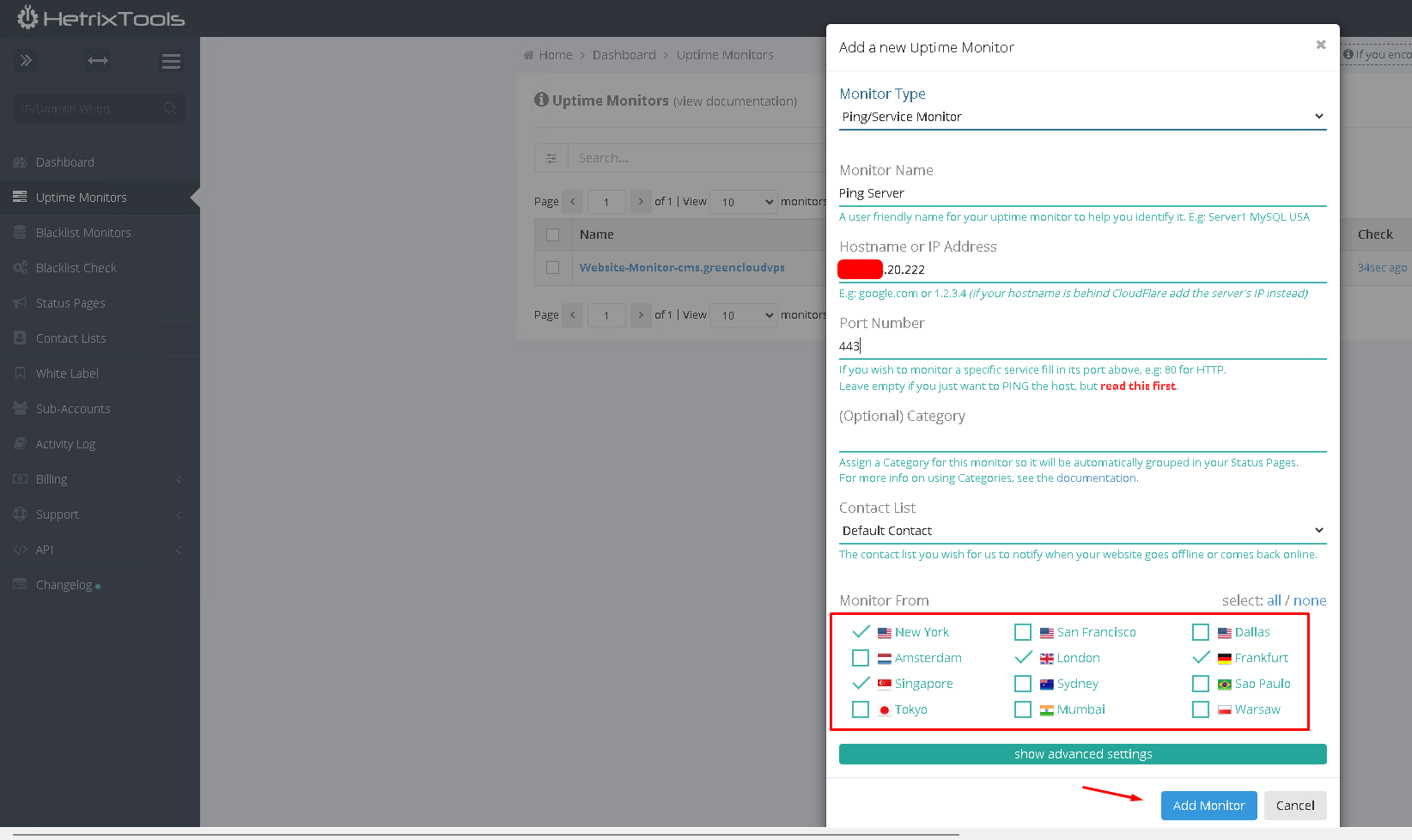
- There are a few fields that show, but only Monitor Name and Hostname or IP Address (and Port Number if you wish to monitor Service Port) need to be filled up. Then select at least 4 countries from the list and click Add Monitor.
- For PING monitor:

- For Service Port monitor:

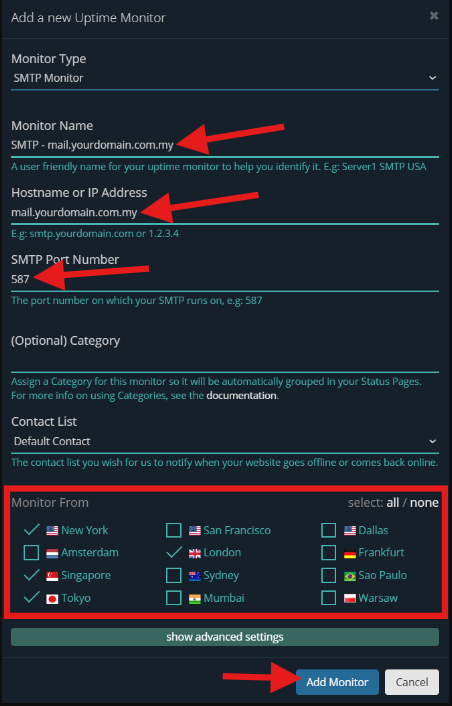
- There are a few fields that show, but only Monitor Name, Hostname or IP Address, and SMTP Port Number need to be filled up. Then select at least 4 countries from the list and click Add Monitor.

Heartbeat Monitor
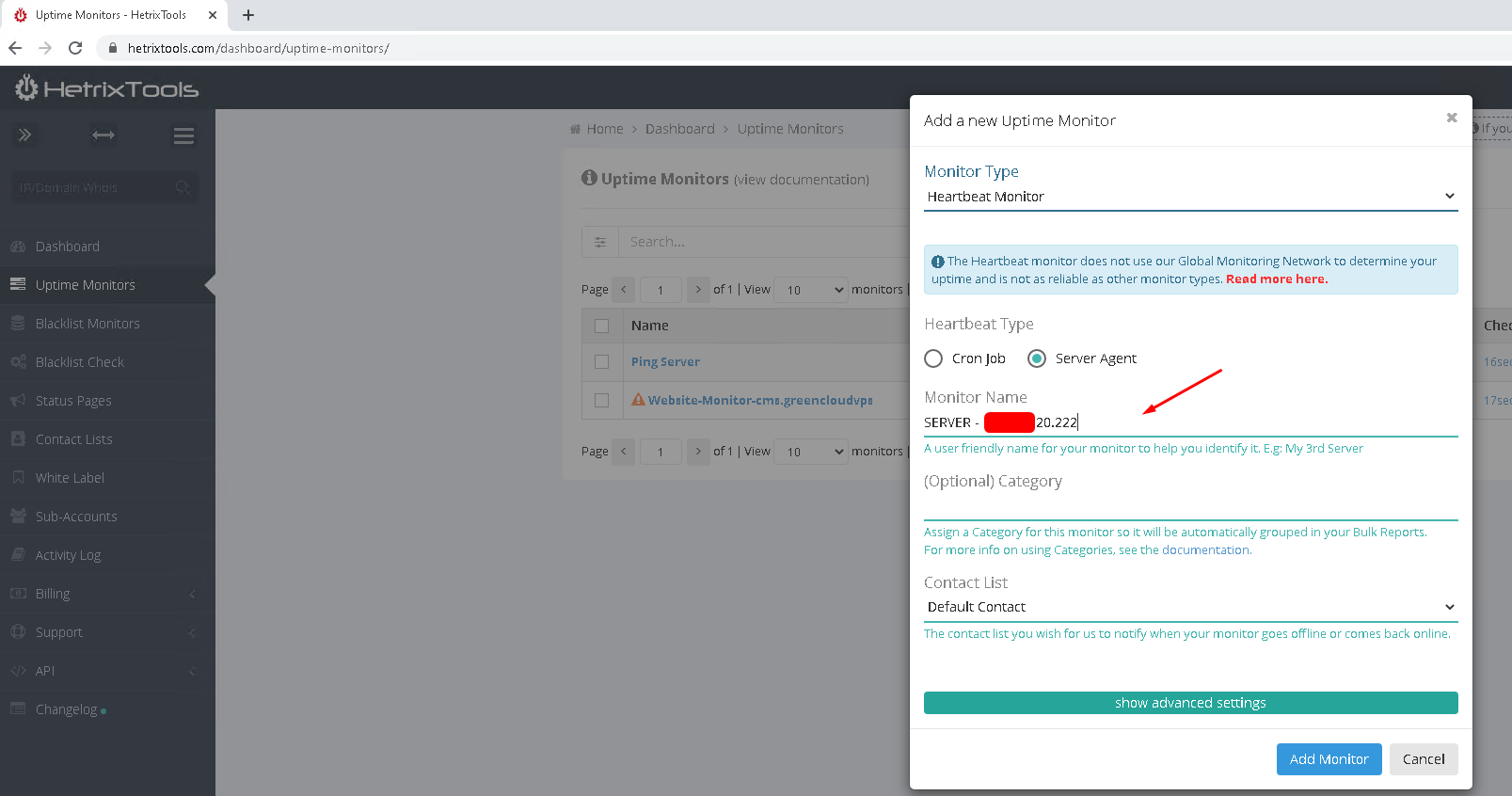
Select Server Agent as Heartbeat Type and fill in Monitor Name, then click Add Monitor.

Step 4: Install HetrixTools Server Monitor Agent
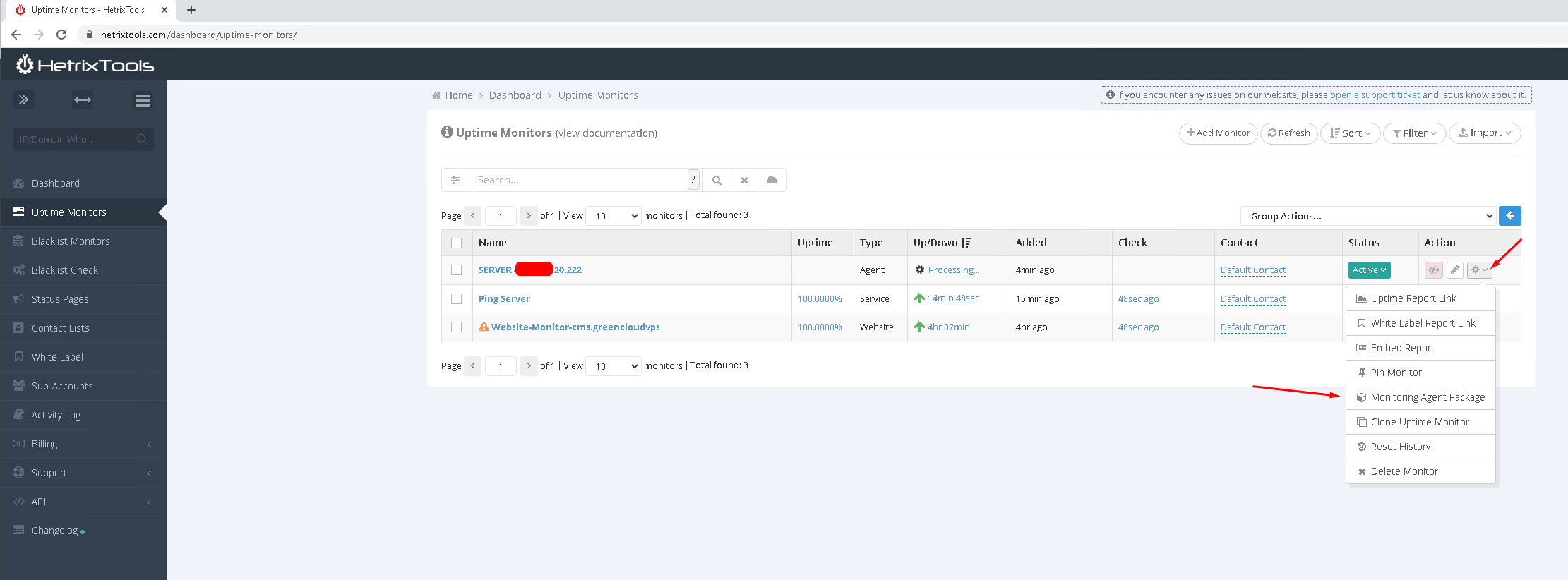
- Click on the gear icon under Options and select Monitoring Agent Package.

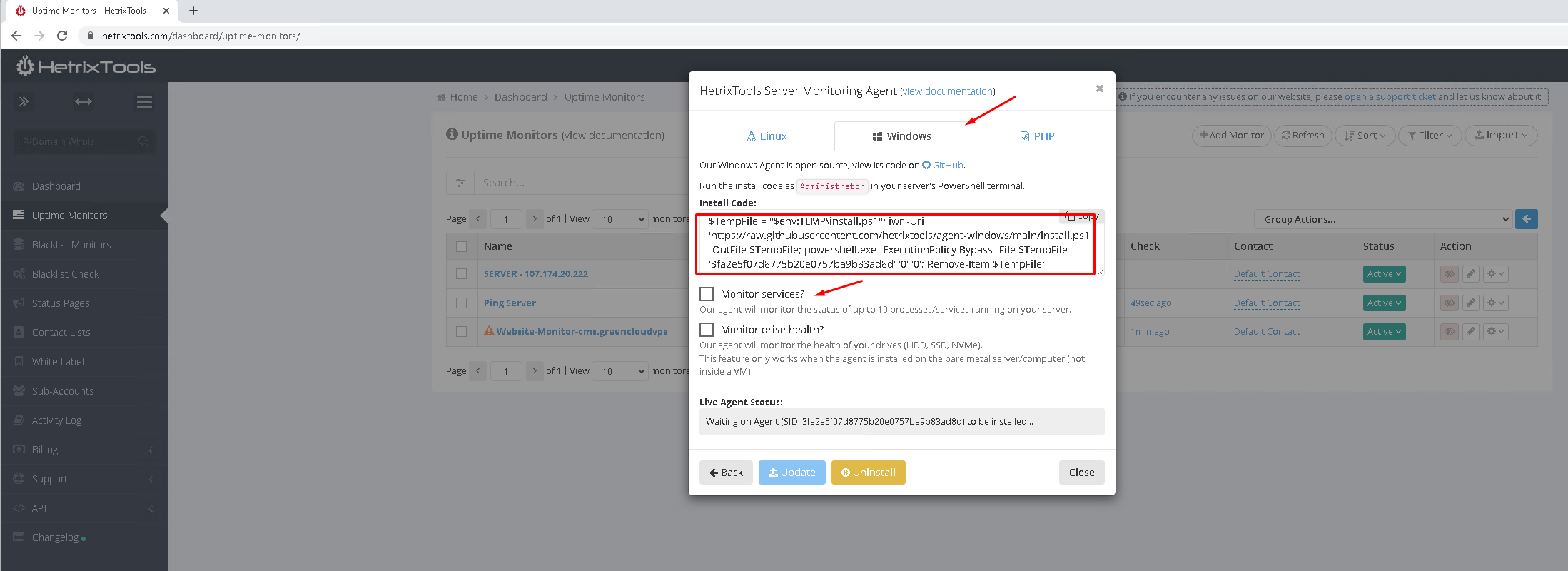
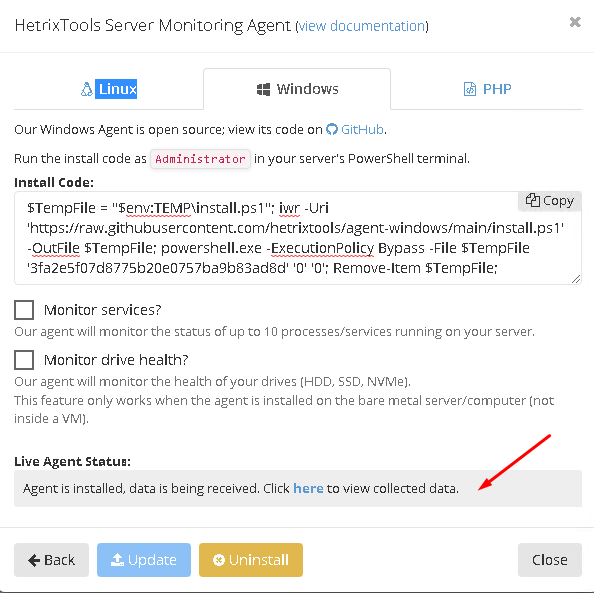
- HetrixTools will pop out a new window. Select Windows, then copy the Install Code.
You may add in the services that you wish to monitor by enabling “Monitor services?”, such as MySQL, AutoCount, and others.

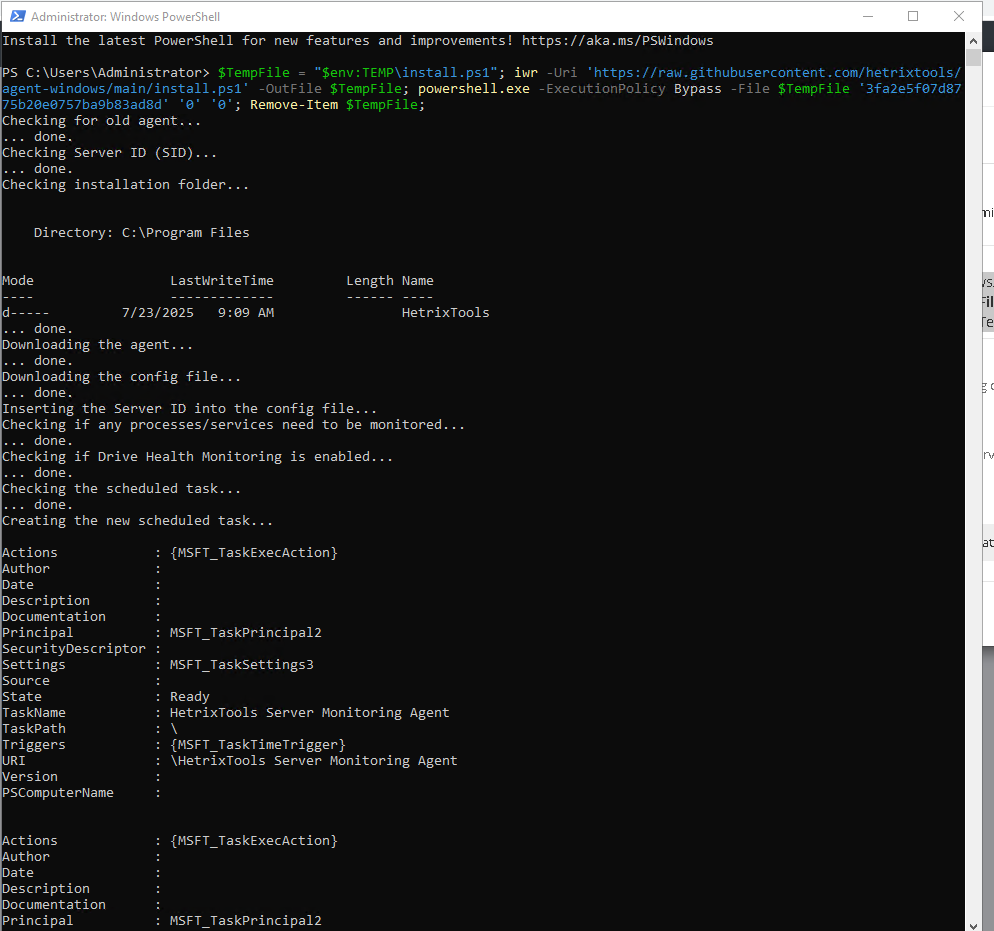
- Open and run PowerShell as an administrator. And paste the Install Code.

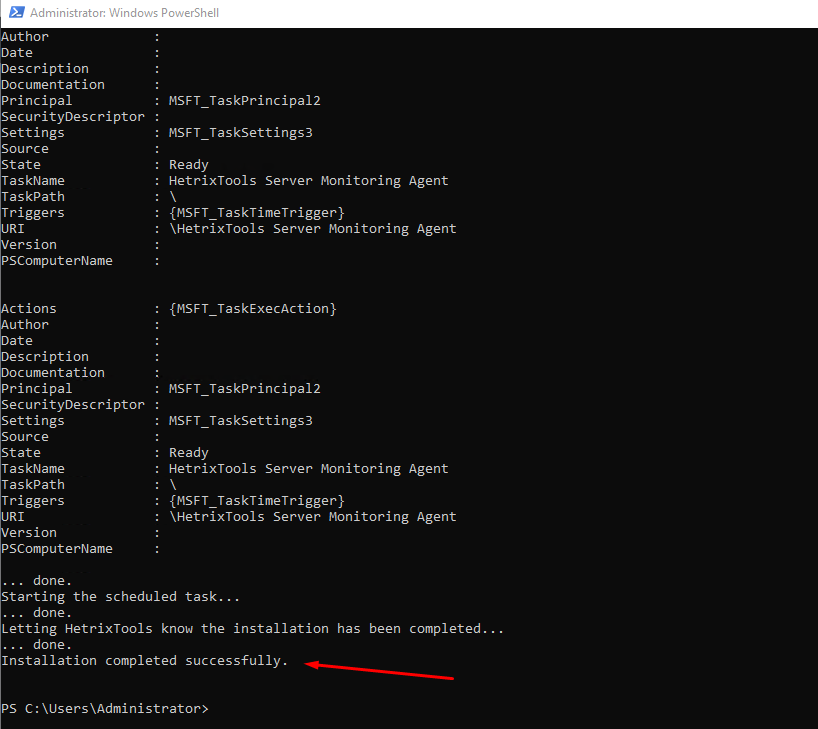
- Please wait for the installation to run till it shows completed.

- HetrixTools will also show that the installation is completed and start collecting data.

Step 5: Monitor the status
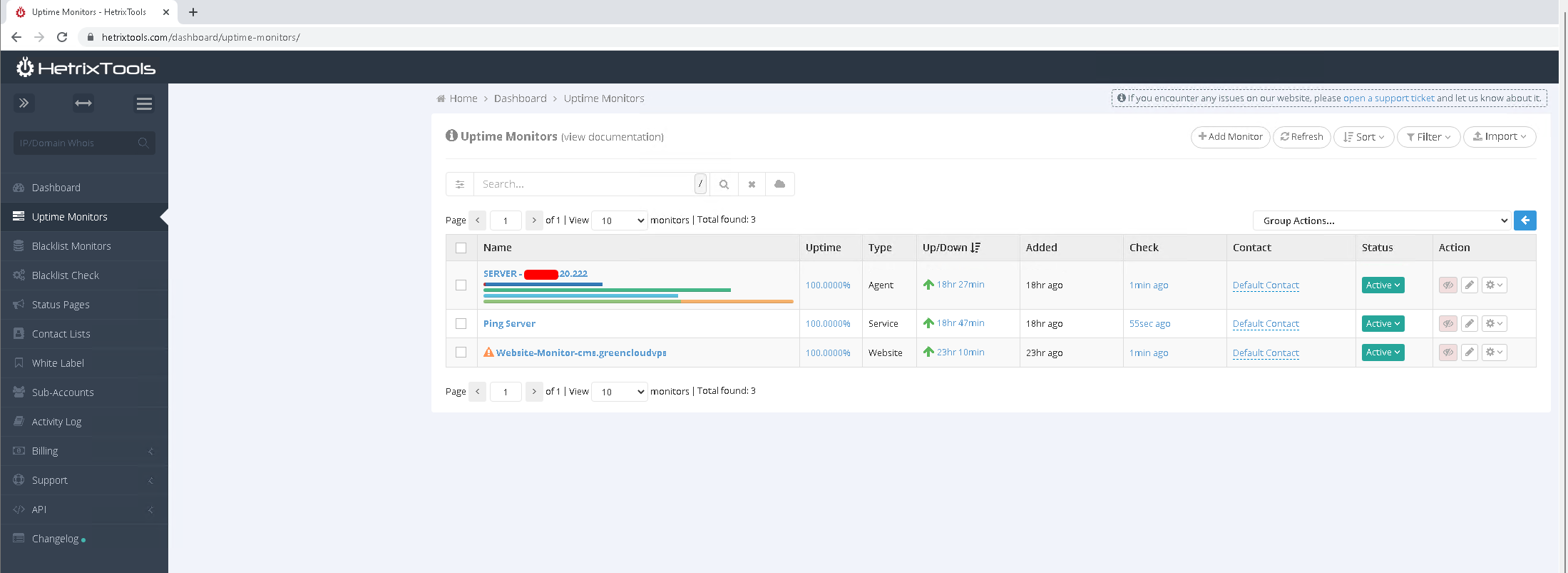
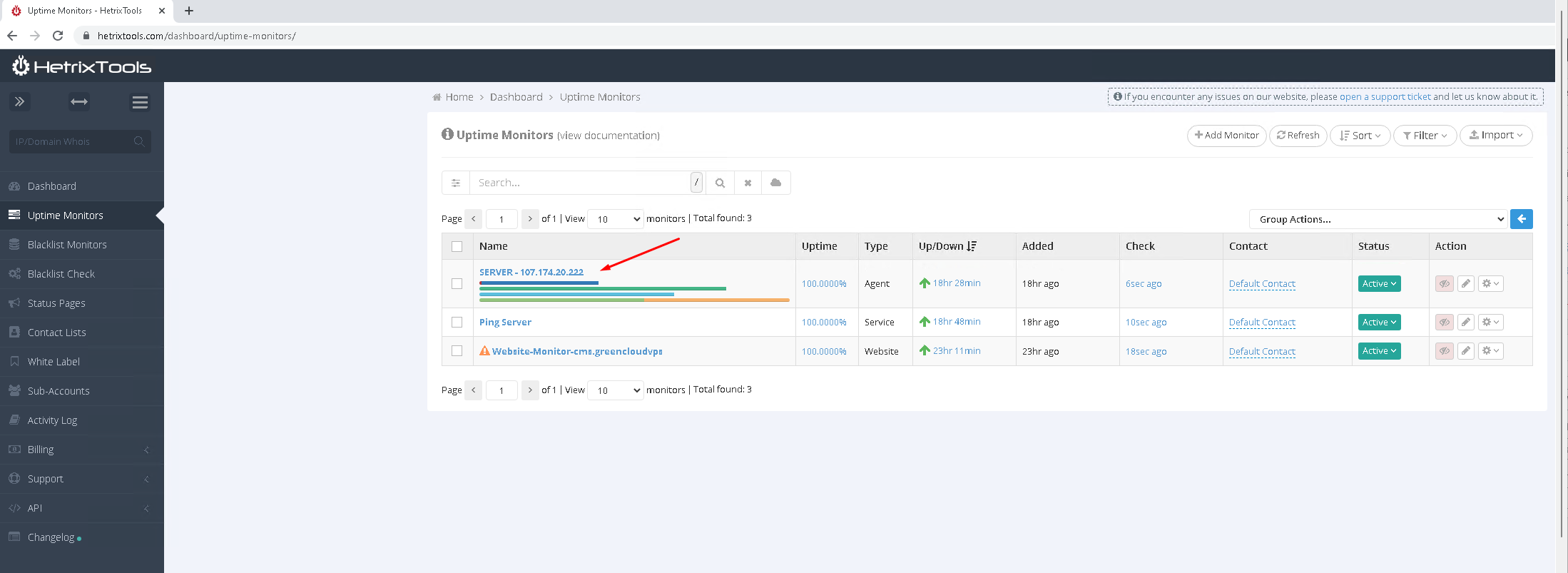
- You may start now to monitor the server status and other services.

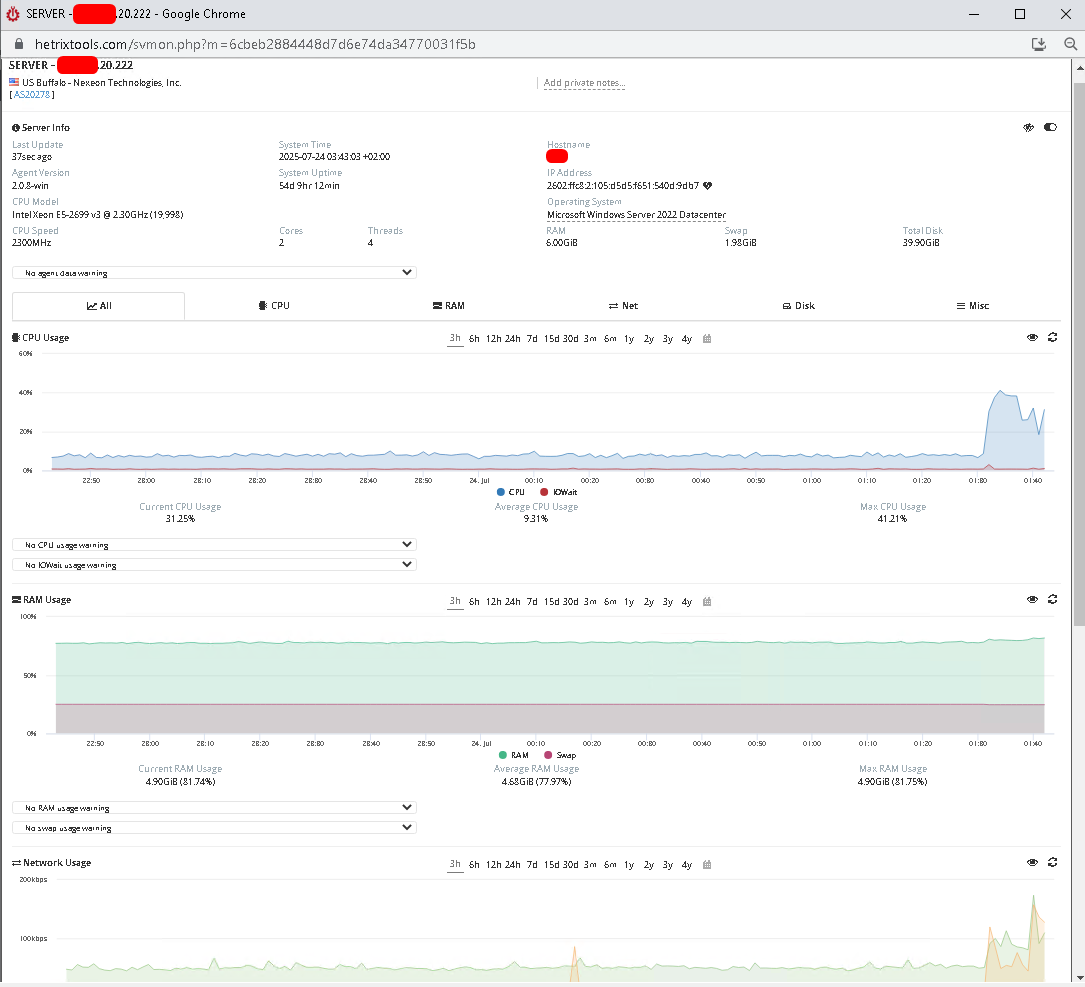
- You can click on the Monitor Object for more details.

- On this page, you can view more details of your server without logging into your server.

Conclusion
By going through this guidance, you will be able to install HetrixTools on your Windows Server and begin monitoring critical server metrics with ease.
