
How to Install ntopng with Redis on AlmaLinux 9 Using Docker
Introduction
This guide explains how to install and run ntopng Community Edition on AlmaLinux 9 using Docker, with Redis as the backend database.
ntopng is a powerful network traffic monitoring and analysis tool that provides real-time visibility into network usage, protocols, and hosts through a modern web interface.
Using Docker provides:
-
Clean and isolated deployment
-
Easy upgrades and maintenance
-
Automatic restart after system reboot
-
No dependency conflicts with the host OS
This guide assumes:
-
You are logged in as root
-
AlmaLinux 9 is installed
-
The system has Internet access
-
The primary network interface is eth0
Architecture Overview
-
Docker: Container runtime
-
Redis: Backend database for ntopng
-
ntopng: Network traffic analyzer
-
eth0: Physical network interface being monitored
-
Port 3000: ntopng Web UI
Step 1: Update the System
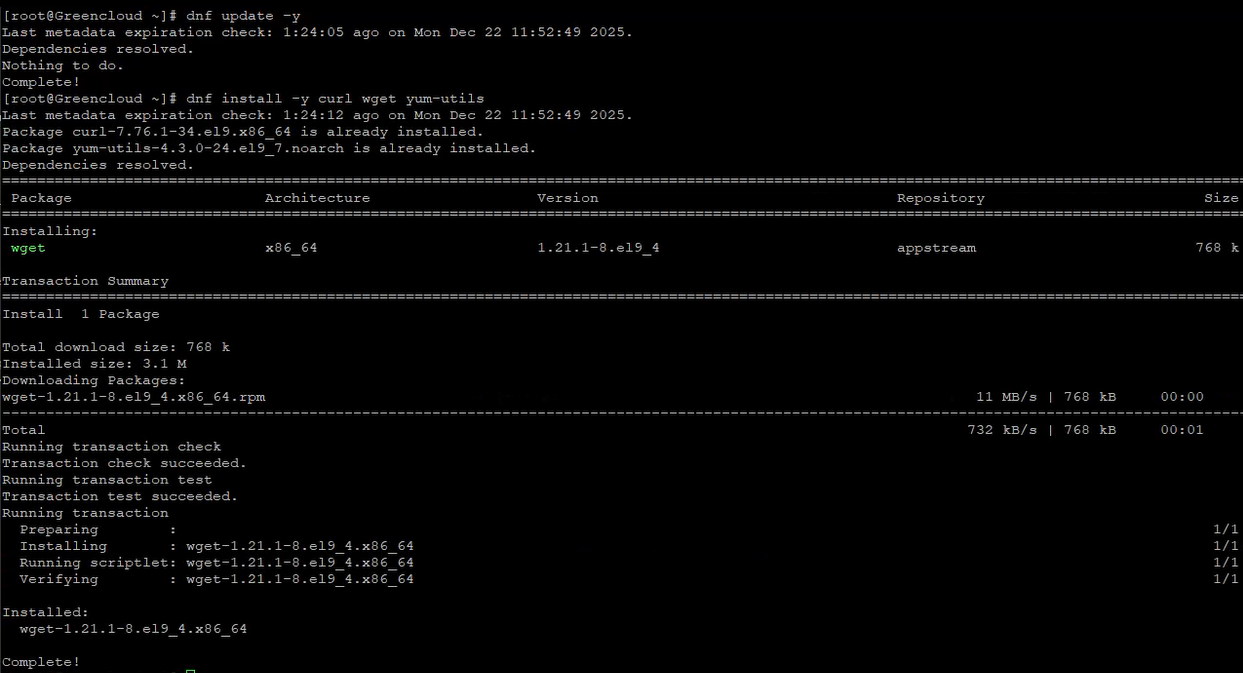
Explanation:
-
Ensures the system is fully up to date
-
Installs required utilities for repository management
Step 2: Install Docker Engine
2.1 Add the Docker Repository
Explanation:
-
AlmaLinux is RHEL-compatible, so the CentOS Docker repository is used
2.2 Install Docker Components
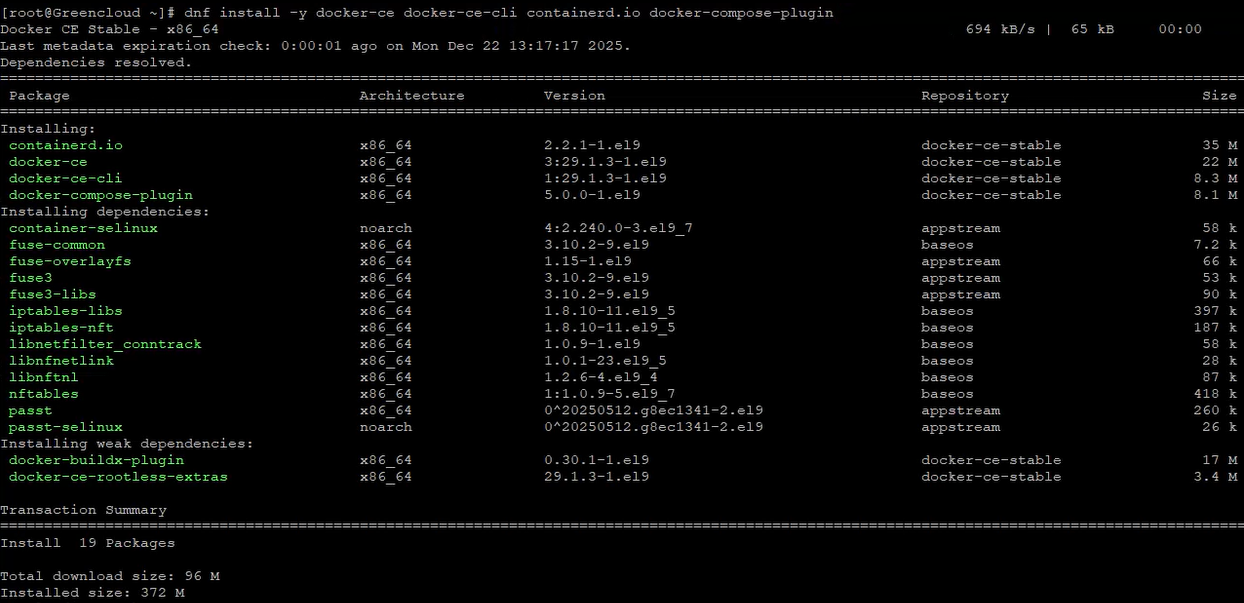
Explanation:
-
docker-ce: Docker Engine
-
docker-ce-cli: Docker CLI
-
containerd.io: Container runtime
-
docker-compose-plugin: Optional multi-container support
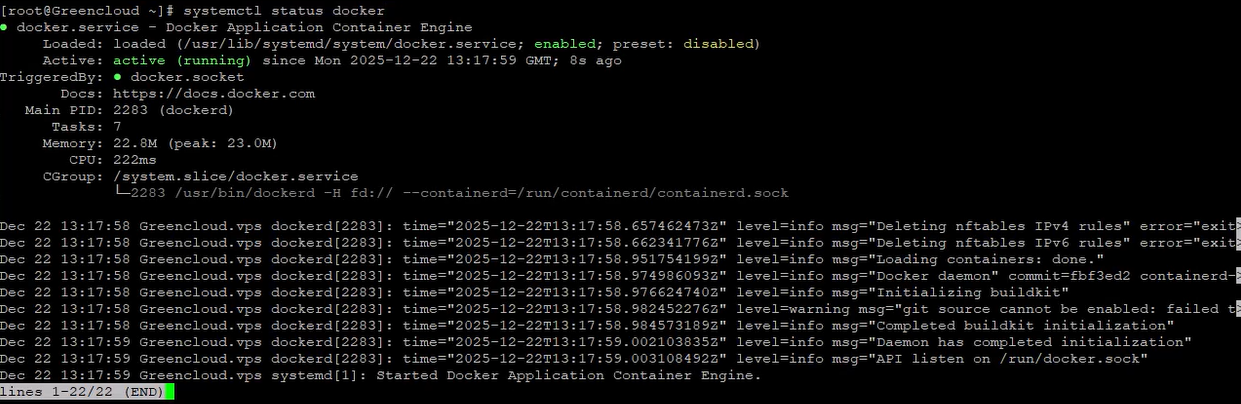
2.3 Enable and Start Docker
Docker should display:
Step 3: Identify the Network Interface
ntopng must capture traffic from the physical network interface.
Example output:

Step 4: Run Redis Container
Redis must be running before ntopng starts.
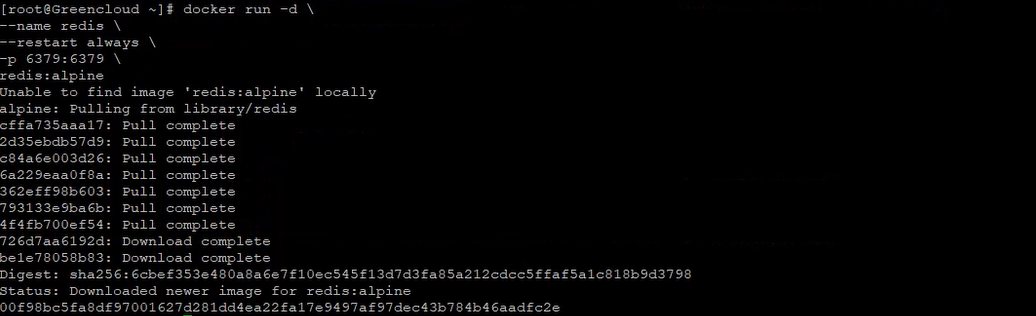
Explanation of Options
-
-d: Run container in the background
-
–name redis: Assign a container name
-
–restart always: Automatically restart on failure or reboot
-
-p 6379:6379: Expose Redis service
-
redis:alpine: Lightweight Redis image
Verify Redis
Expected output:
Step 5: Run ntopng Container
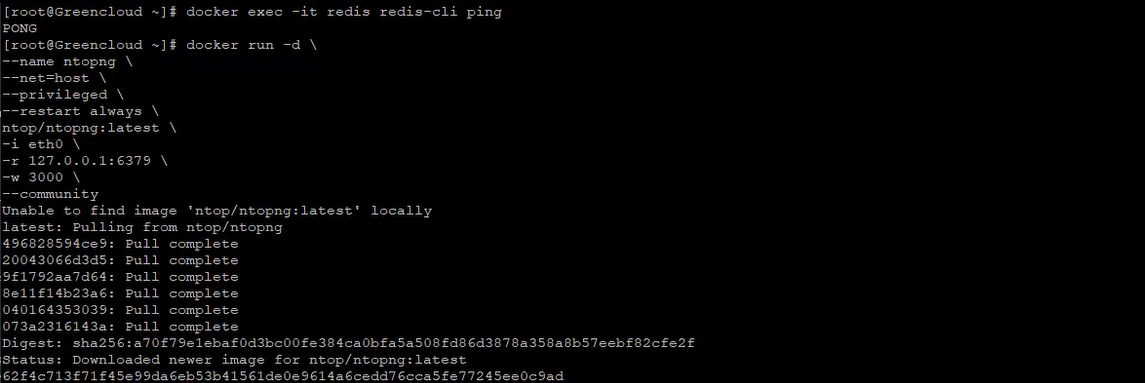
Explanation of Options
| Option | Description |
|---|---|
| –net=host | Allows direct access to host network interfaces |
| –privileged | Required for packet capture |
| –restart always | Ensures service survives reboots |
| -i eth0 | Interface being monitored |
| -r 127.0.0.1:6379 | Redis backend location |
| -w 3000 | Web UI port |
| –community | Community Edition mode |
Step 6: Verify ntopng Status
Healthy logs include:
-
ntopng started
-
Listening on port 3000
-
No Redis connection errors
Step 7: Access ntopng Web Interface
Open a browser and navigate to:
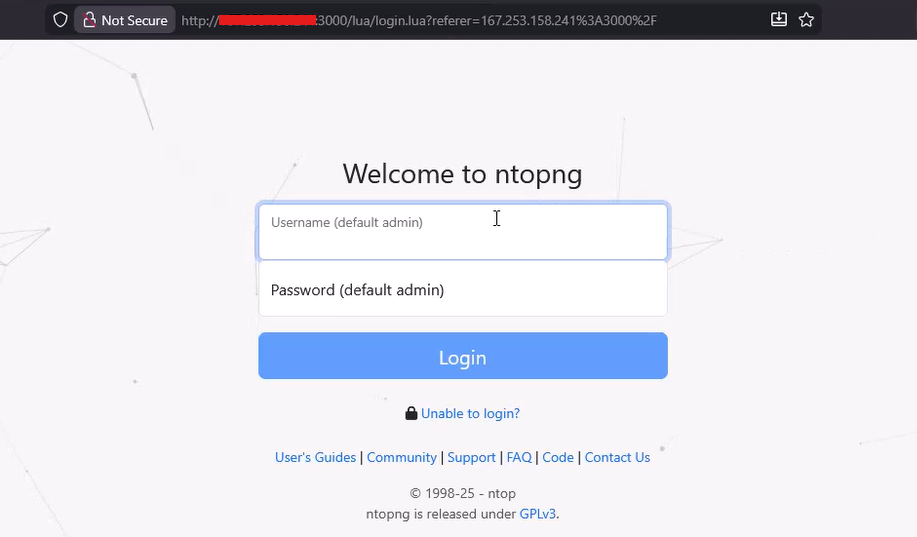
Default Credentials
-
Username: admin
-
Password: admin
You will be prompted to change the password on first login.
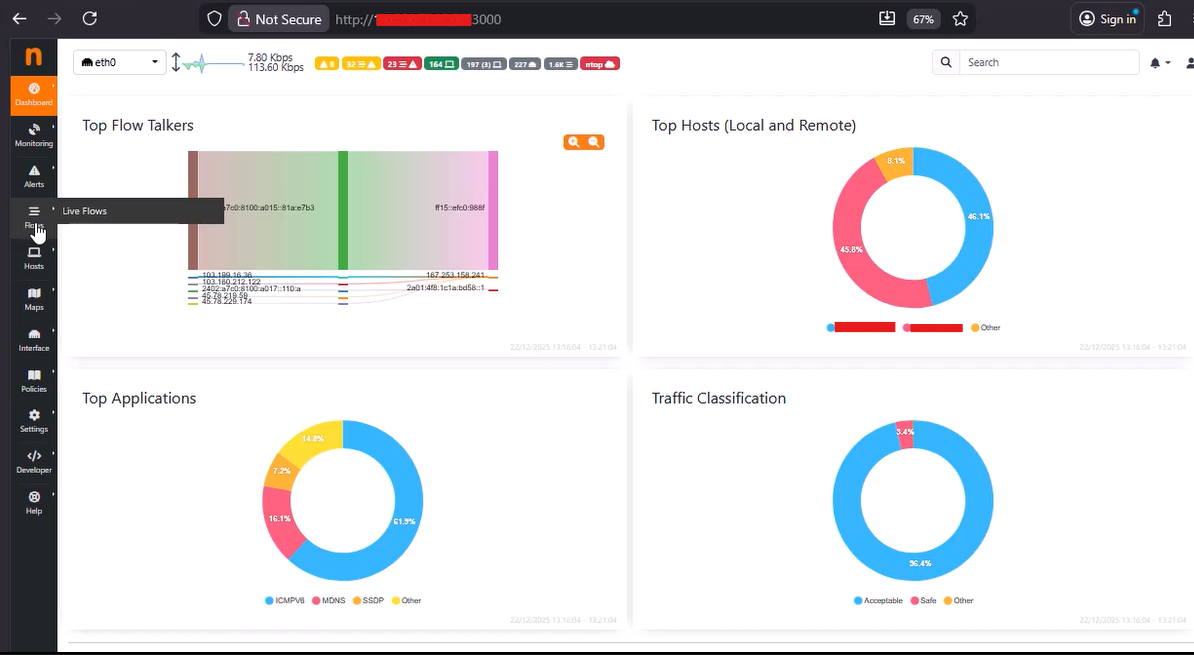
Common Management Commands
Conclusion
You have successfully deployed ntopng Community Edition with Redis on AlmaLinux 9 using Docker.
This configuration provides:
-
Real-time network visibility
-
A stable Redis backend
-
Automatic service recovery after reboot
-
A clean, containerized deployment model
This setup is suitable for labs, VPS environments, and production monitoring systems.
For advanced usage, consider Docker Compose, persistent Redis storage, or multi-interface monitoring.
