
How to Install KeeWeb Password Manager on Debian 12
Introduction
KeeWeb is a free, open-source password manager compatible with KeePass databases. It provides a modern web interface that you can host yourself, allowing you to manage passwords securely without relying on third-party services.
In this guide, we’ll install KeeWeb on Debian 12 using Docker, ensuring a quick and clean deployment.
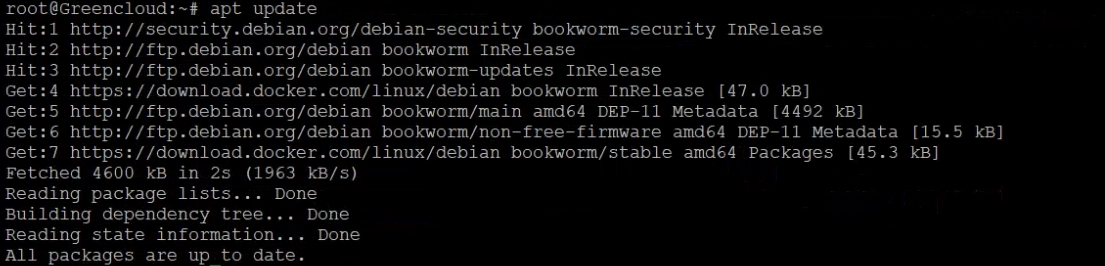
Step 1: Update Package Lists
apt update

Step 2: Install Required Dependencies
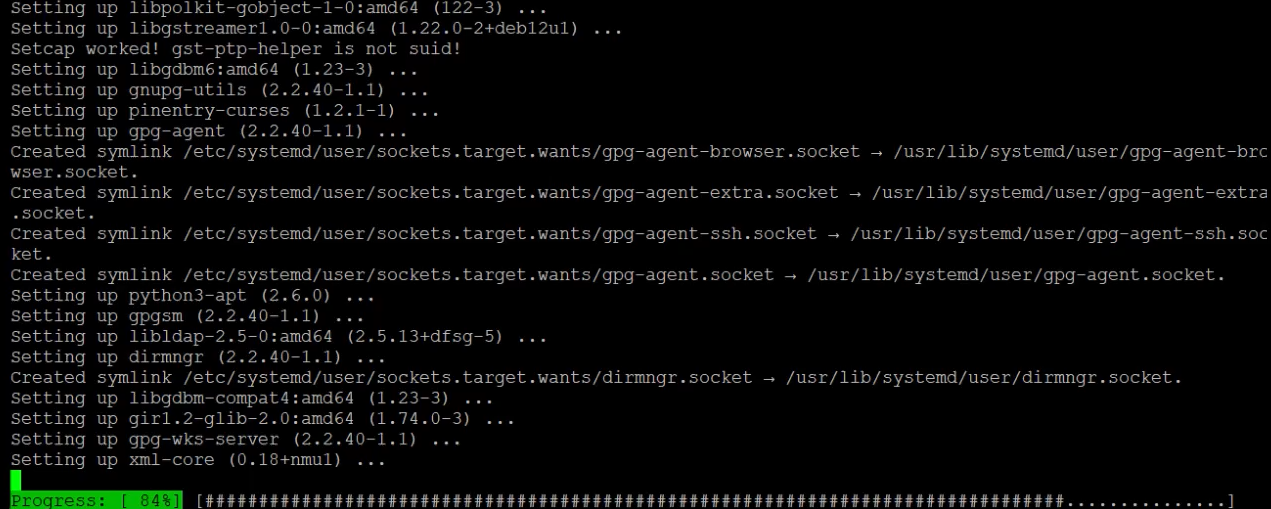
Step 3: Add Docker’s Official Repository
3.1 Create Keyring Directory
install -m 0755 -d /etc/apt/keyrings
3.2 Add Docker’s GPG Key
3.3 Add the Docker Repository
echo "deb [arch=$(dpkg --print-architecture) signed-by=/etc/apt/keyrings/docker.asc] https://download.docker.com/linux/debian \ $(. /etc/os-release && echo "$VERSION_CODENAME") stable" | tee /etc/apt/sources.list.d/docker.list > /dev/null

Step 4: Update Repositories
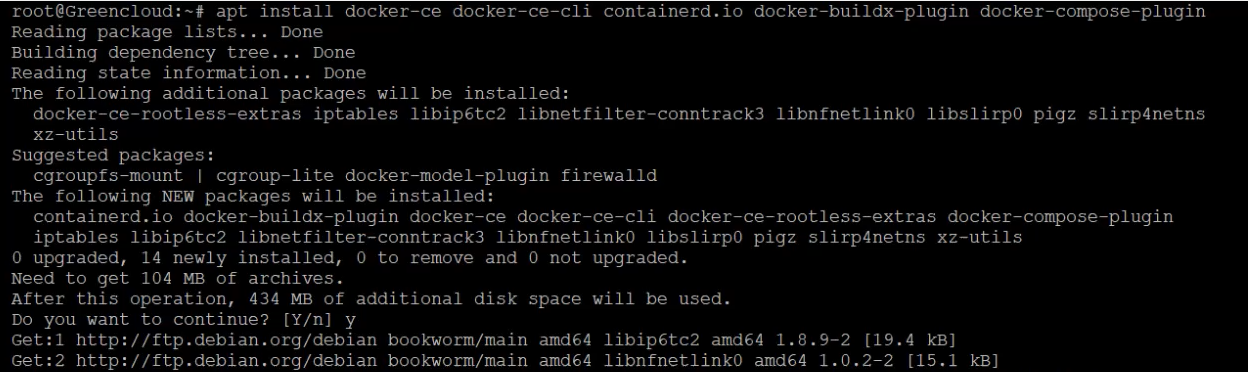
Step 5: Install Docker Engine
Step 6: Test Docker Installation
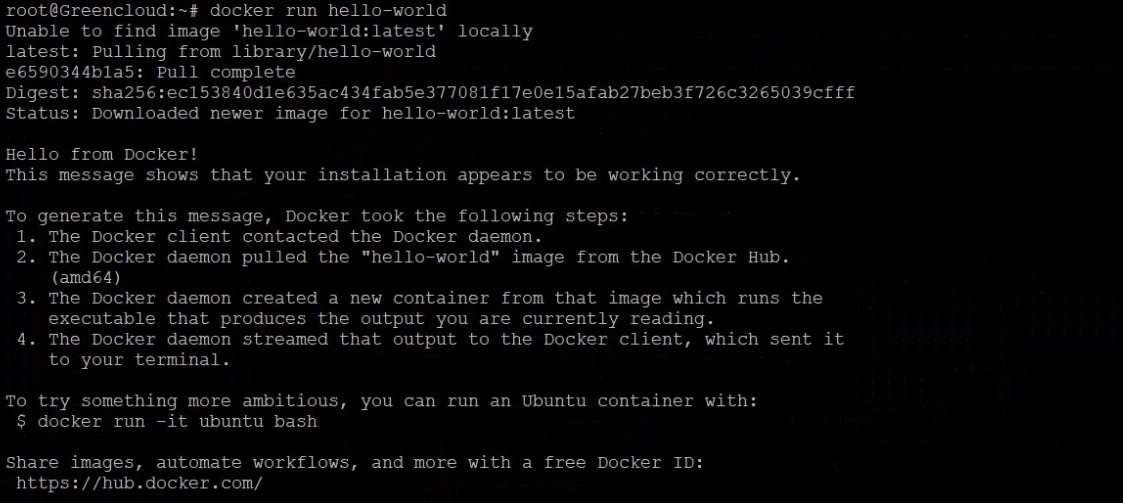
If successful, you’ll see a message confirming Docker is working.
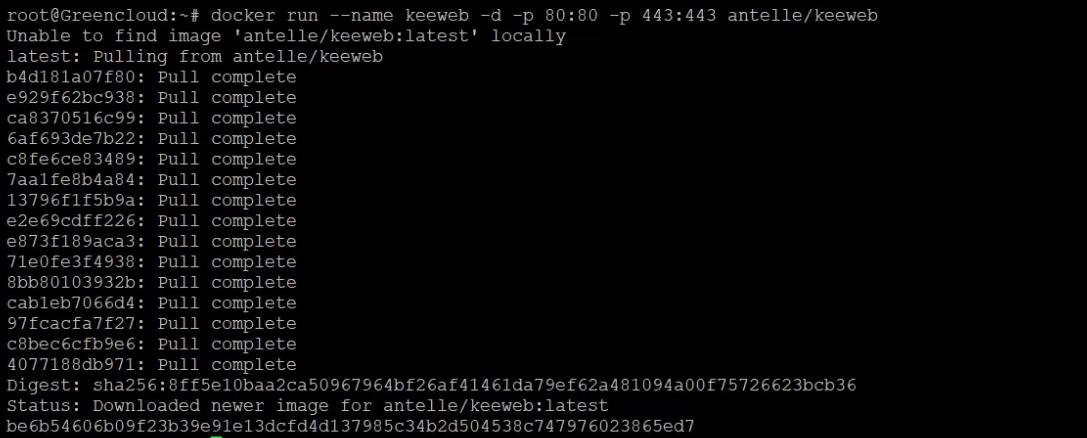
Step 7: Run KeeWeb in Docker
docker run --name keeweb -d -p 80:80 -p 443:443 antelle/keeweb
This command will:
-
Create and run a container named
keeweb -
Run in detached mode (-d), so it works in the background without locking your terminal
-
Map ports:
-
Host port 80 → container port 80 (HTTP)
-
Host port 443 → container port 443 (HTTPS)
-
-
Use the official Docker image antelle/keeweb from Docker Hub
In simple terms: this launches KeeWeb on your server and makes it accessible via HTTP or HTTPS in your browser.
Step 8: Access KeeWeb
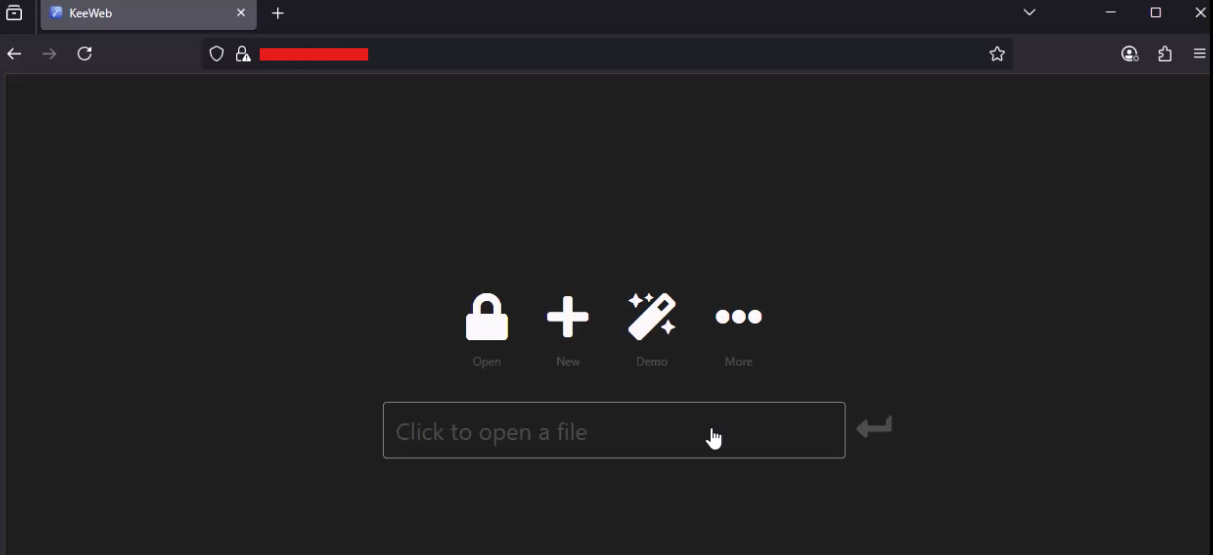
Open your browser and go to:
http://your-server-ip/
You should see the KeeWeb web interface, where you can upload .kdbx password databases and manage credentials securely.
Conclusion
You’ve successfully installed KeeWeb on Debian 12 using Docker. With this setup, you have a secure, self-hosted password manager that’s easy to maintain, works in any browser, and keeps your credentials entirely under your control.
