
How to Install WSL (Windows Subsystem for Linux) on Windows Server 2022/2025
Introduction
Windows Subsystem for Linux (WSL) allows IT administrators and developers to run Linux distributions directly on Windows without the need for a full virtual machine. On a Hyper-V VPS running Windows Server 2022 or 2025, WSL provides an efficient way to leverage Linux tools and scripts while staying within the Windows environment. This guide explains how to install and configure WSL using the graphical interface and manual Linux distribution packages, tailored for servers where the Microsoft Store is not available.
Step 1: Open Server Manager
-
Log in to your Windows Server VPS.
-
Open Server Manager from the Start menu, or press Win + R, type
ServerManager, and press Enter.

Step 2: Add WSL Feature
-
In Server Manager, click Manage → Add Roles and Features.
-
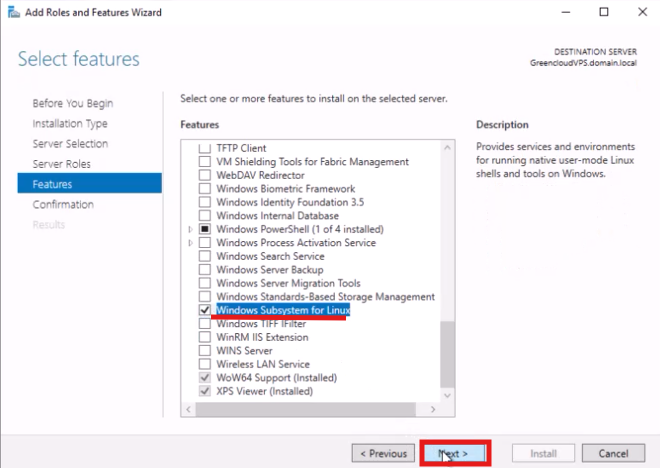
Proceed to the Features section.
-
Check Windows Subsystem for Linux.

-
Optionally, check Virtual Machine Platform.
-
Click Next → Install and wait for the process to complete.
-
Restart the VPS if prompted.
Step 3: Download a Linux Distribution Package
Hyper-V VPS often cannot access the Microsoft Store directly:
-
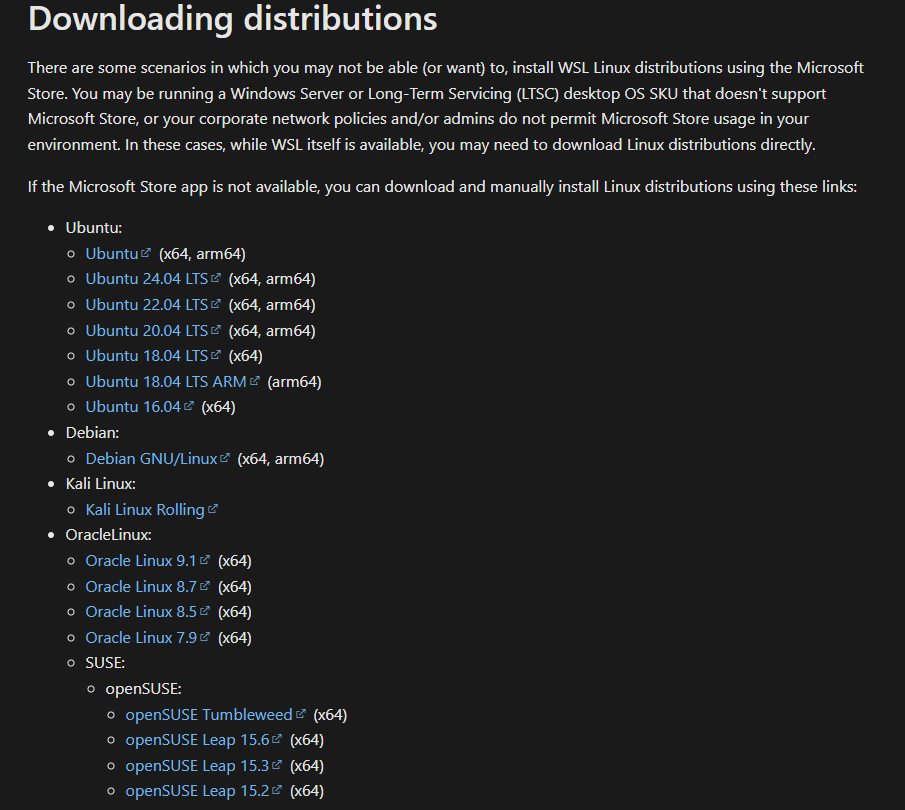
Open a browser and go to WSL distribution packages.

-
Download your preferred Linux distribution, e.g.,
Ubuntu_2404.appx.
Step 4: Install the Linux Distribution
-
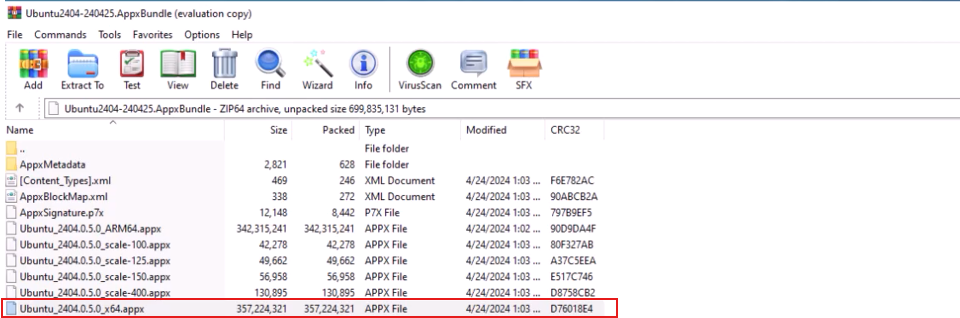
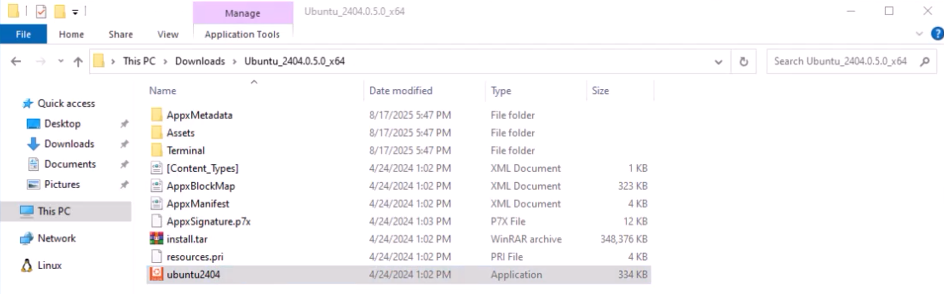
Open File Explorer and navigate to the downloaded
.appxor.msixbundlefile.
-
Double-click to install, or open PowerShell (Admin) and run:

-
Wait for the installation to complete.
If you see an error screen like this:
Installing, this may take a few minutes... WslRegisterDistribution failed with error: 0x800701bc Error: 0x800701bc WSL 2 requires an update to its kernel component.
-

Why This Happens
This error occurs because the installation is running inside a VPS or Hyper-V virtual machine:
-
WSL 2 requires its own Linux kernel on top of Hyper-V.
-
On a VPS (or Hyper-V VM), WSL 2 would need nested virtualization, but this is disabled by default in production environments for performance and security reasons.
-
As a result, WSL 2 is not available by default on VPS/Hyper-V VMs, and the kernel cannot be initialized → leading to error 0x800701bc
-

Step 5: Set WSL Default Version to 1
-
Open PowerShell (Admin).
-
Run the command:
wsl --set-default-version 1

This ensures all newly installed distributions use WSL 1, which is compatible with Hyper-V VPS without nested virtualization.

Step 6: Initialize Linux
-
Open the installed Linux app from the Start menu.
-
Create your username and password when prompted.

-
You now have a fully functional Linux shell running under WSL 1.

Important Notes
-
WSL 2 requires nested virtualization. Ensure your VPS host supports it.
-
Server editions may have limited GUI; most distro installations must be done manually.
-
Always reboot after enabling WSL or Virtual Machine Platform.
Conclusion
Installing WSL on a Windows Server 2022/2025 VPS running on Hyper-V allows IT professionals to efficiently run Linux tools and scripts alongside Windows applications. By following this GUI-based guide, you can set up WSL even in environments without Microsoft Store, giving you a flexible, integrated development and management environment on your server VPS.
