
How to Install ionCube Loader on Rocky Linux 9
Introduction
Many commercial PHP applications are distributed with encrypted source code using ionCube to protect intellectual property. To run these applications, your server needs ionCube Loader, a PHP extension that decrypts and runs the encoded files at runtime.
In this guide, we’ll install ionCube Loader on Rocky Linux 9, configure it with PHP 8.1 and Apache, and verify the installation step by step.
Prerequisites
Before starting, make sure you have:
-
A Rocky Linux 9 server
-
Root or sudo access
-
A stable internet connection
-
Basic SSH knowledge
Step 1: Connect to Your Server via SSH
On Linux/macOS
Connects to your server as the root user.
On Windows
Use PuTTY, enter root@your-server-ip, and click Open.
Step 2: Install PHP 8.1 and Apache Web Server
2.1 Update System Packages
Updates all packages to the latest available versions.
2.2 Install Required Repositories
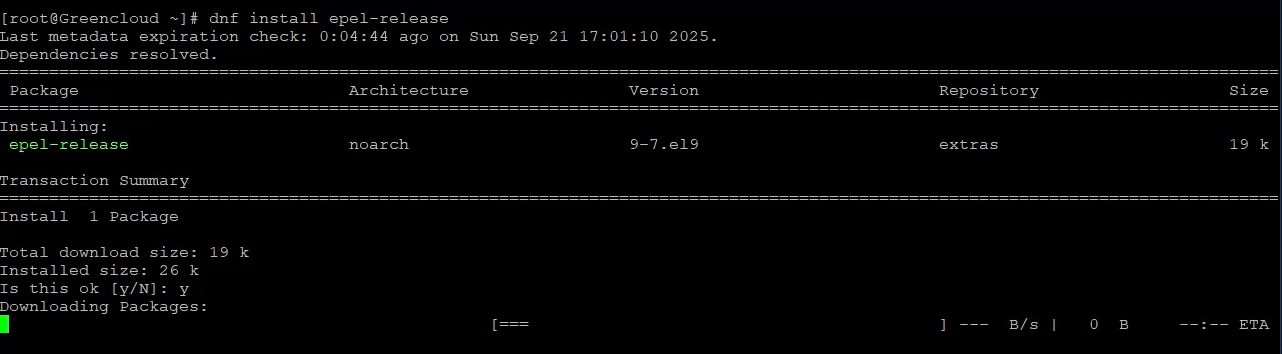
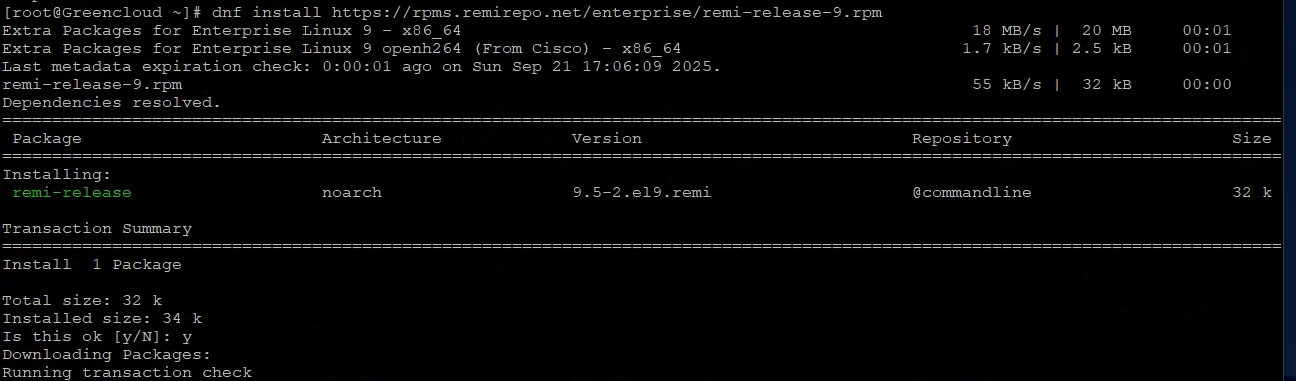
Installs EPEL and Remi repositories so you can install PHP 8.1.
2.3 Enable PHP 8.1 from Remi Repo
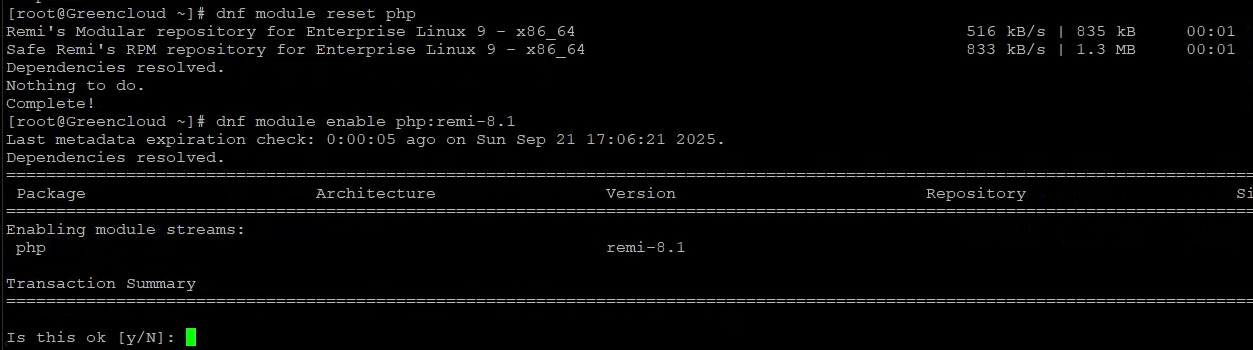
Resets the PHP module stream and enables PHP 8.1.
2.4 Install PHP 8.1, Apache, and Extensions
Installs PHP 8.1 core, required extensions, Apache, and basic tools.
2.5 Enable and Start Apache

Makes Apache start on boot and starts the service now.
Step 3: Install ionCube Loader
3.1 Locate PHP Extension Directory

Shows where PHP extensions are stored (usually /usr/lib64/php/modules).
3.2 Download and Extract the ionCube Loader
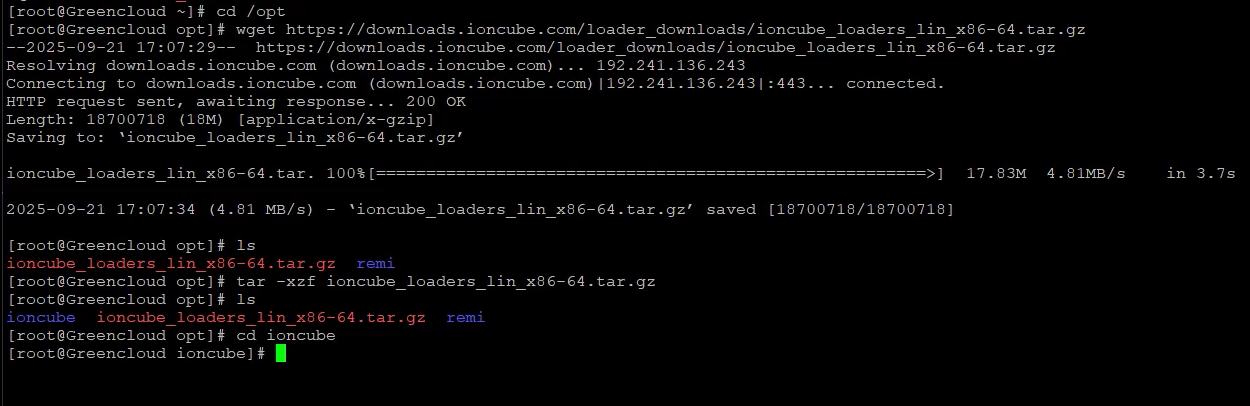
Downloads and extracts the ionCube Loader to /opt.
3.3 Copy ionCube Loader to the PHP Modules Directory
Copies the loader for PHP 8.1 into the PHP modules directory.
3.4 Create ionCube Configuration File
nano /etc/php.d/00-ioncube.ini
Add this line:
zend_extension=/usr/lib64/php/modules/ioncube_loader_lin_8.1.so
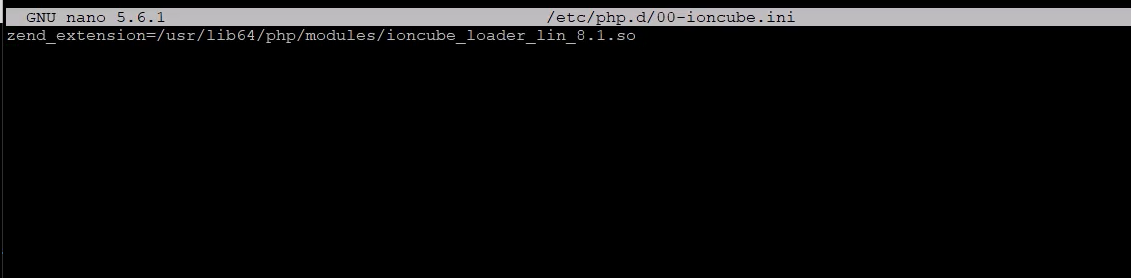
This tells PHP to load ionCube Loader. Save and close the file.
3.5 Restart Apache
systemctl restart httpd
Reloads Apache to apply the configuration.
Step 4: Verify ionCube Loader Installation
4.1 Check PHP Version and ionCube Status
You should see:

with the ionCube PHP Loader (enabled) ...
This confirms that ionCube Loader is working.
4.2 Create a PHP Info Test File
Open your browser and go to:
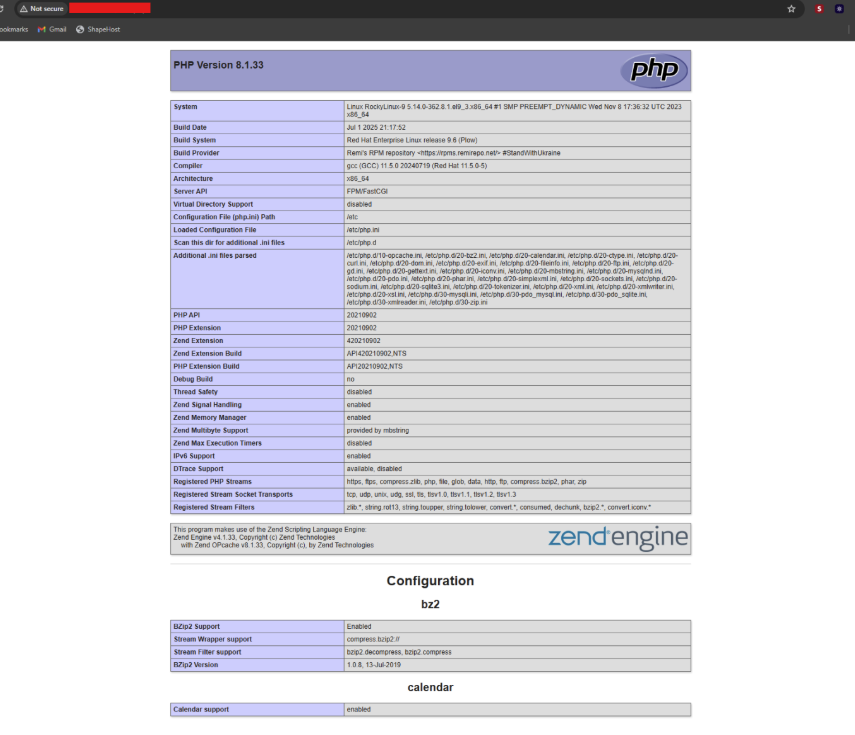
Check for the ionCube Loader section to confirm installation.
4.3 Clean Up Test Files
Removes the test file and installation package.
Conclusion
You have now successfully installed ionCube Loader on Rocky Linux 9 with PHP 8.1 and Apache Web Server. Your server is ready to run encrypted PHP applications. Whenever you upgrade PHP, remember to update ionCube Loader to match the PHP version to avoid compatibility issues.
