
How to install and create an automatic backup for 2 VPSs via LAN using Duplicati on Ubuntu 22
Introduction
Duplicati is a free, open-source backup solution that encrypts, compresses, and stores files in the cloud. Duplicati is mainly written in C# and supports various storage protocols like SFTP and S3-compatible storage solutions like Vultr Object Storage.
You can use the Duplicate intuitive web interface to set up and schedule regular backups for your Cloud Compute instances to remote storage. Duplicate backups are fully automated and secured with solid data encryption algorithms like AES-256 and TLS/SSL protocols.
This guide walks you through setting up automatic backups with Duplicati and Vultr Object Storage on Ubuntu 22.04.
You’ll set up:
-
Server A – The source VPS, where Duplicati will back up data from. IP_PUB_A (IP LAN: 10.22.1.24, user: green1)
-
Server B – The destination VPS, where Duplicati will store the backup (via LAN). (IP LAN: 10.22.1.25, user: green)
- Goal: Web UI access: http://PUB_A:8200 (management from the Internet)Data transmission: LAN_A <-> LAN_B (SFTP over a private LAN)
Prerequisites
Before you begin:
-
Two VPS running Ubuntu 22.04.
-
Both servers are connected to the same LAN (or private network).
-
SSH access to both.
-
Sudo privileges.
Step 1: Prepare VPS B (storage target) — set directory + user, + SSH key
On VPS B (LAN_B): user green
-
Create a dedicated user and folder:
-
Ensure OpenSSH server is installed and running:
-
Create an SSH key on VPS A (or on your admin machine) and copy it to VPS B:
mkdir -p ~/.ssh
ssh-keygen -t ed25519 -f ~/.ssh/duplicati_key -C "duplicati@ServerA" -N ""
# file private: ~/.ssh/duplicati_key
# file public:  ~/.ssh/duplicati_key.pub
Copy public key sang Server B (user green):
On VPS A, display the key contents.
Copy the entire line (starting with ssh-rsa or ssh-ed25519).
On VPS B (backup machine), log in as the user green and run:
Check the login from VPS A:
👉 If you can log in without a password, you’re successful.
If you encounter a fingerprint confirmation error, you can disregard it by following the provided instructions.
Step 1: Clean up old fingerprints (if any)
on Server A:
Step 2: Create a new known_hosts file.
To avoid SSH getting stuck when manually confirming fingerprints, you can automatically accept fingerprints using this command:
🔸 Explain:
ssh-keyscantakes Server B’s fingerprint and saves it toknown_hosts, helping SSH to no longer ask, “Are you sure you want to continue connecting (yes/no)?
Step 2: Install and Configure Duplicati on A VPS
Duplicati maintains a central repository where you can download the latest installation files, tailored to your operating system. Follow the steps below to install Duplicati.
Install Duplicati
Install Duplicati using Ubuntu apt command:
- Navigate to the
/tmpdirectory.$ cd /tmp
- Visit the Official Duplicati Download page and get a link to download the installation file for Debian/Ubuntu.
- Install the Mono dependency package.
$ sudo apt install mono-complete -y - Use the following Linux
wgetcommand to download the Duplicati installation package file.$ wget https://updates.duplicati.com/stable/duplicati-2.1.0.5_stable_2025-03-04-linux-x64-gui.deb - Install the Duplicati package.
$ sudo apt install ./duplicati-2.1.0.5_stable_2025-03-04-linux-x64-gui.deb -y
Configure Duplicati
Make the following configuration changes before you start using the Duplicati service:
- Open the default Duplicati configuration file using a text editor like Nano.
$ sudo nano /etc/default/duplicati - Locate the
DAEMON_OPTSdirective.... # Additional options that are passed to the Daemon. DAEMON_OPTS="" - Change the default value
""to the following content. This setting allows you to access the Duplicati web interface through your server’s private IP address on port8200.DAEMON_OPTS="--webservice-interface=0.0.0.0 --webservice-port=8200 --webservice-password=YourStrongPassword" #Replace YourStrongPassword with the password you want to use.Save and close the file.
- Allow port
8200through Uncomplicated Firewall (UFW) and reload the new firewall changes.$ sudo ufw allow 8200 $ sudo ufw reload
- Start Duplicati and enable the service to start at boot.
$ sudo systemctl start duplicati
$ sudo systemctl enable duplicati
Duplicati runs a web interface on port 8200 by default.
Open it in your browser:
Step 3: Configure Backup on Server A (Duplicati Web UI)
Open the browser to:http://IP_PUB_A:8200
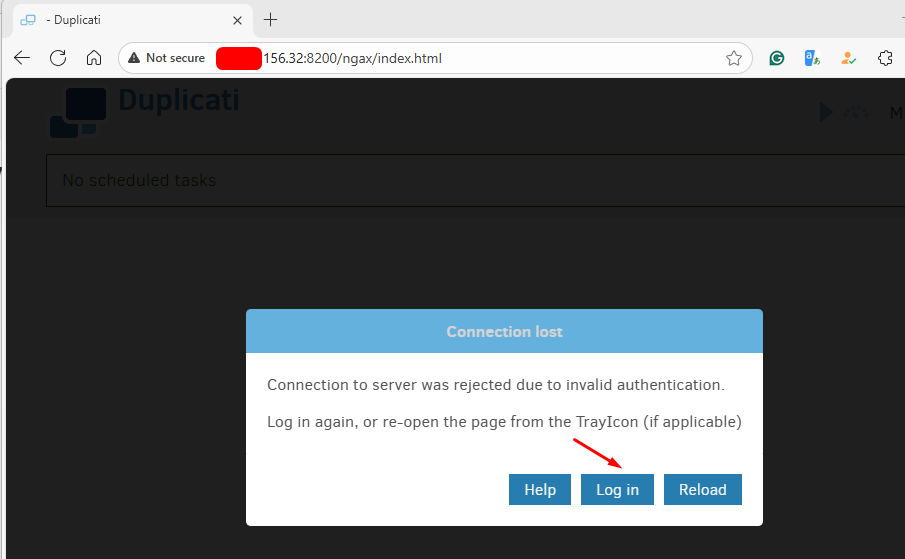
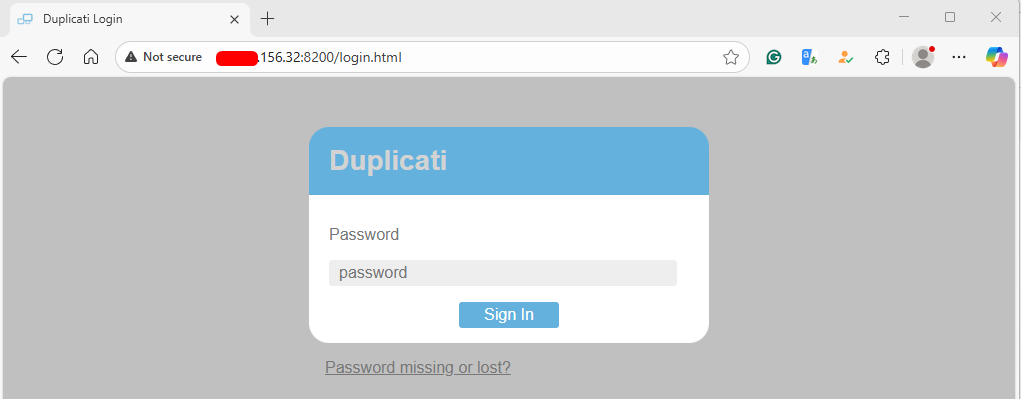
You will be asked for a password before logging in. The password was configured in step 2.
Step-by-step in the UI:
Select Add backup → Configure a new backup → Next
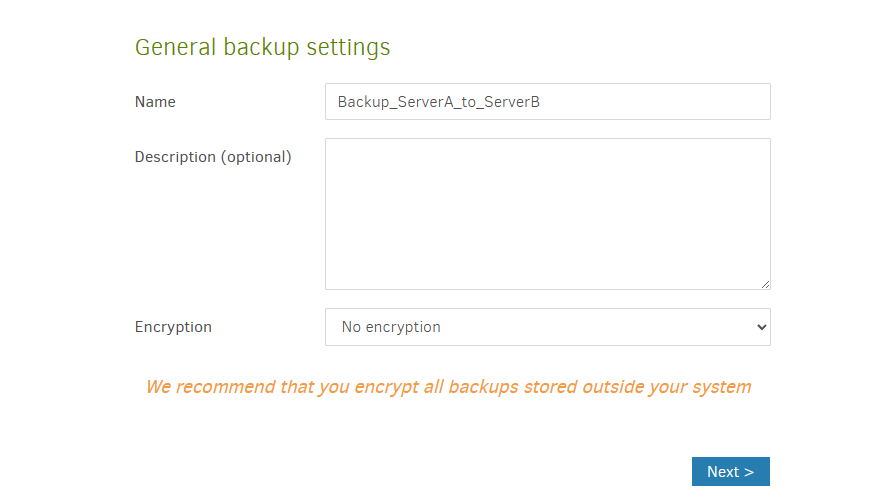
General:
-
-
Name:
Backup_ServerA_to_ServerB -
Encryption: No Encryption

-
Destination:
- Storage Type: SFTP (SSH)
- Server:
10.22.1.25 - Port:
22 - Path on server:
/home/green/duplicati_backups/ServerA - Username:
green - Password: Password of the user
green - Authentication: Private SSH key file
If Duplicati runs under green1 (local GUI): select the file key from the client browser (upload) and then select the ~/.ssh/duplicati_key that you created.
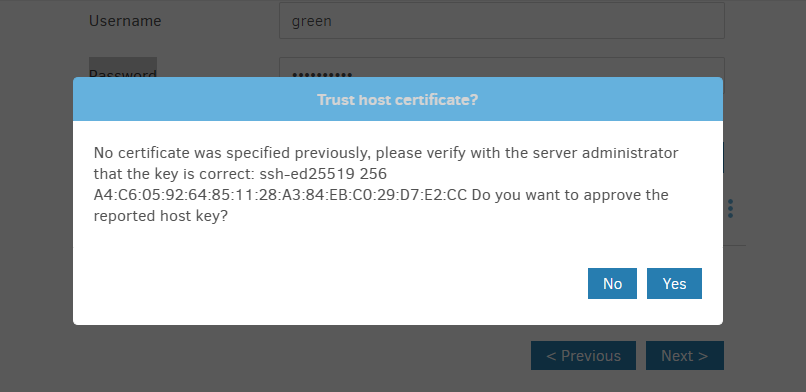
Click Test connection → if “Connection Successful” is displayed.
Source data: select the folder you want to back up, e.g. /home/green1/data or /etc depending on your needs
Schedule & Options: set up a calendar (daily, weekly) and a retention policy
Save and click Run now to try it immediately.
After the job runs, log on to Server B
You’ll see .dblock.zip, .dindex, .dlist, or duplicati-* backup files, indicating the backup is successful.
You’ll see .dblock.zip, .dindex, .dlist, or duplicati-* backup files, indicating the backup is successful.
Troubleshooting
| Problem | Solution |
|---|---|
| “Connection failed” in Duplicati | Check the firewall on Server B: sudo ufw allow 22/tcp |
| Duplicati web not opening | Check service: sudo systemctl status duplicati |
| Slow transfer | Use LAN IPs (e.g., 192.168.x.x) instead of a public IP |
| Permissions error | Ensure /backups/duplicati is writable by the user connecting via SSH |
Conclusions
Duplicati is a multi-platform, feature-rich, easy-to-use backup solution for personal computers. It supports a wide variety of backup repositories, making it a very versatile tool that can adapt to most personal needs.
