
How to Install NoMachine RDP on Ubuntu 22.04
How to install NoMachine Remote Desktop Tool on Ubuntu 22.04 Linux machine?. NoMachine is a remote desktop management tool that allows you to gain access to a computer on a local network. This can also be an office or home computer accessed securely over the public internet.
NoMachine Remote Desktop Tool is useful for granting a colleague access to your machine or for working on a collaboration project in another user’s Desktop session. You can use NoMachine to access your Linux, Mac, and Windows desktops.
Install NoMachine Remote Desktop Tool on Ubuntu 22.04
By default, Ubuntu Server does not include a Graphical User Interface (GUI). A GUI consumes system resources (memory and processor) that could be utilized for server-oriented tasks. You can install a GUI by following the instructions at this link:
https://green.cloud/docs/how-to-install-a-desktop-gui-in-centos-rhel-vps/
NoMachine remote desktop tool is available as a .deb package for Ubuntu and other Debian-based Linux distributions.
Visit the Downloads page to get a version for your machine. I’ll download mine with the wget command.
apt update
apt -y install wget
wget -O nomachine.deb "https://apt.iteas.at/iteas/pool/main/n/nomachine/nomachine_9.8.2_1_amd64.deb"
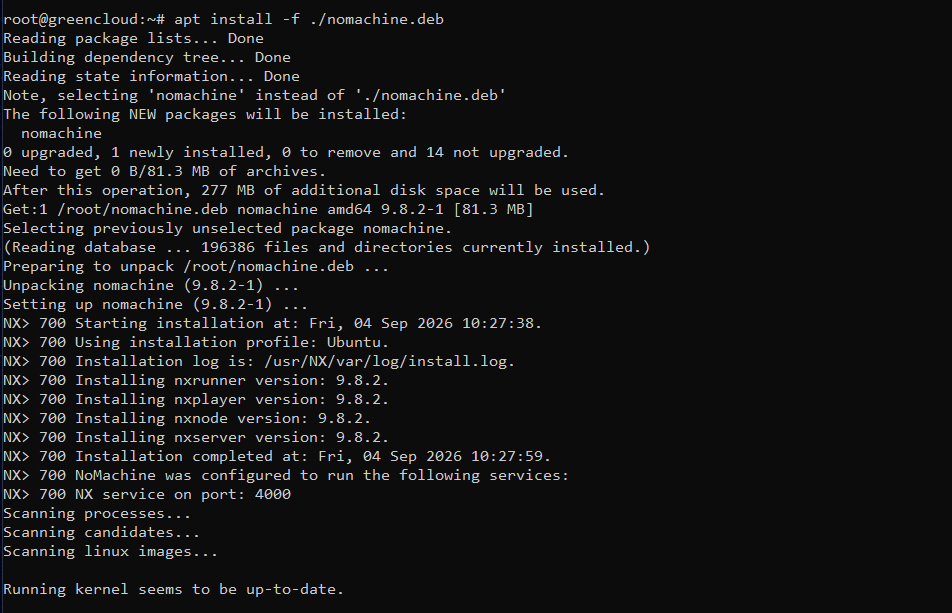
Once the file is downloaded, install it with the apt or dpkg command.
apt install -f ./nomachine.debThis is the output from my installation.
Using NoMachine RDP on Ubuntu 22.04
Download and install NoMachine on your Windows/MAC PC here
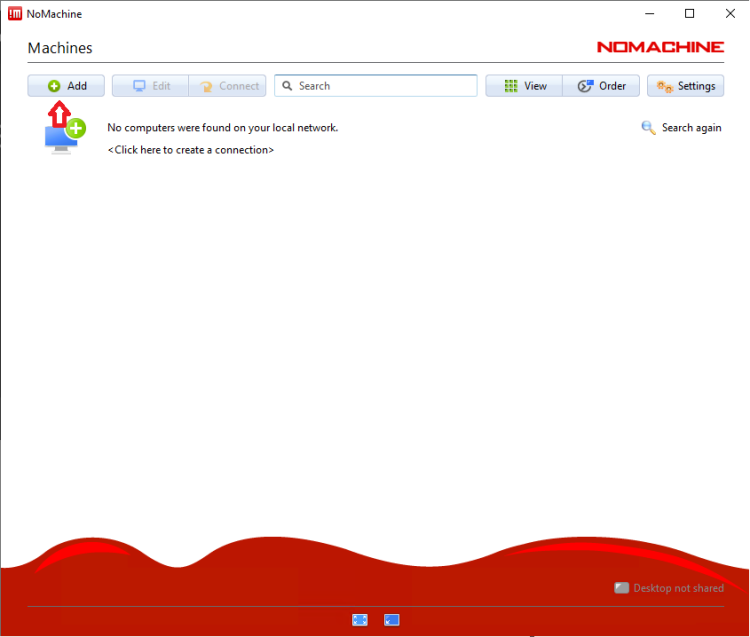
Open NoMachine, click on the +add button to create a connection.
Set the connection name, IP address, Port (4000), and Protocol (NX).
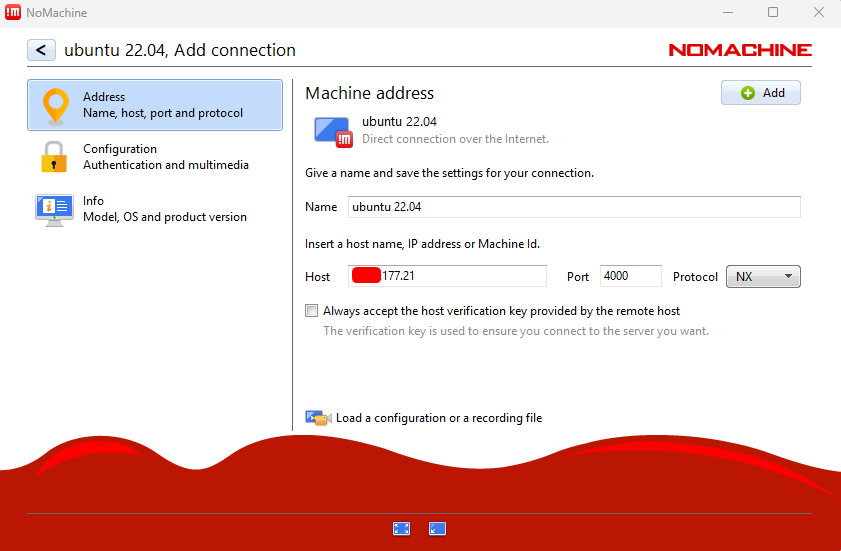
-> Click connect ->Yes
Please enter your VPS “username” and “password” to continue:
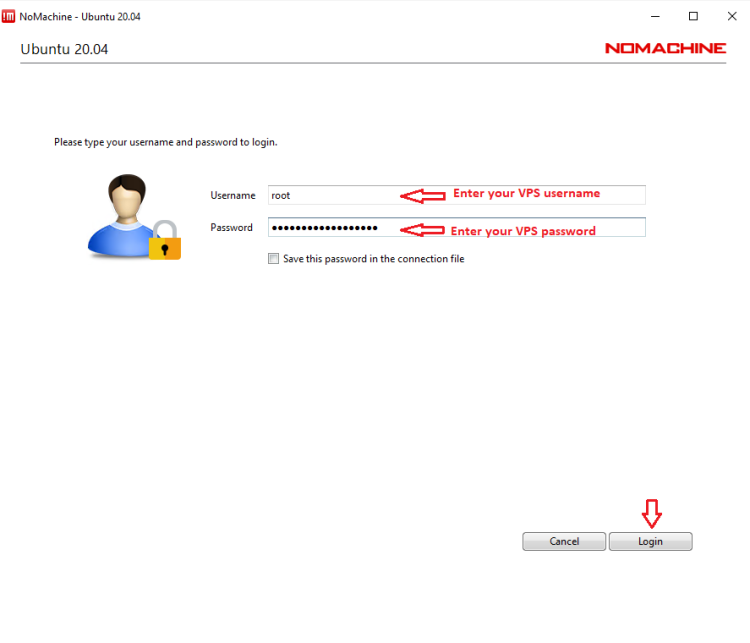
Then please press Login -> OK -> OK -> OK to continue
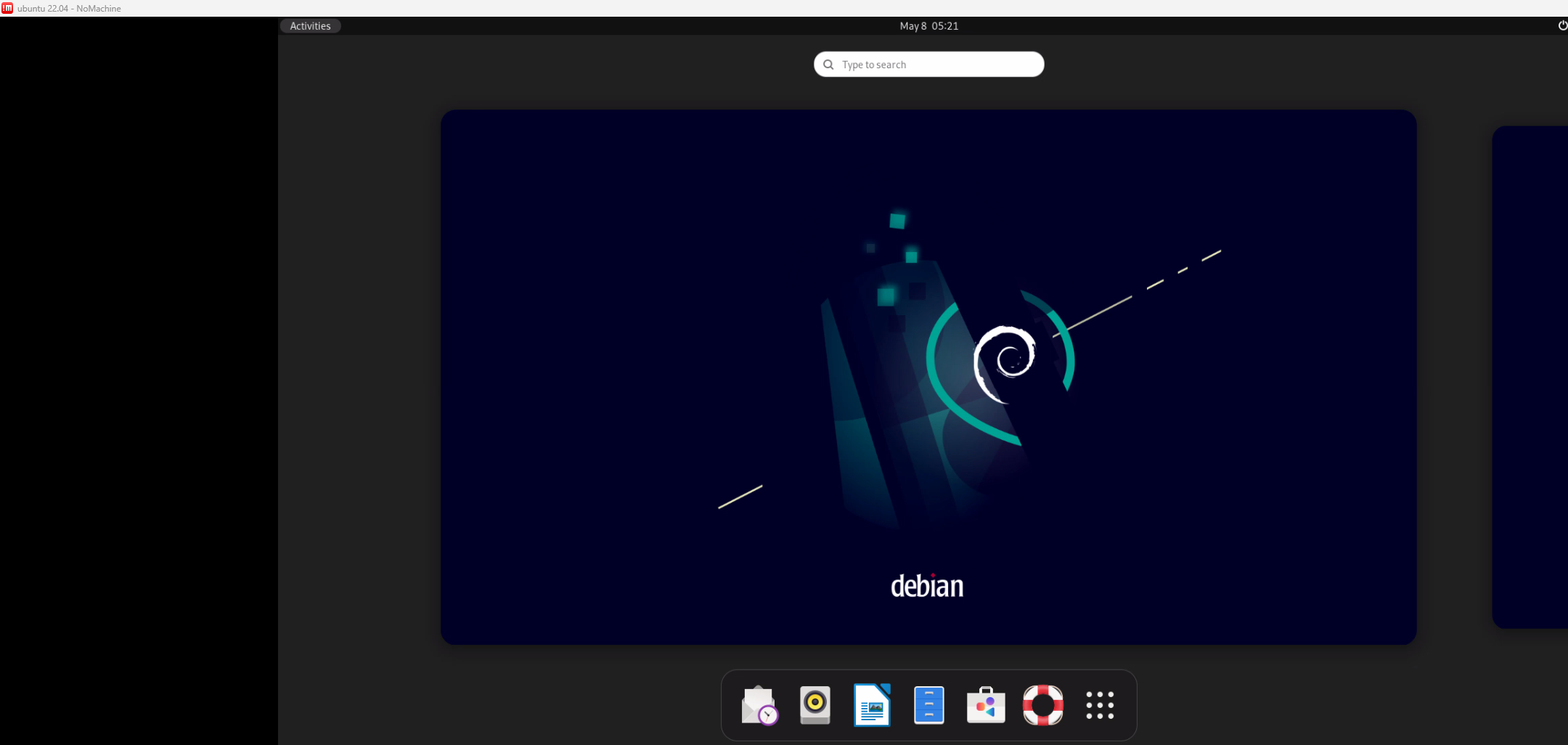
Access has been successful
Good Luck!
