
How to Block and Reactivate User Logins on Linux
Overview
System administrators sometimes need to temporarily block user access — for example, when an employee leaves, a server is under maintenance, or an account is compromised. Linux provides multiple ways to disable and later reactivate user logins. In this guide, we’ll walk through several common methods using a test account named green.
Create the test user:
sudo useradd -m -s /bin/bash green
sudo passwd green

Check that the user was created successfully:
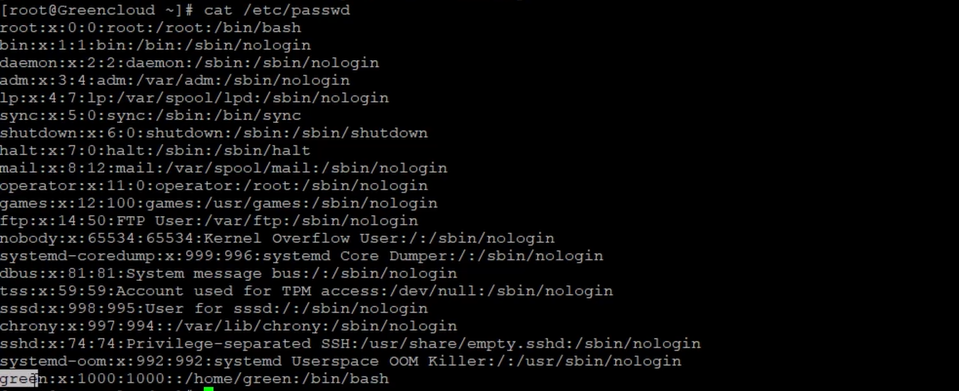
1. Using the nologin Command
The nologin command prevents a user from logging in by showing a message and exiting with a non-zero status.
Block Login
sudo usermod -s /sbin/nologin green
sudo su - green
Output:
This account is currently not available.
If the file /etc/nologin.txt exists, its content is displayed instead.
You can customize the message:
echo "Your account has been temporarily disabled. Please contact the administrator." | sudo tee /etc/nologin.txt sudo su - green
Output:
Your account has been temporarily disabled. Please contact the administrator.

Reactivate Login
sudo usermod -s /bin/bash green
2. Using the false Command
The false command always returns a non-zero (failure) status code.
By setting it as the user’s shell, all login attempts fail silently.
Block Login
sudo usermod -s /bin/false green
sudo su - green
echo $?
Output:
1

The shell immediately exits without displaying any message.
Reactivate Login
sudo usermod -s /bin/bash green
3. Using the passwd Command
The passwd utility can lock or unlock user accounts by changing the password field in /etc/shadow.
Block Login
sudo passwd -l green

Output:
passwd: password expiry information changed.
Attempting to log in:
su - green
Password: su: Authentication failure
When locked, the password field in /etc/shadow begins with an exclamation mark (!).
Reactivate Login
sudo passwd -u green
This removes the ! prefix and restores the password.
4. Using the usermod Command
The usermod command can also lock or unlock accounts, similar to passwd.
Block Login
sudo usermod -L green
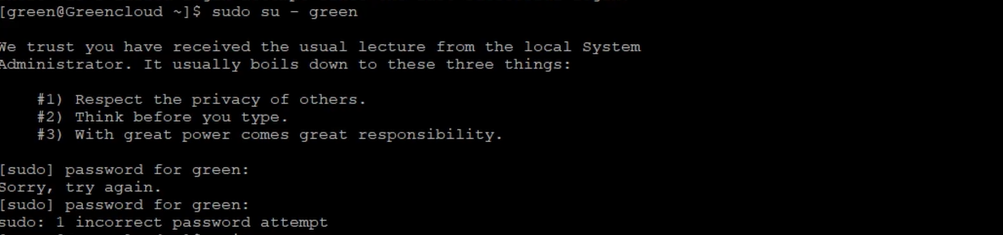
sudo su - green
Output:
Password: Sorry, try again.
Reactivate Login
sudo usermod -U green
sudo su - green
5. Verifying Account Status
To confirm whether a user account is locked or what shell it uses:
# Check shell type grep ^green: /etc/passwd
# Check if the password is locked sudo grep ^green: /etc/shadow
If the password field starts with ! or !!, the account is locked.
Conclusion
In this guide, we explored several ways to block and reactivate user logins on Linux.
-
nologinis the most user-friendly option because it allows custom messages. -
falsesimply blocks logins without feedback. -
passwd -landusermod -Lmodify the account’s password entry to disable authentication.
For administrative purposes, usermod -L or passwd -l are generally the simplest to automate, while nologin is best when you want users to understand why their access has been disabled.
