
How to Install Webmin on AlmaLinux 9
Introduction to Webmin
Webmin is a web-based system administration tool designed to help Unix and Linux administrators manage and configure their systems easily and conveniently. Developed by Jamie Cameron, it provides a friendly graphical interface for performing many information system administration tasks via a web browser, minimizing the need to use the command line.
Some features of Webmin
- User-friendly graphical interface: Webmin provides an easy-to-use and user-friendly web interface, helping system administrators perform tasks easily without entering commands directly.
- User management and permissions: Administrators can manage users, user groups, and set access rights for each user, helping to control access to specific functions.
- File and folder management: Webmin provides tools for managing files and folders on the system, including access rights, data backup, and recovery.
- Web server management: Allows administrators to configure and manage web servers such as Apache, Nginx, or even other web servers through built-in modules.
- Database management: Supports database management through modules for MySQL, PostgreSQL, and other database management systems.
- Hardware System Management: Webmin provides tools to monitor and manage information about the system’s hardware.
- Package and Update Management: Supports package management and software updates on the system.
- Multiple Operating System Support: Webmin can be used on many different Unix and Linux operating systems.
With its flexible and diverse features, Webmin is a useful tool for system administrators, especially those who want to perform management tasks without having to use the command line.
Installation steps
Step 1: Check for any pending system updates
dnf updateStep 2: Install Webmin
Add the Webmin repository to your repository list. Open a text editor like nano or vi:
nano /etc/yum.repos.d/webmin.repoAdd the following content:
[Webmin]
name=Webmin Distribution Neutral
#baseurl=http://download.webmin.com/download/yum
mirrorlist=http://download.webmin.com/download/yum/mirrorlist
enabled=1
Add GPG key to Webmin repository:
wget http://www.webmin.com/jcameron-key.asc
rpm --import jcameron-key.asc
Install Webmin:
dnf install webminStep 3: Enable and configure Webmin
Once the installation is complete, you need to enable the Webmin service and configure it to start automatically with system boot. Run the following commands:
systemctl start webmin
systemctl enable webmin
Step 4: Open the port for Webmin
Access the Webmin Web Interface.
firewall-cmd --add-port=10000/tcp --permanent
firewall-cmd --reload
Step 5: Access Webmin
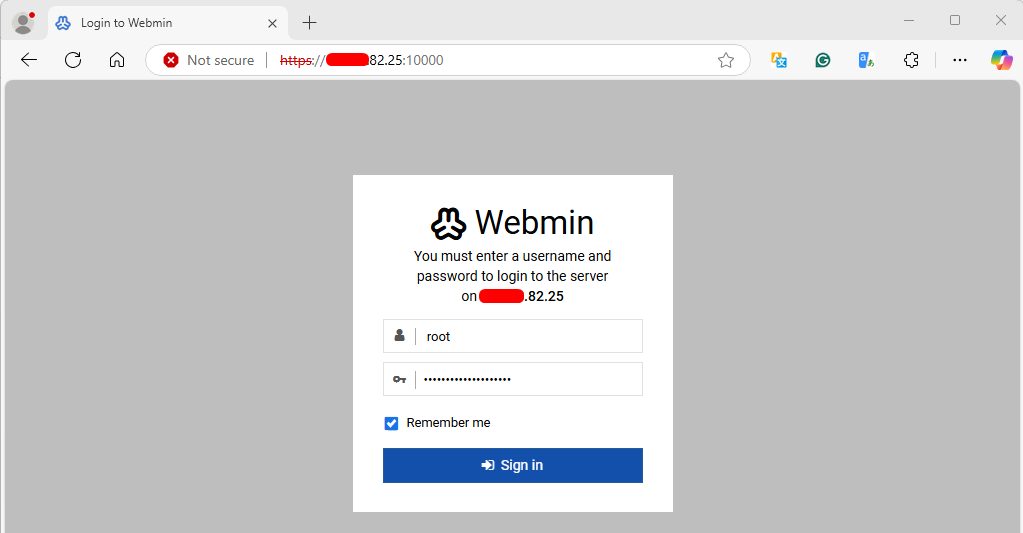
To access Webmin, open the URL from your web browser: https://IP_address:10000
Note:
- When logging in for the first time, you will see an ‘invalid SSL’ warning.
- Simply click on the ‘Advanced’ tab and then ‘Accept the risk and Continue’.
Log in to the Webmin web interface using your root user and password.
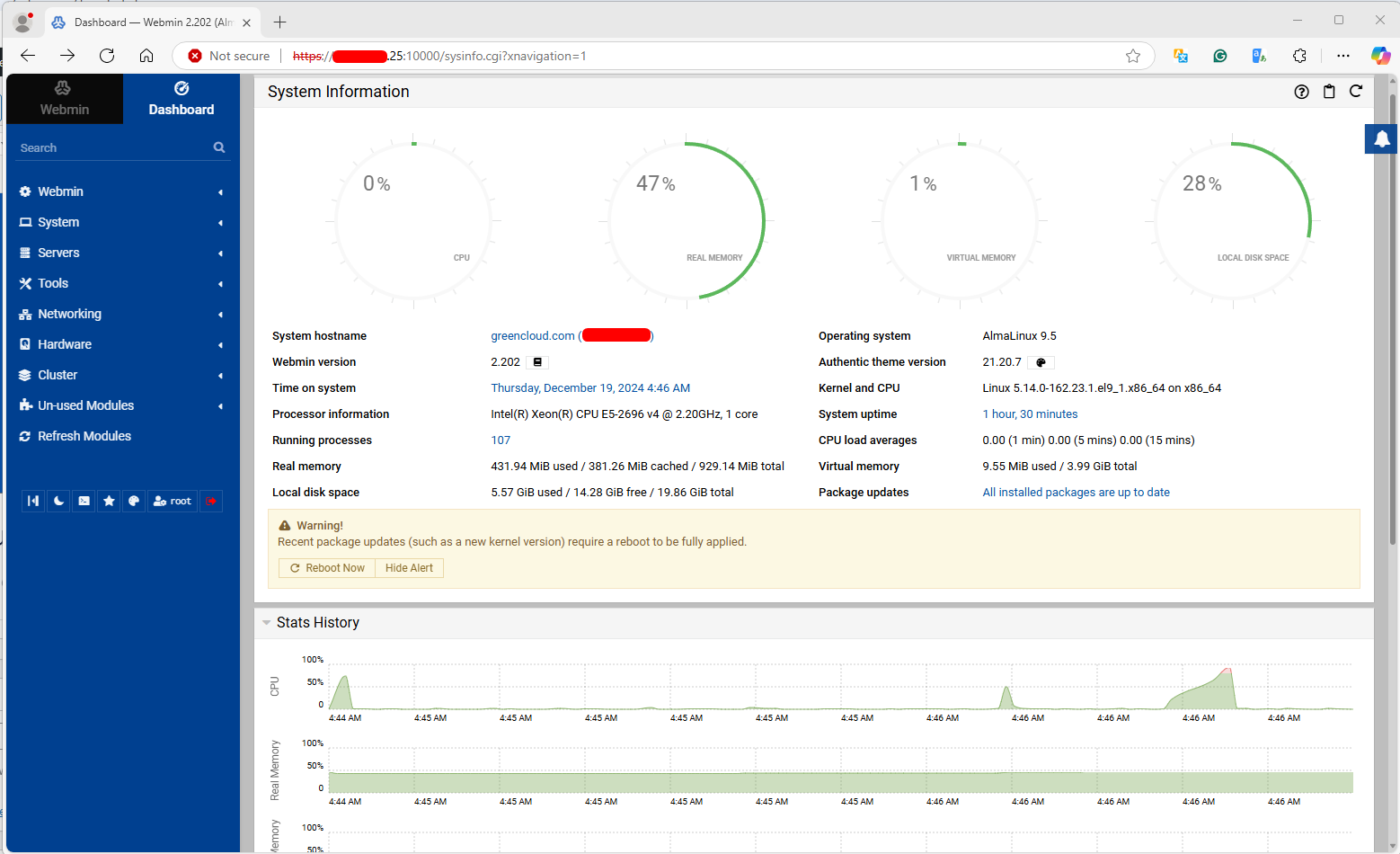
Once you log in, you will be redirected to the Webmin dashboard.
Conclusion
So you have completed the installation and configuration of Webmin on AlmaLinux. Now, you can easily manage your Linux system through a friendly web interface. Good luck!
