
How to Install n8n on AlmaLinux 9
Introduction
n8n is a powerful workflow automation tool that allows you to connect apps, services, and databases to automate repetitive tasks. This guide will show you how to install and run n8n on a CentOS or AlmaLinux server using Docker and Docker Compose, and set up Nginx as a reverse proxy for IP-based access.
By the end of this guide, you’ll have a fully functional n8n instance accessible via your server’s IP address.
Step 1: Connect to Your Server
Use SSH to connect as the root user:
Replace YOUR_SERVER_IP with your server’s IP address.
Step 2: Update the System
Update all system packages:
dnf update -y
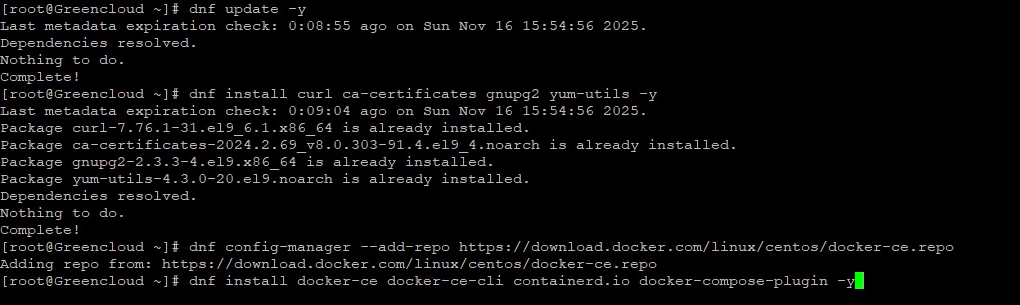
Step 3: Install Docker and Dependencies
Install required packages:
Add the Docker repository:
Install Docker and Docker Compose plugin:
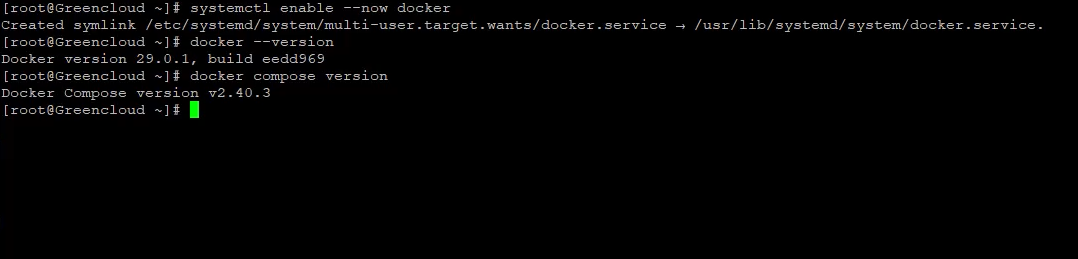
Enable and start Docker:
Verify installation:
Step 4: Set Up the n8n Directory
Create a directory for n8n:
Create folders for persistent storage:
Set ownership so Docker can write:

Step 5: Create the Docker Compose File
Open a new docker-compose.yml :
Paste the following:
services:
n8n:
image: n8nio/n8n:latest
container_name: n8n
restart: unless-stopped
ports:
- "5678:5678"
environment:
- N8N_HOST=YOUR_SERVER_IP
- N8N_PORT=5678
- N8N_PROTOCOL=http
- WEBHOOK_URL=http://YOUR_SERVER_IP:5678
- N8N_EDITOR_BASE_URL=http://YOUR_SERVER_IP:5678
- GENERIC_TIMEZONE=UTC
- N8N_USER_FOLDER=/home/node/.n8n
volumes:
- ./n8n-data:/home/node/.n8n
- ./local-files:/files
networks:
- n8n-network
networks:
n8n-network:
driver: bridge
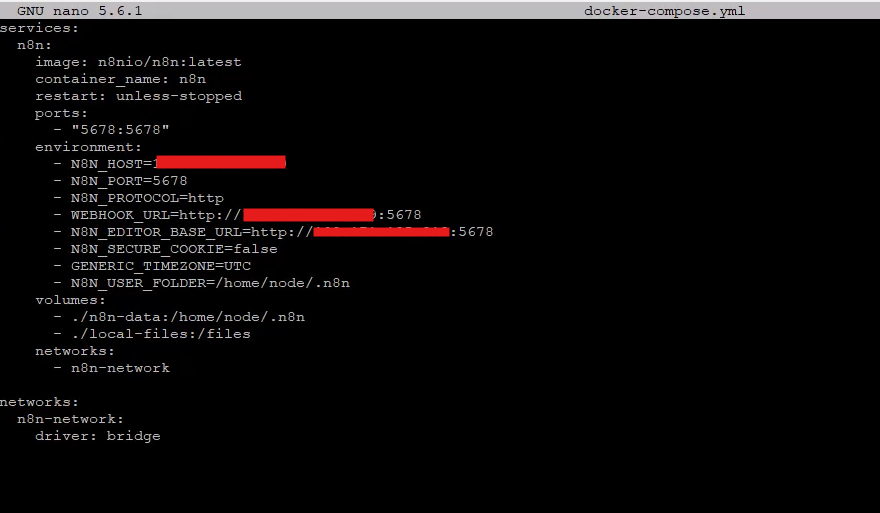
Replace YOUR_SERVER_IP with your server’s IP address.
Save and exit (CTRL + O, ENTER, CTRL + X).
Step 6: Start n8n with Docker Compose
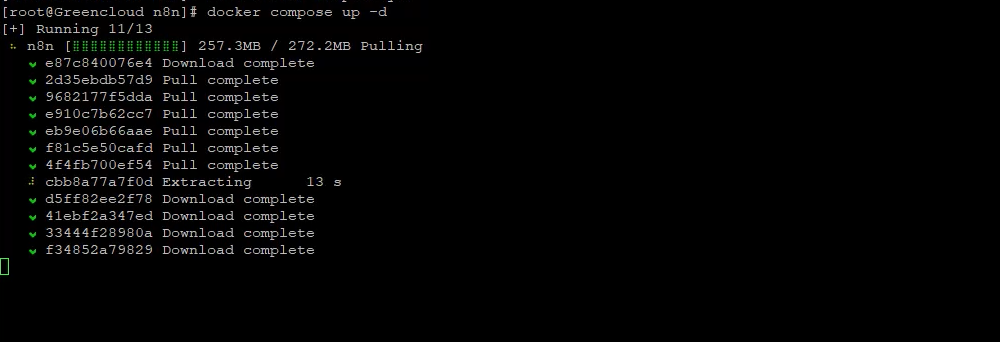
Start n8n in detached mode:
Check running containers:
Monitor logs:
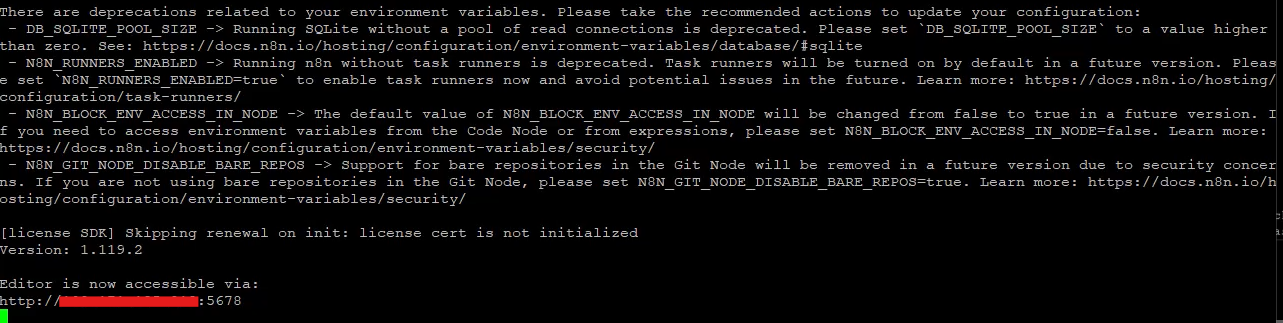
n8n is now running on port 5678.
Step 7: Install and Configure Nginx
Install Nginx:
Enable and start Nginx:
Create a reverse proxy configuration:
Paste this:
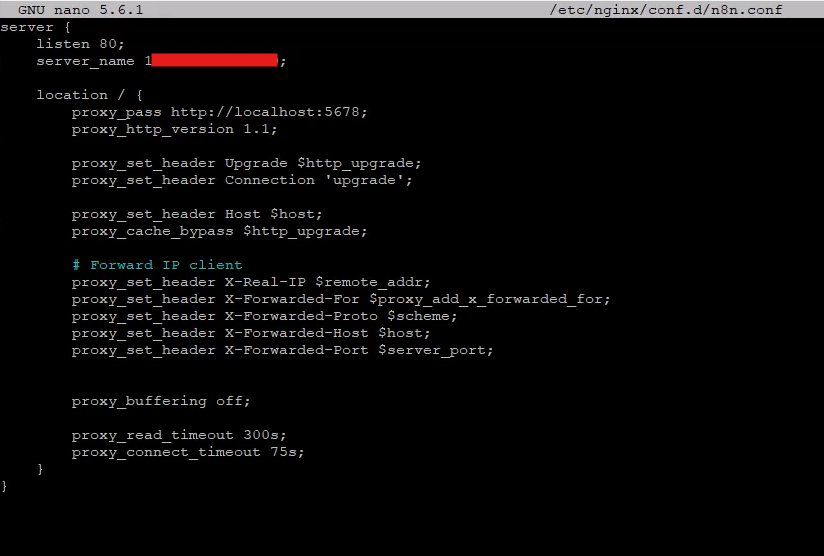
Test and reload Nginx:
nginx -t
systemctl reload nginx
Step 8: Restart n8n
Restart the container to apply any changes:
Step 9: Access n8n
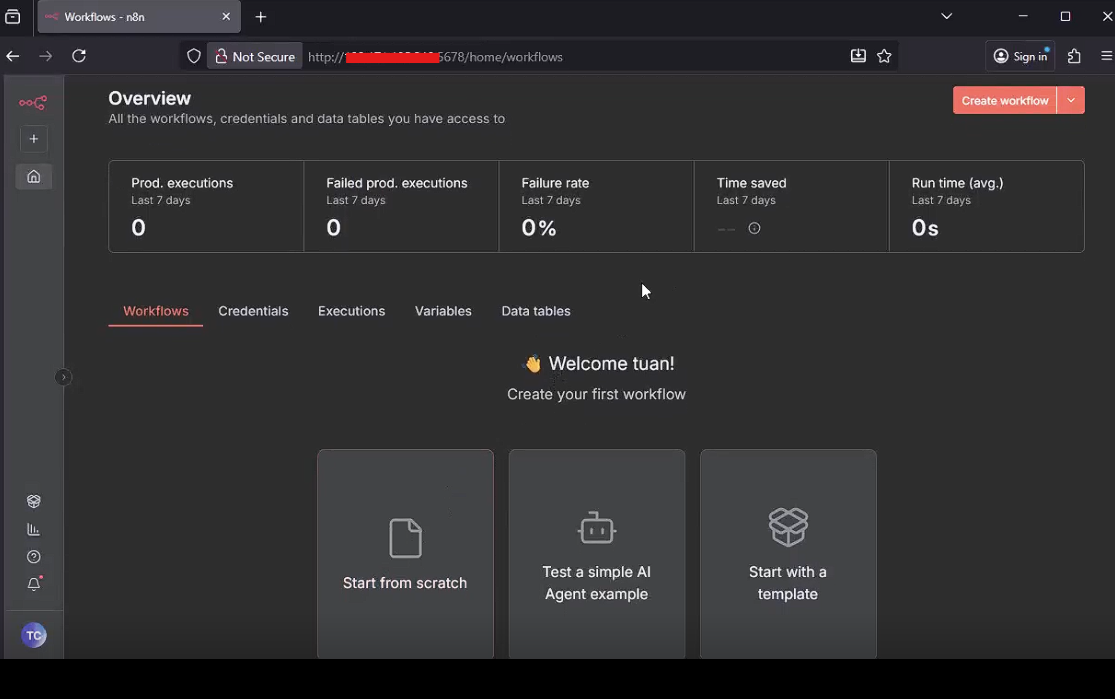
Open your web browser and navigate to:
You should now see the n8n dashboard and be able to start creating workflows.
Conclusion
You have successfully installed and configured n8n on a CentOS/AlmaLinux server using Docker and Docker Compose, with Nginx as a reverse proxy for IP-based access.
Your n8n instance is now ready for workflow automation without requiring a domain or SSL. You can start building automations, connecting apps, and managing data directly through the dashboard.
