
How to Upgrade Ubuntu 22.04 to Ubuntu 24.04
The stable version of Ubuntu 24.04 LTS (code-named Noble Numbat) will be released on April 25th, 2024. If you are curious to know what is in it, you can now upgrade to the newer version from the older version for testing purposes.
Just like every new Ubuntu release, Ubuntu 24.04 ships with new features, including the latest and greatest software such as the Linux kernel, GNOME 46, and a refreshed state-of-the-art toolchain. You can find more information about the new changes in the release notes.
Importantly, Ubuntu 24.04 LTS will be supported for 5 years until April 2029, for Ubuntu Desktop, Ubuntu Server, and Ubuntu Core.
This guide will walk you through the process of upgrading your current Ubuntu 22.04 system to the latest Ubuntu 24.04 LTS. Additionally, we will introduce the update script, a tool that can simplify the upgrade process.
Step 1: Preparing the Ubuntu System for Upgrade
Before upgrading, you need to back up your data first to avoid data loss.
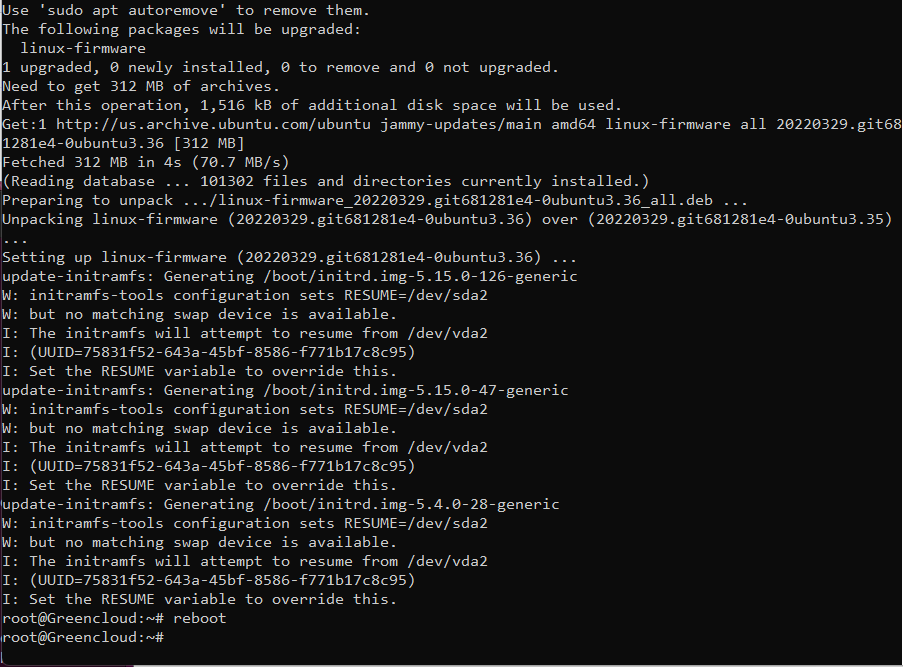
When you start upgrading your system, it’s important to make sure there are no updates needed. After that, update and upgrade your current packages. Once the upgrade is finished, restart your system so all the changes can work properly.
apt list --upgradable
apt update && apt upgrade -y
reboot
Step 2: Upgrade Ubuntu 22.04 LTS to 24.04 LTS
If upgrading via SSH, make sure to open TCP port 1022 on ufw firewall for a stable connection during the upgrade process.
ufw allow 1022/tcp
If you have physical access to your Ubuntu desktop and are upgrading locally, you don’t need to open any ports. Simply install the Update Manager Core tool, which will ensure that all necessary tools for the upgrade are installed.
apt install update-manager-core
Install Update Manager Core
Once the Update Manager Core is installed, initiate the upgrade process by entering the following command.
do-release-upgrade
If the system doesn’t find a new release, and you get the following error?

The error message you received indicates that you’re trying to upgrade to a non-existent development version of an LTS release.
Here’s what’s happening and how to address it:
- Ubuntu releases come in two main types: LTS (Long Term Support) and non-LTS (development releases).
- You can’t directly upgrade from an LTS version (like 22.04 LTS) to a development version (which isn’t even available).
- The system is correctly informing you that there’s no development version of the current LTS (24.04 LTS) yet.
Since you want to upgrade from Ubuntu 22.04 LTS to the latest LTS release (24.04 LTS), here’s what you need to do:
Open the /etc/update-manager/release-upgrades upgrade configuration file and change the value of “Prompt” to “lts“, which ensures you’ll be notified about the upgrade and have the option to choose whether to proceed.
nano /etc/update-manager/release-upgrades
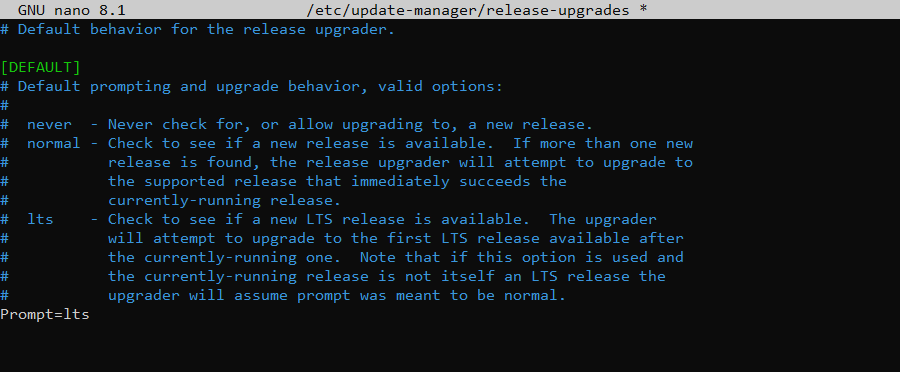
Now we can upgrade to Ubuntu 24.04 using the do-release-upgrade tool. Run this command:
do-release-upgrade
Go through the upgrade steps shown on the screen. The tool will query you for input every now and then and will only continue after you choose/confirm an option.
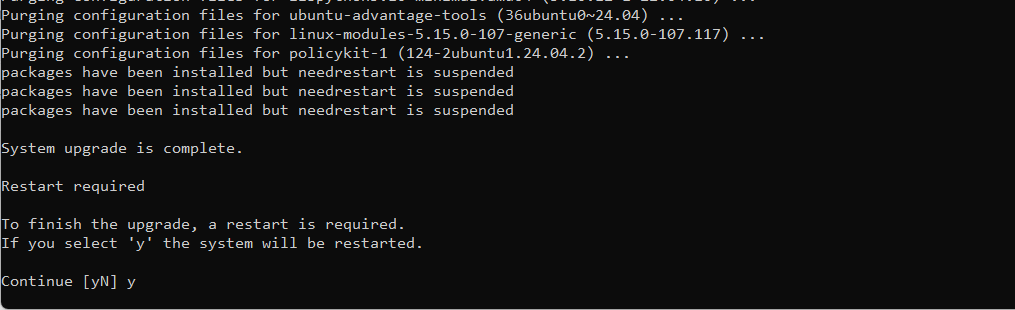
Step 4: Remove Obsolete Packages
To remove obsolete packages after upgrading Ubuntu to ensure system cleanliness, you can use the following command:
apt autoremove
Running the above command will remove any obsolete packages that are no longer needed on your system after the upgrade, which helps in freeing up disk space and keeping your system tidy and efficient.
Step 5: Enable Third-Party Repositories on Ubuntu
Next, uncomment and remove the # sign at the beginning of each line for each repository in the respective files.
Confirm that the third-party repositories are enabled by running the following command to ensure the necessary repositories are active.
ls -l /etc/apt/sources.list.d/
By following these steps, you can successfully enable third-party repositories on Ubuntu 24.04 after upgrading from Ubuntu 22.04.
There you go! We hope you have successfully upgraded your Ubuntu version from 22.04 to 24.04. If you encountered any issues along the way or have thoughts to share, use the feedback form below to reach us.
Step 6: Verify Ubuntu 24.04 Upgrade
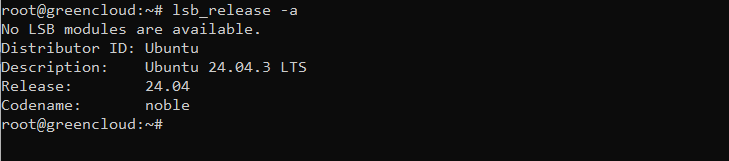
At this point, your server is upgraded to Ubuntu 24.04. You can now verify it using the following command:
lsb_release -a
Conclusion
Your server is now upgraded to Ubuntu 24.04.
