
FlowiseAI Installation Guide on Ubuntu 24.04
Introduction
FlowiseAI is an open-source platform designed for building AI applications such as chatbots and LLM workflows through a visual interface. It is built on top of LangChain and supports integration with multiple AI providers.
This guide provides a complete step-by-step process to install and run FlowiseAI on Ubuntu 24.04 using Docker. It includes system preparation, Docker setup, permission configuration, and application deployment.
Prerequisites
Before proceeding, ensure the following:
- Ubuntu 24.04 server
- Root or sudo access
- SSH access
- Minimum 2 GB RAM
Step 1: Connect to Server
ssh root@your_server_ip
Step 2: Update System
apt update && apt upgrade -y
Step 3: Create User (Optional)
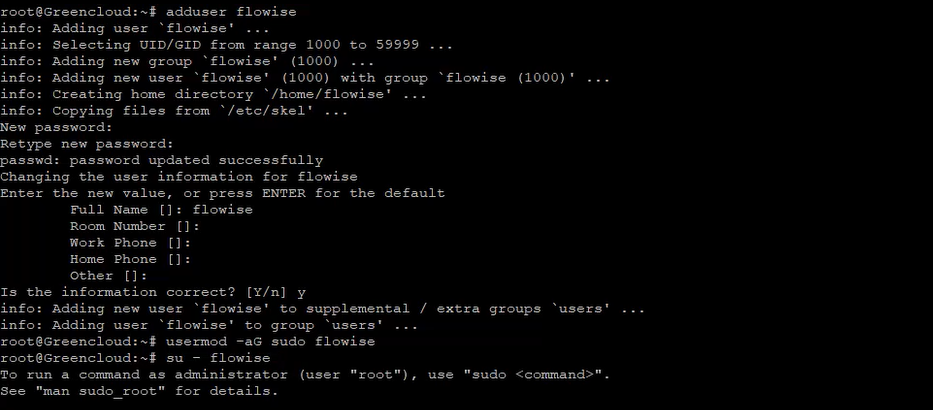
adduser flowise
usermod -aG sudo flowise
su - flowise
Step 4: Configure Firewall
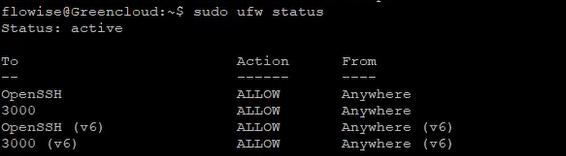
sudo ufw allow OpenSSH
sudo ufw allow 3000
sudo ufw enable
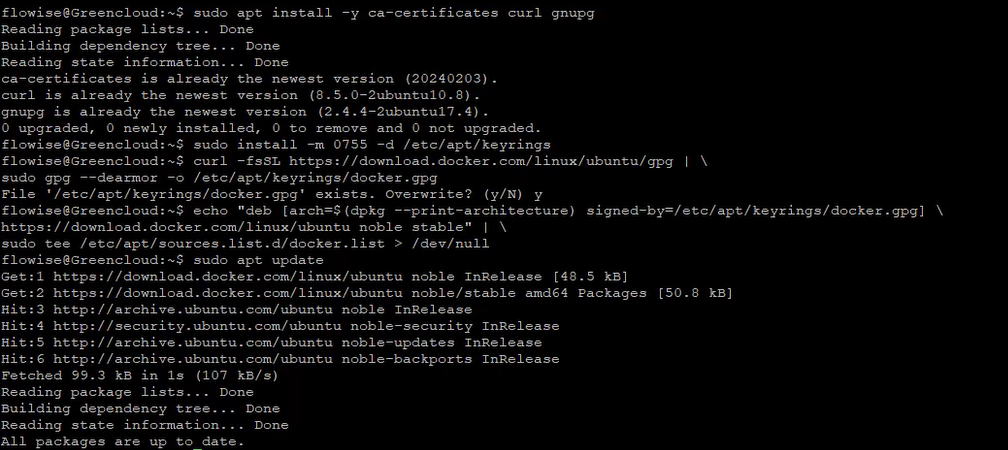
sudo apt install -y ca-certificates curl gnupg

sudo install -m 0755 -d /etc/apt/keyrings

curl -fsSL https://download.docker.com/linux/ubuntu/gpg | \
sudo gpg --dearmor -o /etc/apt/keyrings/docker.gpg

echo \
"deb [arch=$(dpkg --print-architecture) signed-by=/etc/apt/keyrings/docker.gpg] \
https://download.docker.com/linux/ubuntu noble stable" | \
sudo tee /etc/apt/sources.list.d/docker.list > /dev/null

sudo apt update

sudo apt install -y docker-ce docker-ce-cli containerd.io docker-buildx-plugin docker-compose-plugin
Step 6: Fix Docker Permission
sudo usermod -aG docker flowise
Apply changes:
newgrp docker
Verify:
docker ps

Step 7: Create Project Directory
mkdir -p ~/flowise
cd ~/flowise
Step 8: Create docker-compose.yml
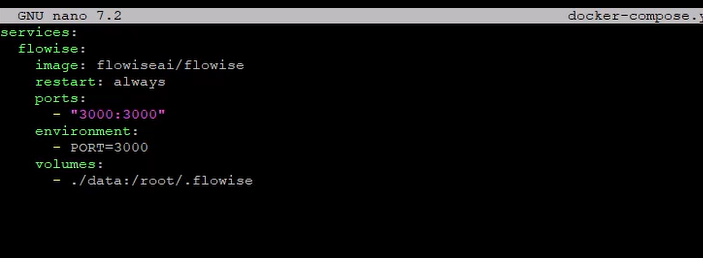
nano docker-compose.yml
Paste:
services:
  flowise:
    image: flowiseai/flowise
    restart: always
    ports:
      - "3000:3000"
    environment:
      - PORT=3000
    volumes:
      - ./data:/root/.flowise
Step 9: Run Flowise
docker compose up -d
Check:
docker ps

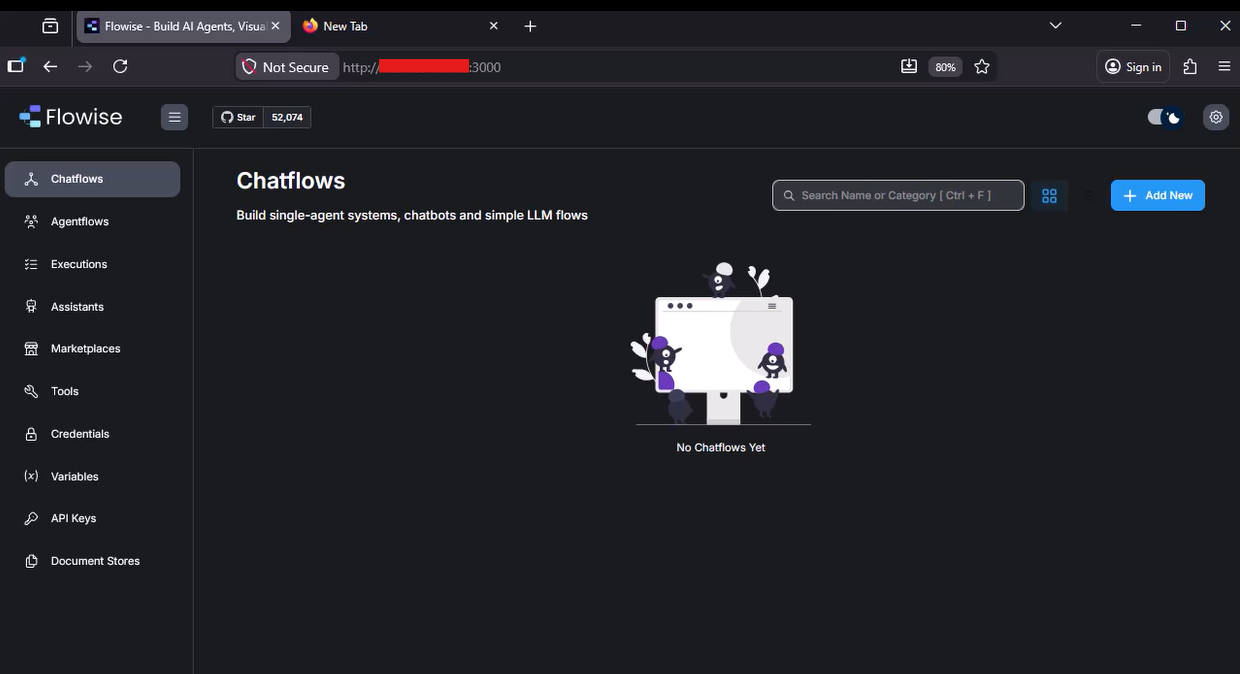
Step 10: Access Flowise
Open your browser and visit:
http://YOUR_SERVER_IP:3000
Conclusion
You have successfully installed FlowiseAI on Ubuntu 24.04 using Docker.
This guide covers the complete process from system preparation to deployment, including Docker installation and permission configuration. The application should now be running and accessible through port 3000.
This setup is suitable for basic usage, testing, and development. For production environments, additional steps such as enabling HTTPS, setting up a reverse proxy, and securing access should be considered.
