
How to Install R and RStudio on Ubuntu 22.04
R is a programming language commonly used for statistical computing and graphical representation of data. RStudio is a set of integrated tools designed to help R developers be more productive.
RStudio is the chief integrated development environment for R with a variety of robust tools for plotting, viewing history, debugging, and managing your workspace. You can choose the edition to run – open source or commercial.
Key Features of RStudio
- Runs on Windows, Linux, and macOS
- Syntax highlighting, code completion, and smart indentation
- Integrated support for Git and Subversion
- Execute R code directly from the source editor
- Quickly jump to function definitions
- Easily manage multiple working directories using projects
- Integrated R help and documentation
- An interactive debugger to diagnose and fix errors quickly
- Extensive package development tools
- Support for interactive graphics with Shiny and ggvis
- Supports authoring HTML, PDF, Word Documents, and slide shows
By choosing the commercial edition, you get additional features such as Access to priority email support and an 8-hour response during business hours (ET). Learn more about RStudio editions and features.
Here in this article, we’ll dive into the installation of the open-source edition of RStudio released under the AGPL License.
Step 1: Update system
Like always, update the system package index and optionally upgrade all installed packages to the latest.
apt update
apt -y upgrade
Step 2: Install the R Programming Language
We need to install the R-base package, which contains the basic R functions that let you perform arithmetic operations and basic programming in R. Use the command below to install.
apt -y install r-baseStep 3: Download and Install RStudio
Now visit the RStudio downloads page to grab the latest release of RStudio for Debian-based Linux distributions.
Ubuntu 22
wget https://download1.rstudio.org/electron/jammy/amd64/rstudio-2026.01.2-418-amd64.deb
apt install -f ./rstudio-2026.01.2-418-amd64.deb
Proceed with the installation when prompted:
The following additional packages will be installed:
  lib32gcc-s1 lib32stdc++6 libc6-i386 libclang-10-dev libclang-common-10-dev libclang-dev libclang1-10 libgc1c2 libllvm10 libobjc-9-dev libobjc4 libpq5 libxcb-xkb1 libxkbcommon-x11-0 libxkbcommon0
The following NEW packages will be installed:
  lib32gcc-s1 lib32stdc++6 libc6-i386 libclang-10-dev libclang-common-10-dev libclang-dev libclang1-10 libgc1c2 libllvm10 libobjc-9-dev libobjc4 libpq5 libxcb-xkb1 libxkbcommon-x11-0 libxkbcommon0
  rstudio
0 upgraded, 16 newly installed, 0 to remove and 91 not upgraded.
Need to get 51.2 MB/168 MB of archives.
After this operation, 1169 MB of additional disk space will be used.
Do you want to continue? [Y/n] y
Step 4: Launch RStudio on Ubuntu
Launch RStudio from the Applications search section of your Desktop Environment or from the terminal.
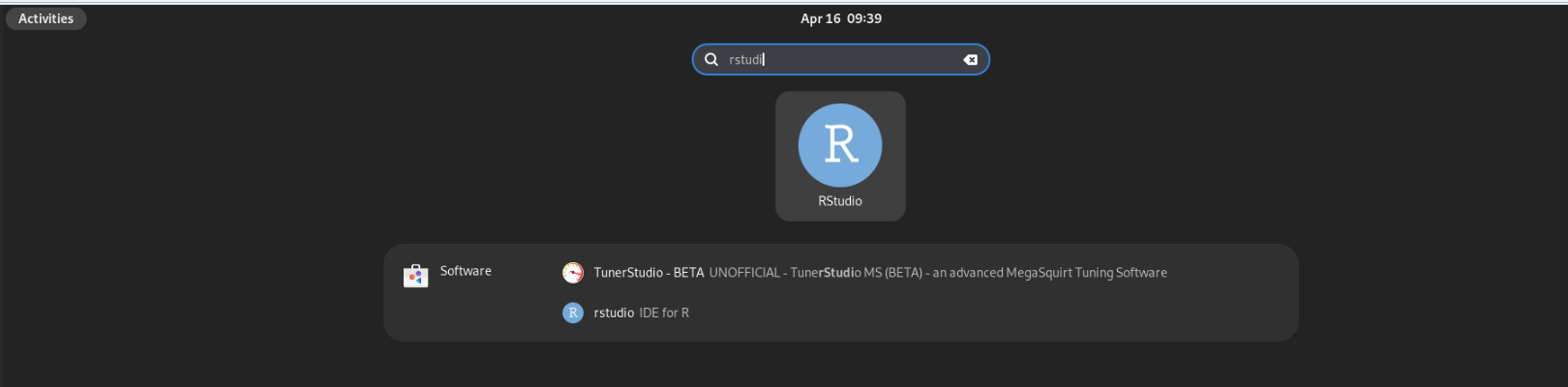
For the terminal, run with root:
rstudio --no-sandbox
Ubuntu 22.04 app crash fix (unlikely)
If on Ubuntu 22.04 you experience issues while trying to start the application. First, install OpenSSL 1.1 like below.
wget http://security.ubuntu.com/ubuntu/pool/main/o/openssl/libssl1.1_1.1.1l-1ubuntu1.2_amd64.deb
sudo apt-get install ./libssl1.1_1.1.1l-1ubuntu1.2_amd64.deb
Once done, launch RStudio without a sandbox
rstudio --no-sandboxIts UI looks like this.
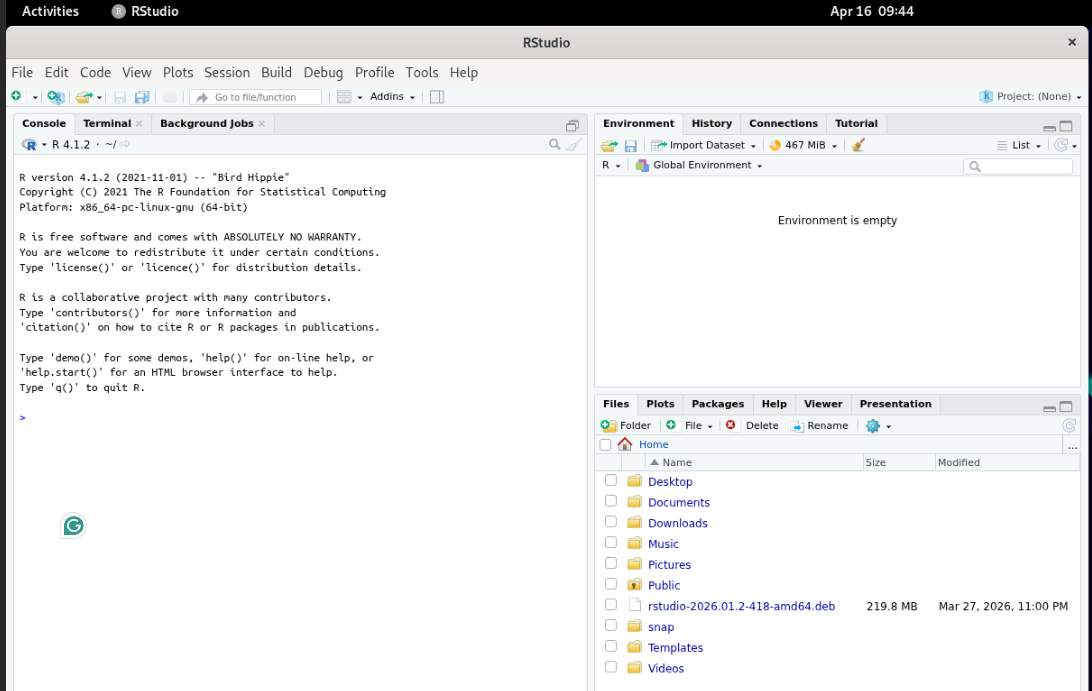
Nice!. Your installation of R and RStudio on Ubuntu / Debian and Linux Mint has been successful. Our next guide will cover the same setup on CentOS and Fedora.
