
How to Implement firewall rules with iptables on AlmaLinux 9
Implementing firewall rules with iptables on AlmaLinux 9 involves configuring the Linux kernel’s netfilter framework to control network traffic based on predefined rules. AlmaLinux 9 uses firewalld as the default firewall management tool, which interfaces with nftables rather than iptables. However, iptables can still be used for granular control, though it requires careful setup to avoid conflicts with firewalld. Below is a detailed, step-by-step guide to implementing firewall rules with iptables on AlmaLinux 9, adhering to a formal tone and best practices.
Prerequisites
- Root or sudo privileges on AlmaLinux 9.
- Firewalld is disabled to avoid conflicts:
systemctl stop firewalld systemctl disable firewalld - Knowledge of network interfaces, IP addresses, and services to allow/block.
Step-by-Step Guide to Implementing iptables Firewall Rules
Step 1: Install iptables
Most modern Linux distributions, including AlmaLinux, come with iptables installed by default. You can verify its installation by running:
dnf install iptables iptables-services -y
Step 2: Enable and Start iptables
Enable the iptables service to start on boot and start the service:
systemctl enable iptables
systemctl start iptables
Verify Installation:
iptables -V

Step 3: Basic Iptables Commands

List current rules:
iptables -L -v

Add a rule:
iptables -A INPUT -p tcp --dport 22 -j ACCEPT
Delete a rule:
iptables -D INPUT -p tcp --dport 22 -j ACCEPT
Save rules:
service iptables save
Restore rules:
service iptables restart
Step 4: Example Iptables Configuration
Here’s an example of a basic iptables configuration:
Flush existing rules:
iptables -F
Set default policies:
Caution with the following commands. It will disconnect you from your server.
iptables -P INPUT DROP
iptables -P FORWARD DROP
iptables -P OUTPUT ACCEPT
Allow loopback traffic:
iptables -A INPUT -i lo -j ACCEPT
Allow established and related connections:
iptables -A INPUT -m conntrack --ctstate ESTABLISHED,RELATED -j ACCEPT
Allow SSH connections:
iptables -A INPUT -p tcp --dport 22 -j ACCEPT
Allow HTTP and HTTPS connections:
iptables -A INPUT -p tcp --dport 80 -j ACCEPT
iptables -A INPUT -p tcp --dport 443 -j ACCEPT
Save the rules:
service iptables save
Step 5: Persisting Rules Across Reboots
To ensure your iptables rules persist across reboots, save the rules using:
service iptables save
The rules will be saved in /etc/sysconfig/iptables.
Step 6: Managing iptables with Scripts
For more complex setups, you can create a script to manage your iptables rules. Create a script, and add your rules there:
nano iptables.rules
Add the following script:
#!/bin/bash

# Flush existing rules
iptables -F

# Set default policies
iptables -P INPUT DROP
iptables -P FORWARD DROP
iptables -P OUTPUT ACCEPT

# Allow loopback traffic
iptables -A INPUT -i lo -j ACCEPT

# Allow established and related connections
iptables -A INPUT -m conntrack --ctstate ESTABLISHED,RELATED -j ACCEPT

# Allow SSH
iptables -A INPUT -p tcp --dport 22 -j ACCEPT

# Allow HTTP and HTTPS
iptables -A INPUT -p tcp --dport 80 -j ACCEPT
iptables -A INPUT -p tcp --dport 443 -j ACCEPT
iptables -A INPUT -p tcp --dport 8080 -j ACCEPT  #add for custom ports
iptables -A INPUT -p tcp --dport 3000 -j ACCEPT   #add for custom ports

# Save rules
service iptables save
Save and exit
Make the script executable:
chmod +x iptables.rules
Run the script to apply the rules:
./iptables.rules
Step 7: Verify Configuration
Verify your iptables configuration:
iptables -L -v
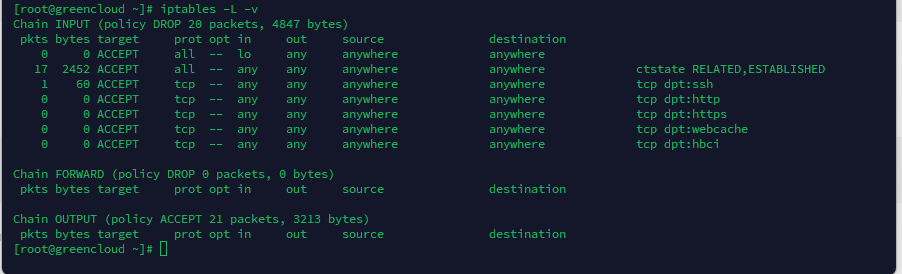
This guide should help you set up and manage iptables on AlmaLinux 9. Adjust the rules as per your specific requirements.
