
How to Stop RDP from Disconnecting Due to Inactivity
When using Remote Desktop Protocol (RDP), your session may automatically disconnect after a period of inactivity — typically 15 minutes, depending on system or security policies. This can be inconvenient if you need to keep your session open for a long time.
Below are two easy methods to prevent your RDP session from timing out.
Method 1: Configure via Group Policy Editor (Recommended)
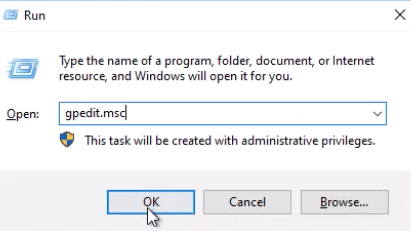
1.Press Win + R, type gpedit.msc, and click OK to open the Local Group Policy Editor.
2. Navigate to the following path:
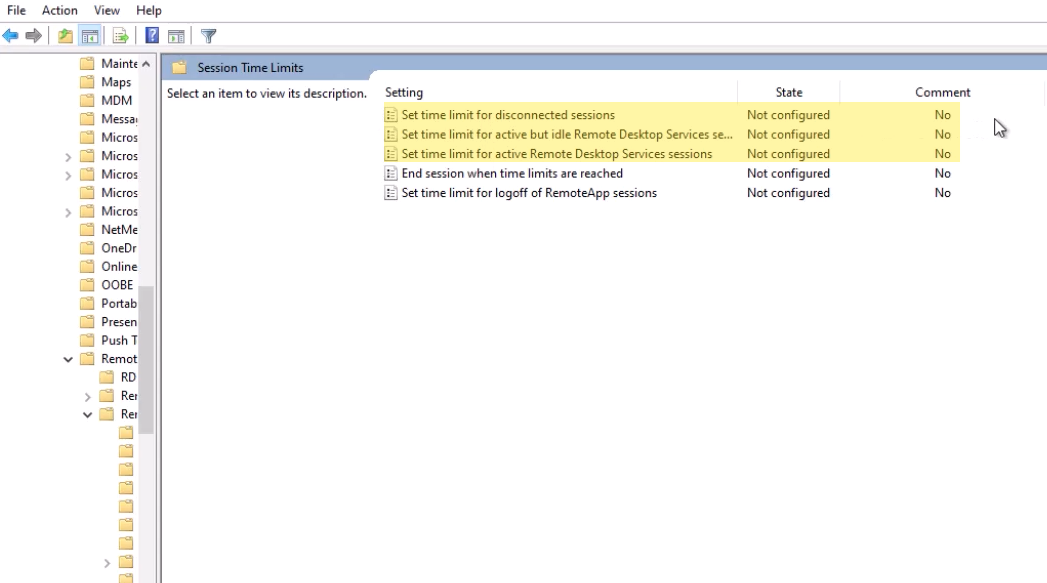
3. In the right-hand panel, locate these three settings:
-
Set time limit for disconnected sessions
-
Set time limit for active but idle Remote Desktop Services session
-
Set time limit for active Remote Desktop Services session
4. Configure each setting as follows:
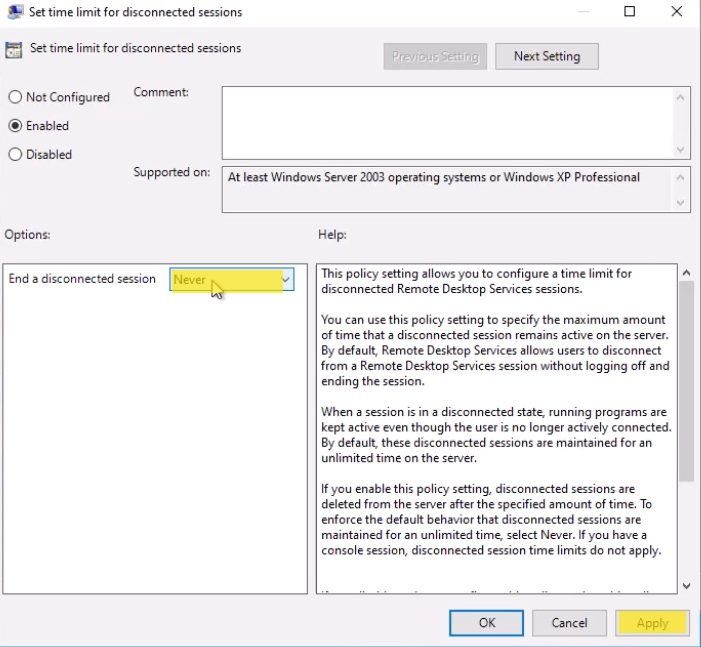
1) Set time limit for disconnected sessions
-
Double-click it
-
Select Enabled
-
Set End a disconnected session to Never
-
Click OK
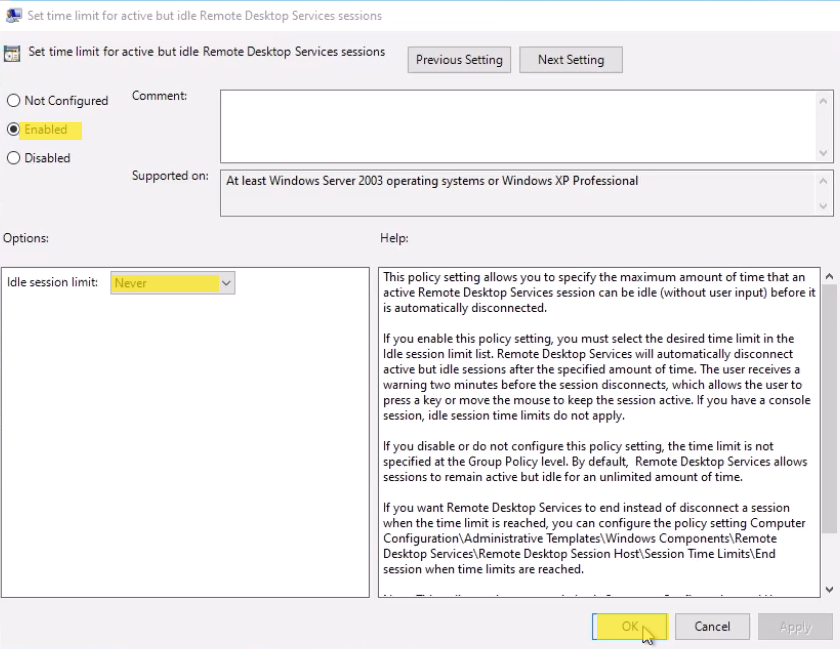
2) Set time limit for active but idle Remote Desktop Services session
-
Double-click it
-
Select Enabled
-
Set the time limit to Never
-
Click OK
3) Set time limit for active Remote Desktop Services session
-
Double-click it
-
Select Enabled
-
Set the time limit to Never
-
Click OK
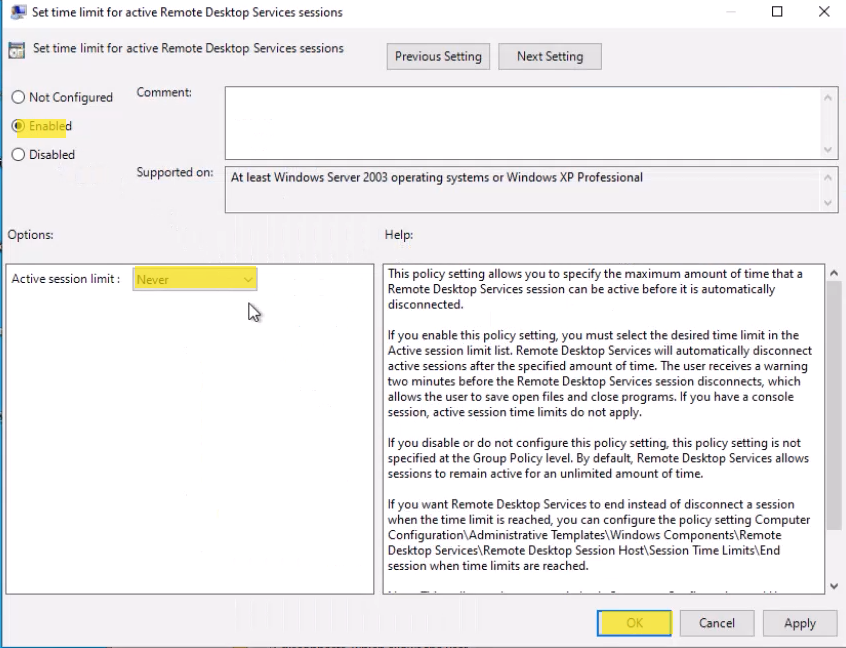
Once finished, you can close the Group Policy Editor. The changes should take effect immediately, but you may restart your computer if needed.
Method 2: Add a Registry Key (Advanced Users)
If you don’t have access to Group Policy Editor, you can achieve the same result using the Registry Editor.
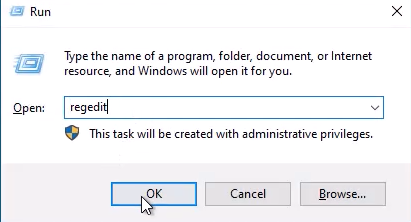
1. Press Win + R, type regedit, and press Enter to open the Registry Editor.
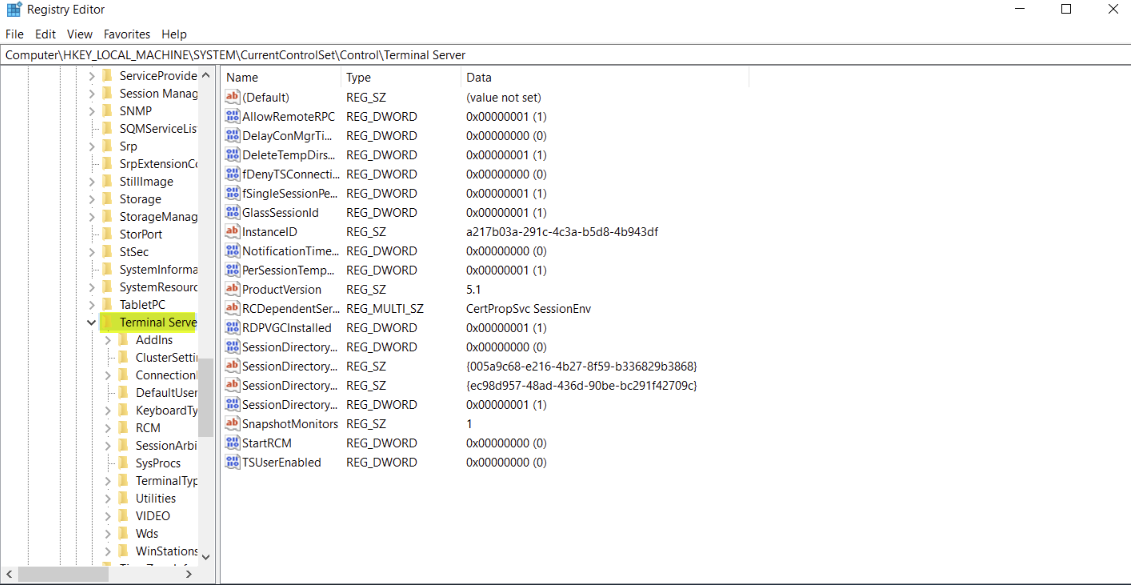
2. Navigate to: Computer\HKEY_LOCAL_MACHINE\SYSTEM\CurrentControlSet\Control\Terminal Server
3. Right-click in the right pane → select New → DWORD (32-bit) Value.
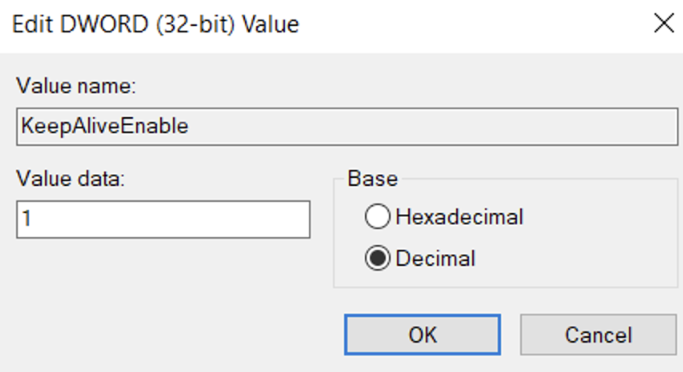
4. Name the new value: KeepAliveEnable
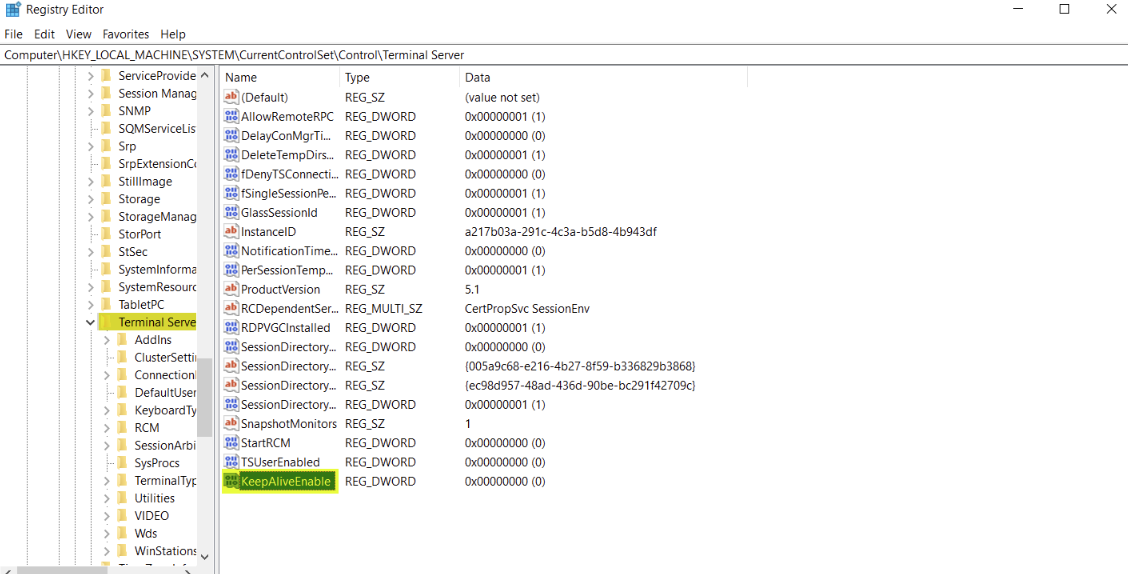
5. Double-click KeepAliveEnable, then set:
-
Value data: 1
-
Select Decimal
-
Click OK
6. Restart your computer to apply the changes.
Conclusion
After applying either of the two methods above, your RDP session will no longer automatically disconnect due to inactivity or time limits. You can keep your remote session running continuously without interruptions.
