
How to Install GParted on Ubuntu 24.04
GParted, or GNOME Partition Editor, is a powerful, free partition editor for graphically managing disk partitions. With GParted, users can effortlessly resize, copy, and move partitions without data loss, enabling more efficient disk space management. This utility supports a broad range of file systems, making it an indispensable tool for IT professionals and enthusiasts looking to tweak and optimize their storage solutions.
So, if you are still curious, why install GParted on Ubuntu?
- Versatility: Supports numerous filesystems, ensuring broad compatibility.
- No Data Loss: Safely resize, move, or copy partitions.
- Free and Open Source: Available at no cost, with open-source benefits.
- User-Friendly: Graphical interface simplifies partition management.
- Live CD/USB: Operate from a live session without booting into the OS.
- Batch Operations: Queue up changes and apply them all at once.
- Disk Health Monitoring: Includes tools to assess disk health.
- Advanced Features: Recovery, disk cloning, and more for seasoned users.
Opting for GParted on Ubuntu provides a straightforward yet powerful toolset for managing disk space, whether for routine maintenance or preparing a system for a new operating system installation. Its intuitive interface and robust functionality suit both novices and seasoned professionals.
Let’s dive into how to get GParted installed on your Ubuntu system.
First, you need to install the graphical user interface (GUI). You can refer to the instructions at the following link:
https://green.cloud/docs/how-to-install-a-desktop-gui-in-centos-rhel-vps/
Before installing GParted, ensuring that your Ubuntu system is up-to-date is essential. This practice helps maintain system stability and ensures you have the latest security patches and software updates.
To update your Ubuntu system, open a terminal and run the following command:
apt update && apt upgradeThis command will first update the package list (apt update) and then upgrade all installed packages to their latest versions (apt upgrade).
Install GParted with PPA
If you prefer a newer version of GParted, you can install it from the “xtradeb packaging” team’s PPA. First, import the PPA with the following command:
add-apt-repository ppa:xtradeb/apps -yThis command adds the “xtradeb packaging” team’s PPA to your system.
Next, update your APT package list to include the new repository:
apt updateLastly, install GParted from the newly added PPA with the following command:
apt install gpartedLaunching GParted on Ubuntu via GUI
GUI Method to Launch GParted
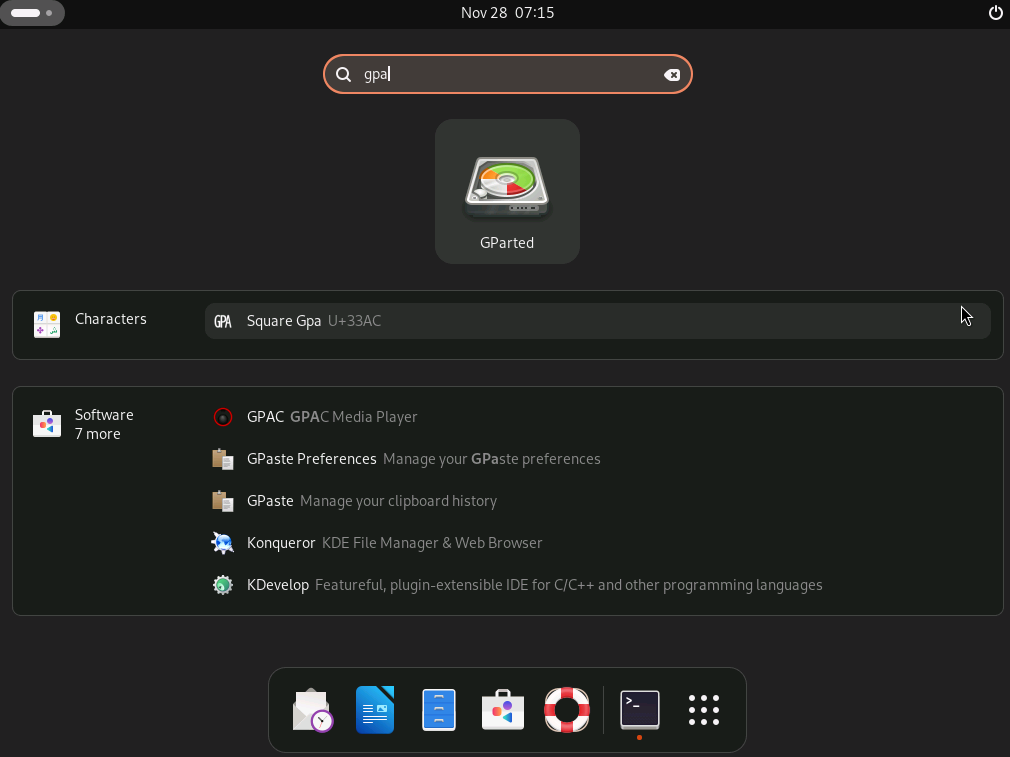
For those who prefer the graphical interface, GParted can be launched by locating its icon on the Ubuntu desktop. To find the GParted application, follow these steps:
- Click on the Activities button in the top-left corner of your screen.
- Select Show Applications at the bottom of the Activities menu.
- In the search bar, type “GParted” and press Enter.
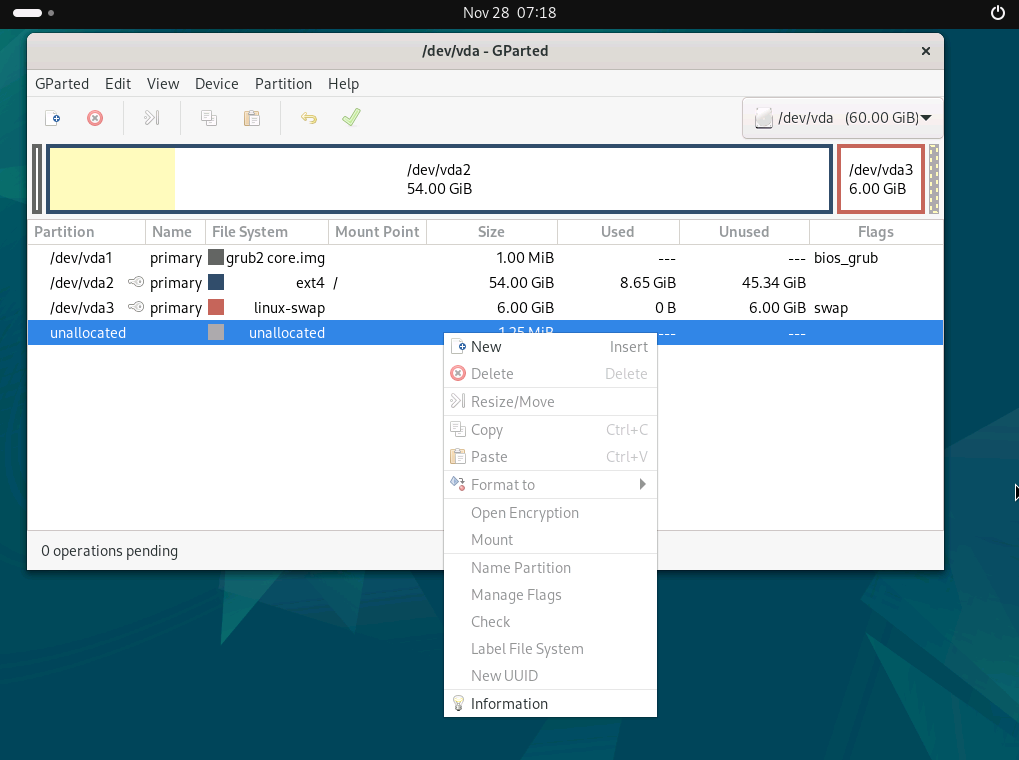
- Click on the GParted icon to launch the application.
Additional Commands with GParted
Remove GParted
There may come a time when you no longer need GParted on your Ubuntu Linux system. In such cases, you can easily uninstall the software and remove all associated data.
To altogether remove GParted and all data associated with it, enter the following command in the terminal:
apt remove gpartedThis command will prompt you to enter your password, then proceed to uninstall GParted from your system.
Closing Thoughts
In this guide, we’ve walked through the steps to install GParted on Ubuntu, showcasing methods: using the XtradDeb Applications LaunchPAD PPA for those seeking the latest release. As a final recommendation, always remember to back up your data before making any changes and take your time to familiarize yourself with the tool’s capabilities.
