
How to Install CMake on Ubuntu
CMake is a widely used, open-source tool that simplifies software build processes by generating files for platforms like Make, Ninja, and Visual Studio. It’s an essential tool for cross-platform development, whether you’re building desktop, mobile, or embedded applications.
Using two methods, this guide will show you how to install CMake on Ubuntu 24.04, 22.04, or 20.04. You can opt for the Ubuntu default repository for a quick and stable setup or compile CMake from the source to access the latest features. By the end, you’ll have CMake installed and ready to streamline your development workflow.
Before installing CMake, ensure your Ubuntu system is up to date. This minimizes potential errors during installation by providing the latest software and security updates.
Step 1: Command to Update and Upgrade
Run the following command in your terminal:
apt update && apt upgradeapt update: Refreshes the list of available packages and their versions.apt upgrade -y: Upgrades all installed packages to the latest versions automatically, without prompting for confirmation (-y).
Step 2: Check for Reboot Requirements
After updating, some updates (like kernel upgrades) may require a system reboot to take effect. If you see a prompt for a reboot or want to ensure your system is cleanly updated, use the following command:
rebootInstalling CMake on Ubuntu
The method of installing CMake on Ubuntu uses the default Ubuntu repository for quick and stable installation. You can use another method that involves compiling CMake from source code, providing the latest features with a bit of complexity.
Install CMake via Ubuntu Default Repository
Step 1: Install CMake from the Repository
To begin, open your terminal and run the following command to install CMake:
apt install cmakeStep 2: Verify the Installation
After installation is complete, verify that CMake is installed correctly by checking its version:
cmake --version
Testing Your CMake Installation
Testing your CMake installation ensures it is correctly configured and functioning as expected. This section demonstrates how to create and build a simple “Hello, World!” program, verifying that CMake is working properly on your Ubuntu system.
Step 1: Create a Test Directory
To begin, create a dedicated directory for your test project. This keeps your files organized and ensures the test is isolated from other projects. Open your terminal and execute the following command:
mkdir ~/cmake-test && cd ~/cmake-testThe mkdir The command creates a new directory called test-hello, and cd navigates into it.
Step 2: Create a C++ Source File
The next step is to write a basic C++ program to print “Hello, World!” to the terminal. Create a file named main.cpp in the same directory:
cat > main.cpp << EOF
#include <iostream>

int main() {
    std::cout << "CMake installation test successful!" << std::endl;
    return 0;
}
EOF
This code uses the C++ standard library to output “Hello, World!” to the terminal. Save and close the editor using the same steps as above.
Step 3: Set Up a CMakeLists.txt File
Create CMakeLists.txt:
cat > CMakeLists.txt << EOF
cmake_minimum_required(VERSION 3.10)
project(CMakeTest LANGUAGES CXX)

add_executable(hello main.cpp)
EOF
Step 4: Generate a Build System with CMake
Configure and build:
mkdir build && cd build
cmake ..
cmake --build .
If you encounter the following error
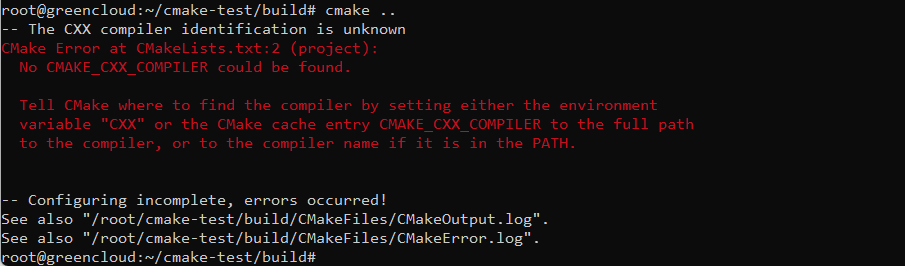
You can fix it by following these instructions:
apt update && apt install build-essential -y
cd ~/cmake-test
rm -rf build
mkdir build && cd build
cmake ..
cmake --build .
Step 5: Run the Program
Finally, run the compiled program to verify everything is working correctly:
./helloYou should see the following output in the terminal:
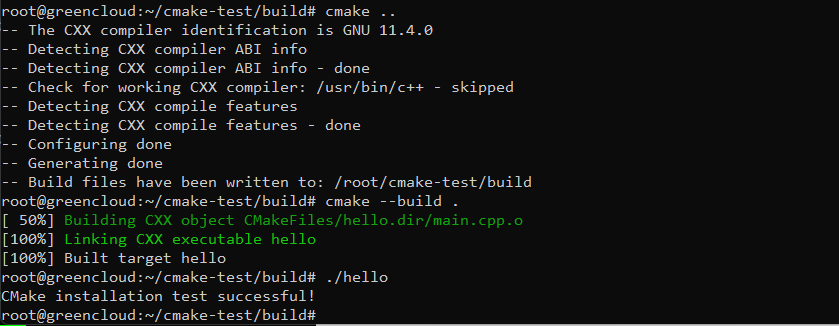
This confirms that CMake is installed and functioning as expected on your system.
Conclusion
Installing CMake on Ubuntu is a crucial step for developers seeking to streamline their software build processes. Whether you choose the convenience of the Ubuntu default repository or the flexibility of compiling from source, both methods provide the tools needed for effective cross-platform development. The repository method is quick and reliable for most users, while compiling ensures access to the latest features and customization options.
Keeping CMake updated is vital to leverage new features, security patches, and performance improvements. With its robust capabilities, CMake empowers developers to efficiently manage builds for desktop, mobile, and embedded systems, making it a cornerstone of modern software development.
