
How to Upgrade Ubuntu 24.04 LTS to Ubuntu 26.04 LTS
Introduction
Ubuntu 26.04 LTS is the latest Long Term Support release, offering five years of security updates, newer software packages, improved hardware compatibility, and better overall performance. If you’re currently running Ubuntu 24.04 LTS, upgrading to Ubuntu 26.04 LTS is the recommended way to stay supported without performing a fresh installation.
The upgrade process is straightforward and uses Ubuntu’s built-in release upgrade tool. As long as your system is fully updated and you have a reliable Internet connection, the entire process typically takes between 20 and 60 minutes depending on your hardware and download speed.
In this guide, we’ll walk through each step required to safely upgrade Ubuntu 24.04 LTS to Ubuntu 26.04 LTS.
Prerequisites
Before starting the upgrade, make sure you have:
- A backup of any important files.
- A stable Internet connection.
- At least 3 GB of free disk space (more is recommended).
- A user account with sudo privileges.
You can verify your current Ubuntu version with:
lsb_release -a
or
cat /etc/os-release
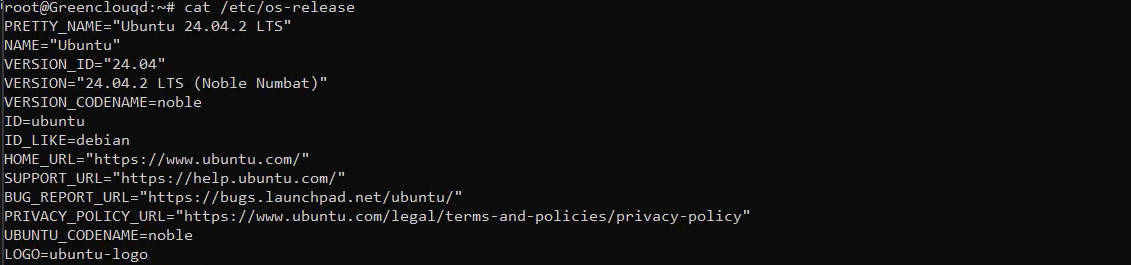
You should see Ubuntu 24.04 LTS.
Step 1: Update Your Current Installation
Before upgrading, install all available updates to ensure your system is fully up to date.
sudo apt update
sudo apt full-upgrade -y
sudo apt autoremove --purge -y
sudo apt clean
If a new kernel is installed, reboot your system before continuing.
sudo reboot
Step 2: Install the Release Upgrade Tool
Ubuntu uses the update-manager-core package to perform release upgrades.
Install it if necessary:
sudo apt install update-manager-core -y
Next, verify the release upgrade configuration:
cat /etc/update-manager/release-upgrades
Ensure the following option is configured:
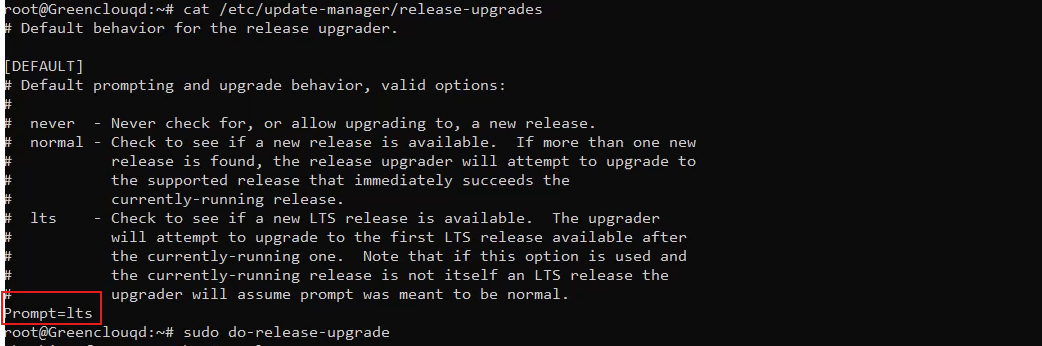
Prompt=lts
This tells Ubuntu to upgrade only to the next Long Term Support release.
Step 3: Start the Upgrade
Begin the upgrade with the official command:
sudo do-release-upgrade
If Ubuntu 26.04 has only recently been released and isn’t detected yet, you can use:
sudo do-release-upgrade -d
The upgrade tool will:
- Check package compatibility.
- Download Ubuntu 26.04 packages.
- Install updated packages.
- Remove obsolete packages.
- Prepare the system for reboot.
Simply follow the on-screen prompts until the process finishes.
Step 4: Reboot the System
Once the upgrade is complete, restart your system.
sudo reboot
Your system will boot into Ubuntu 26.04 LTS.
Step 5: Verify the Upgrade
After logging back in, confirm the upgrade completed successfully.
lsb_release -a
or
cat /etc/os-release
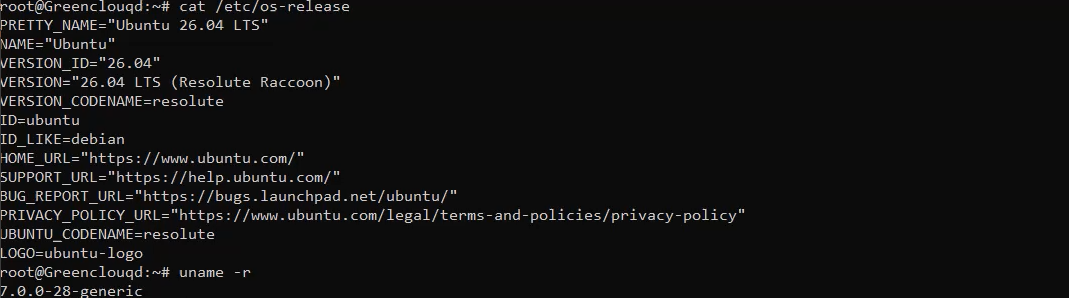
The output should indicate that your system is now running Ubuntu 26.04 LTS.
You can also verify the running kernel:
uname -r
Troubleshooting
Upgrade not available
Refresh package information and ensure the release upgrader is installed.
sudo apt update
sudo apt install update-manager-core
sudo do-release-upgrade
If necessary, retry using:
sudo do-release-upgrade -d
Insufficient disk space
Check available storage:
df -h
Remove unused packages:
sudo apt autoremove --purge
sudo apt clean
Interrupted upgrade
If the upgrade is interrupted unexpectedly, repair package configuration:
sudo dpkg --configure -a
sudo apt --fix-broken install
Conclusion
Upgrading from Ubuntu 24.04 LTS to Ubuntu 26.04 LTS is a simple process thanks to Ubuntu’s built-in release upgrade utility. By updating your existing installation, running the official upgrade command, and following the on-screen instructions, you can move to the latest LTS release without reinstalling the operating system.
After the upgrade, you’ll benefit from improved performance, newer software versions, enhanced hardware compatibility, and continued long-term security support. Performing regular system updates after upgrading will help keep your Ubuntu installation secure, stable, and ready for future releases.
