
How to Install and Configure Jenkins on AlmaLinux 9
Introduction
Jenkins is an open-source automation server widely used for Continuous Integration and Continuous Delivery (CI/CD). It helps automate building, testing, and deploying applications, making development workflows faster and more reliable.
In this guide, you will learn how to install and configure Jenkins on AlmaLinux 9 step by step, along with verification and troubleshooting tips.
Prerequisites
Before starting, make sure you have:
- AlmaLinux 9 server installed
- A user with sudo privileges
- Minimum 2 GB RAM (recommended)
- Internet connection
- Firewall access to port 8080
Step 1: Update the System
Update all system packages:
sudo dnf update -y
Step 2: Install OpenJDK
Jenkins requires Java to run. Install OpenJDK 21:
sudo dnf install java-21-openjdk -y
Verify Java Installation
java -version
Step 3: Add Jenkins Repository Key
Import the Jenkins GPG key:
sudo rpm --import https://pkg.jenkins.io/redhat-stable/jenkins.io-2023.key
Step 4: Add Jenkins Repository
Add the official Jenkins repository:
sudo wget -O /etc/yum.repos.d/jenkins.repo https://pkg.jenkins.io/redhat-stable/jenkins.repo
Step 5: Install Jenkins
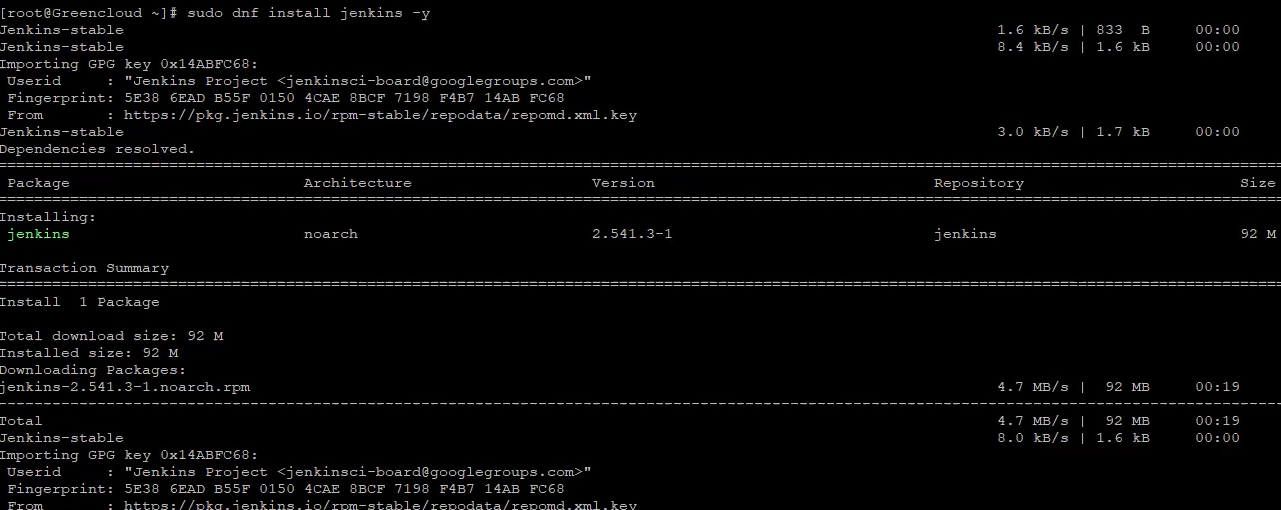
Install Jenkins package:
sudo dnf install jenkins -y
Step 6: Start Jenkins Service
Start Jenkins:
sudo systemctl start jenkins
Step 7: Enable Jenkins on Boot
Enable Jenkins to start automatically:
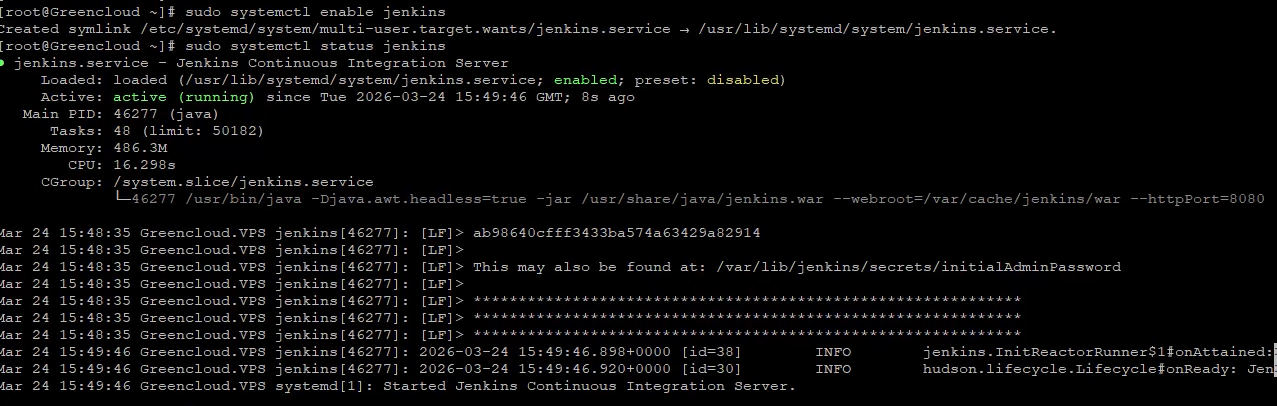
sudo systemctl enable jenkins
Step 8: Check Jenkins Status
Verify Jenkins is running:
sudo systemctl status jenkins
Step 9: Retrieve Initial Admin Password
Get the default admin password:
sudo cat /var/lib/jenkins/secrets/initialAdminPassword

Step 10: Access Jenkins Web Interface
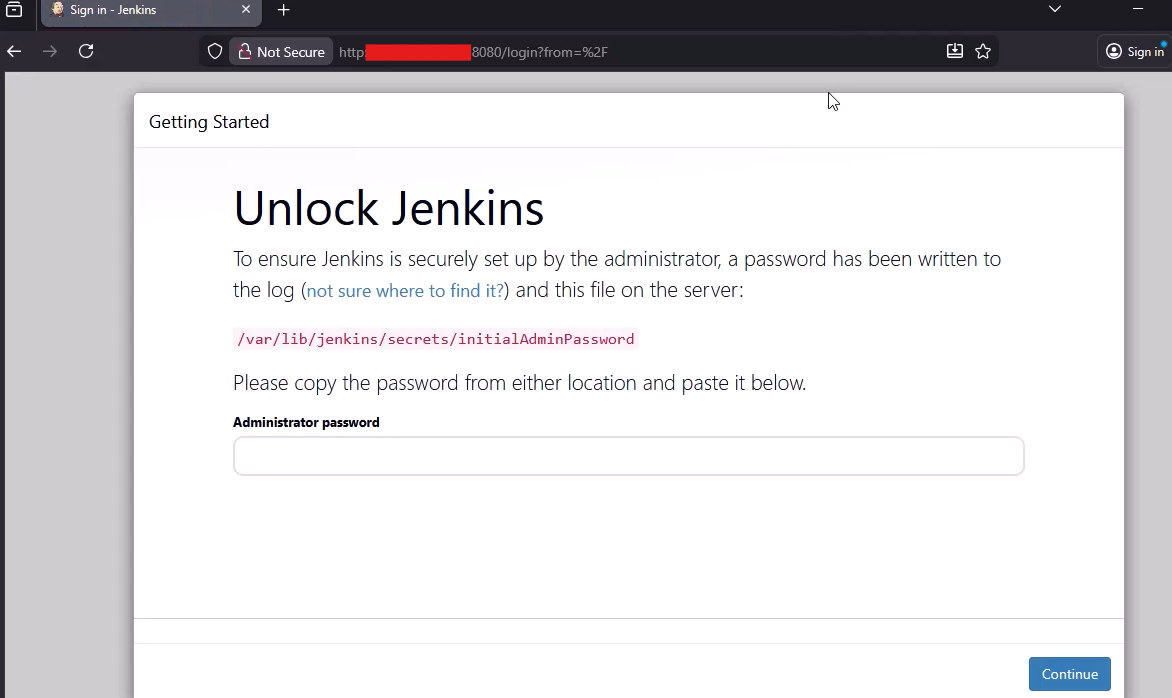
Open your browser and go to:
http://your-server-ip:8080
Initial Setup
- Enter the admin password
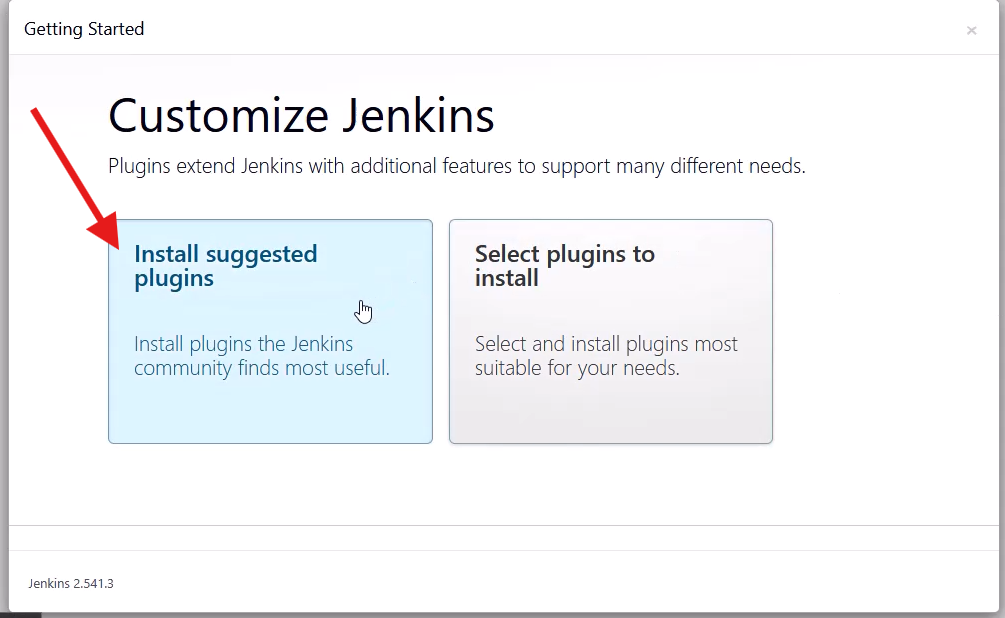
- Click Install suggested plugins
- Wait for installation
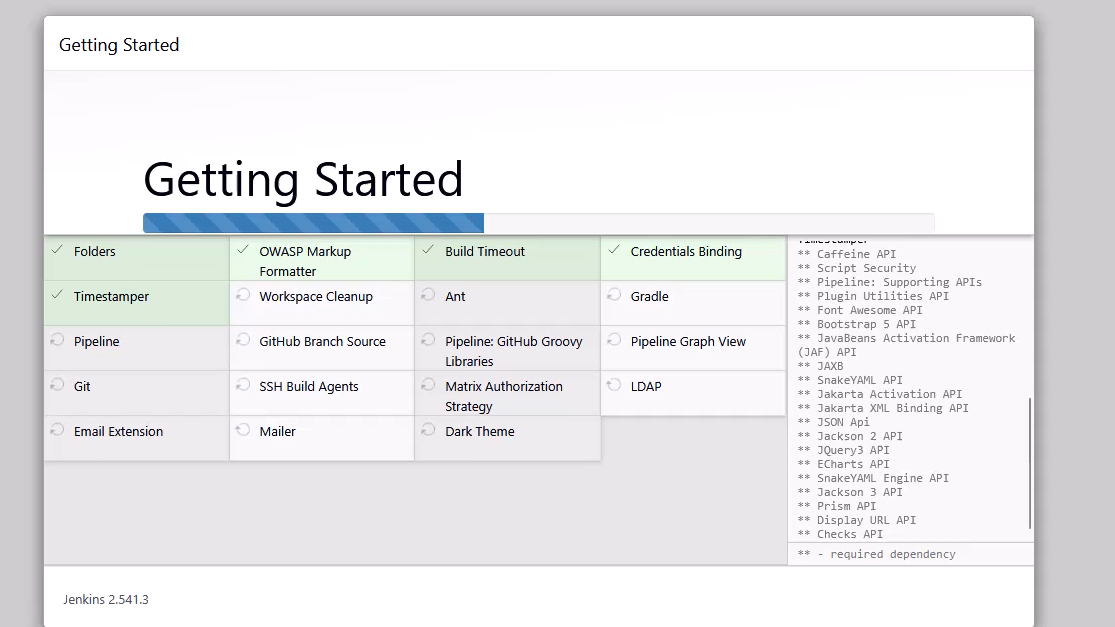
- Create admin user
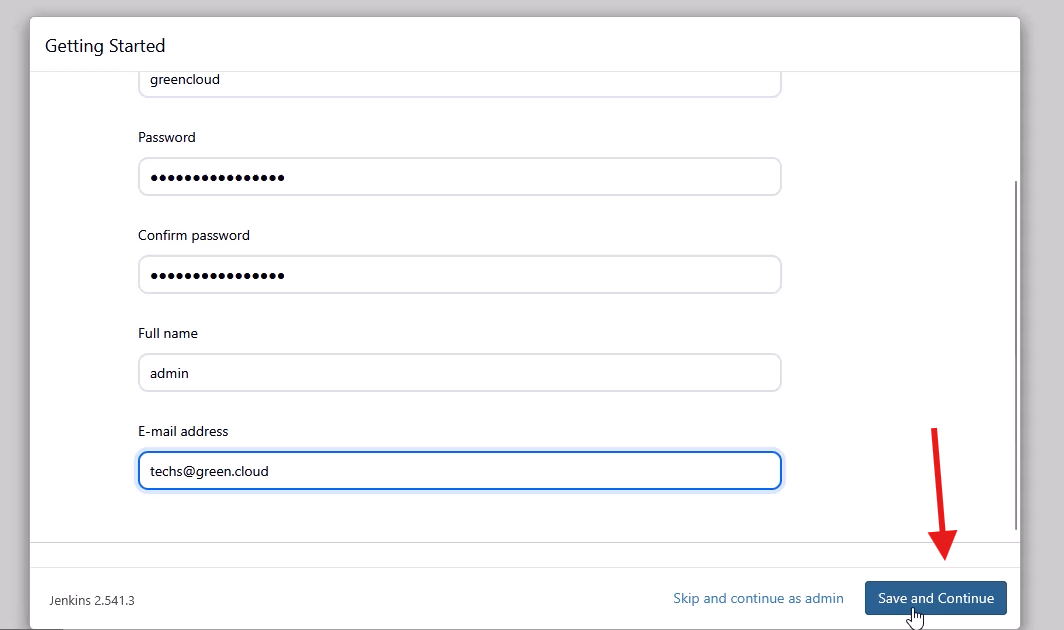
- Set Jenkins URL
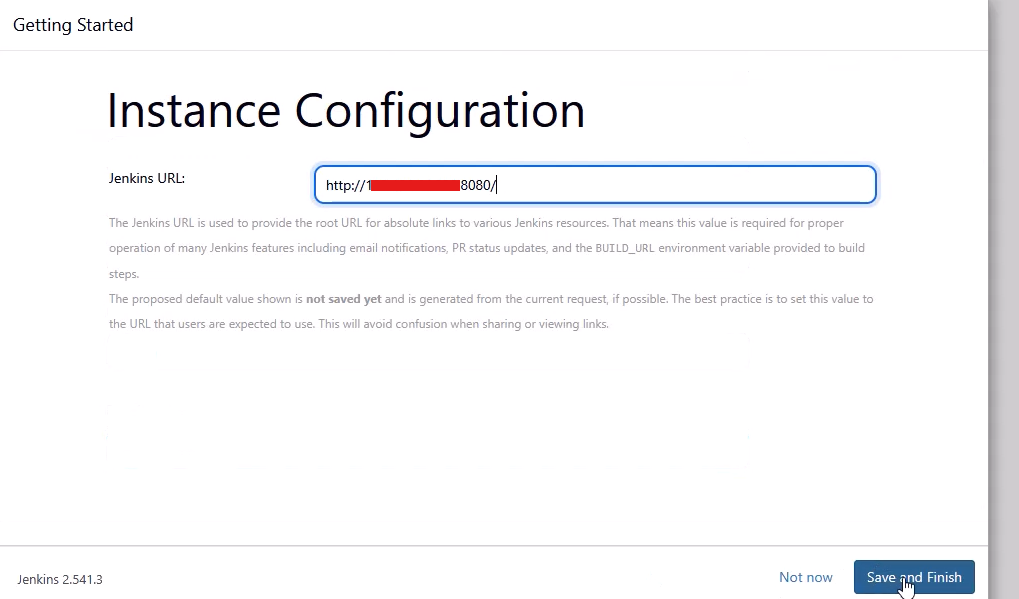
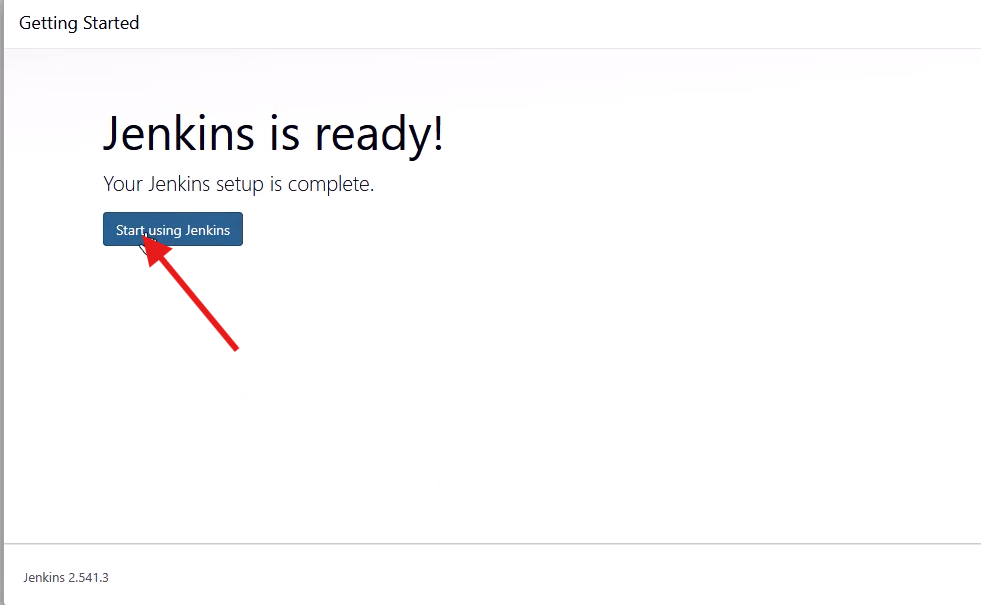
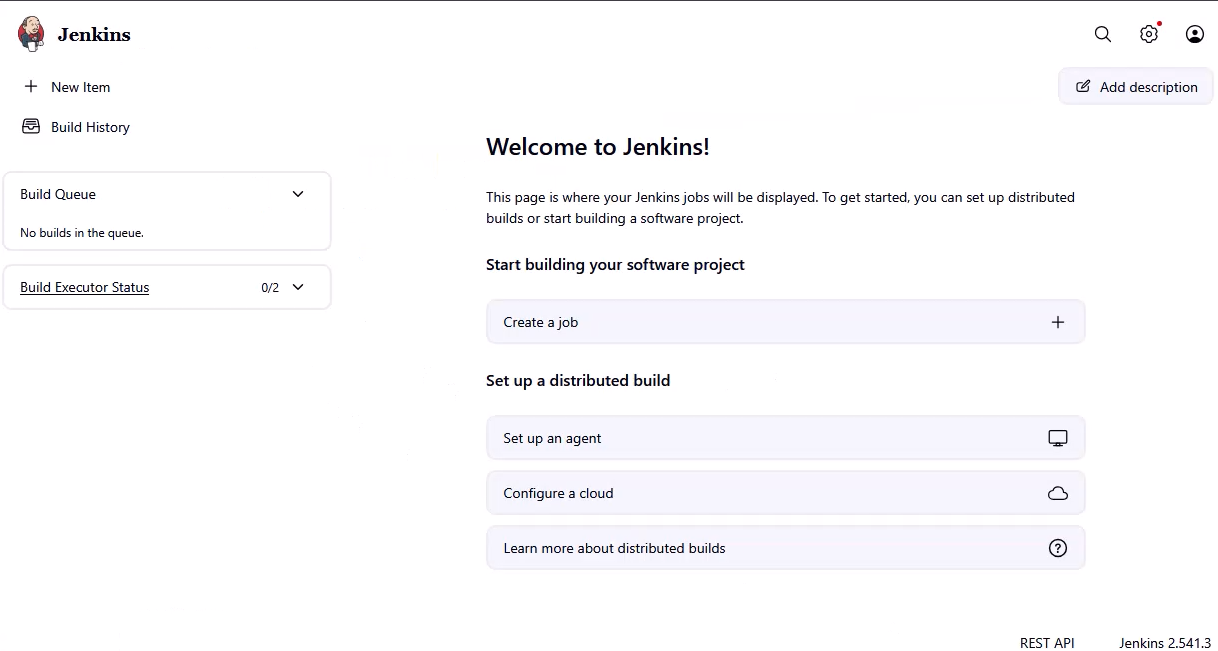
- Click Start using Jenkins
Troubleshooting
1. Jenkins not starting
Check service status:
sudo systemctl status jenkins
Check logs:
sudo journalctl -u jenkins -xe
2. Cannot access Jenkins (port 8080)
- Check firewall:
sudo firewall-cmd --list-ports
- Check port:
ss -tulnp | grep 8080
3. Java issues
Ensure Java is installed:
java -version
Security Recommendations
- Do not expose port
8080directly to the internet - Use Nginx reverse proxy
- Enable HTTPS (SSL)
- Restrict access by IP or VPN
- Regularly update Jenkins and plugins
Conclusion
You have successfully installed and configured Jenkins on AlmaLinux 9. Jenkins is now ready to be used for automating your CI/CD pipelines, integrating with Git repositories, and managing deployments.
For production environments, it is recommended to enhance security using a reverse proxy (Nginx) and SSL certificates.
