
How to Fix UEFI Boot Failure on Windows Without Reinstalling
Introduction
If your Windows machine fails to boot with errors like:
-
0xc0000098
-
“A required device isn’t connected or can’t be accessed.”
-
“No bootable device.”
-
Missing or corrupt,
BCDorbootmgfw.efi
…it’s likely your UEFI boot configuration is broken.
This guide shows how to repair Windows UEFI boot without reinstalling the OS or losing data — using only built-in tools from the Windows installation media.

Step 1: Boot from Windows Installation ISO
- Boot the system using a Windows installation ISO (USB, DVD, or virtual ISO)
- Next, click “Repair your computer” in the bottom-left corner. Navigate to:
Troubleshoot→Advanced options→Command Prompt
— or simply pressShift + F10to open it directly.

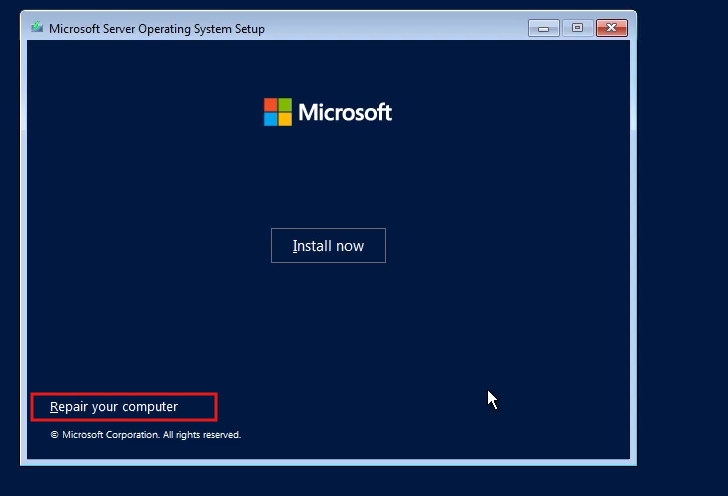

Step 2: Run These Commands (In Exact Order)
These steps repair the bootloader and rebuild the UEFI boot configuration.
1. Scan and repair boot structures
bootrec /scanos         :: Scan for existing Windows installations

bootrec /fixmbr         :: Write a new MBR (safe even for GPT/UEFI)

bootrec /fixboot        :: Write new boot sector (may fail in UEFI – can ignore)

bootrec /rebuildbcd     :: Rebuild Boot Configuration Data (BCD)

2. Assign drive letters to the Windows and EFI partitions
diskpart
select volume 1 :: Usually the Windows OS partition
assign letter=C
select volume 2 :: Usually the EFI System Partition (FAT32)
assign letter=E
exit


Ensure:
-
C:points to your Windows installation (C:\Windows) -
E:Is your EFI partition (small, ~100–300MB, FAT32)
3. Rebuild the EFI boot files
This command copies boot files to the EFI partition and creates a fresh BCD store.

4. Optional: View current boot configuration
Useful for verifying that the system now has correct boot entries.

Step 3: Reboot
Before rebooting:
-
Detach the ISO or USB if needed
Then:
The system should now boot into Windows normally.

Conclusion
By following these steps, you’ve:
-
Repaired a corrupted or missing UEFI bootloader
-
Rebuilt the BCD store from your existing OS
-
Avoided full reinstallation and preserved your data
This is a reliable and repeatable method for resolving common UEFI boot failures on Windows systems.
